


If your computer can’t find the printer, the first step is to open the right panel: in Windows, it’s under Settings > Bluetooth & devices > Printers & scanners, while on Mac you can check it from Apple menu > System Settings > Printers & Scanners. That’s where printers already connected via USB, Wi-Fi, Bluetooth or network will appear.
The key is to work out whether the printer has already been added and you simply need to find its name, or whether the system has not detected it yet. It may sound trivial, but more than one tech battle starts with a printer hidden in a menu, as if it were using stealth mode in a video game.
Where to view connected printers in Windows and Mac
In Windows 11, open the Start menu, go to Settings and select Bluetooth & devices. Then click Printers & scanners. The list of available devices appears just below the option to add a new printer or scanner. If you use Windows 10, the path is slightly different: open Settings, go to Devices and then Printers & scanners. You can also open Settings quickly with the Windows + I shortcut, a small classic for anyone who prefers to go straight to the modern control panel.
On a Mac, the process is just as simple. Click the Apple menu in the top-left corner, open System Settings and look for Printers & Scanners in the sidebar. You may need to scroll a little to find it. Under the printers section, you’ll see the devices already connected to the computer.
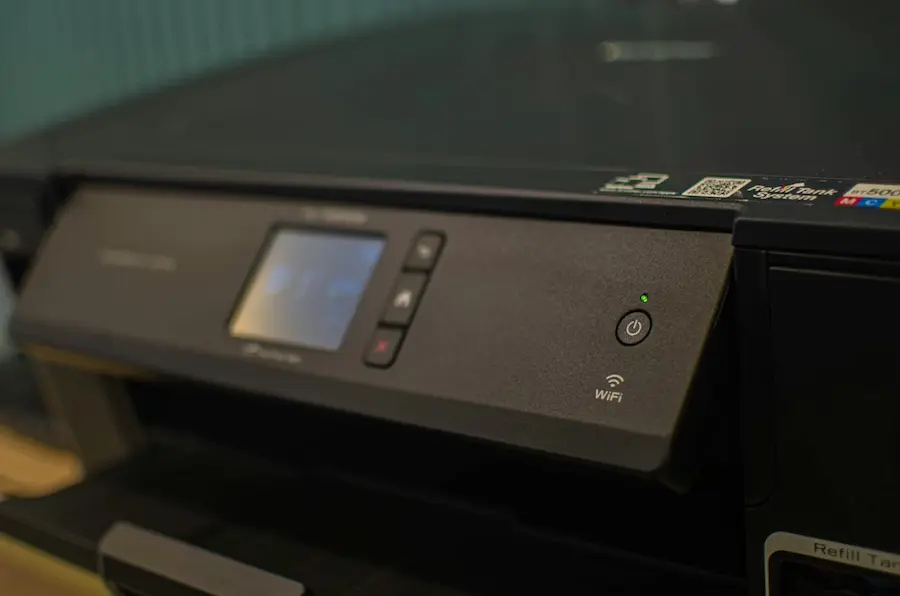
If your printer’s name appears in that list, the computer has it registered. If it does not appear, that does not necessarily mean there is a serious problem: you probably just need to add it again or help the system detect it.
How to add a printer that does not appear
In Windows, from Printers & scanners, click Add device. The system will search for printers connected by cable, Wi-Fi or Bluetooth, and will show the models available on the network or linked to the computer. When yours appears, select Add device and it should be installed automatically. In Windows 10, you’ll see a similar option with the + symbol next to “Add a printer or scanner”.
When Windows cannot find the printer, it is worth using manual installation. The option may take a few seconds to appear and is usually shown as Add a new device manually or The printer that I want isn’t listed. From there, you can choose alternatives such as searching for an older printer, adding a shared printer by name or connecting using an IP address. This last method is especially useful on some devices with ARM architecture or when the printer is on the network.
On Mac, go to System Settings > Printers & Scanners and click Add Printer, Scanner or Fax. If it is a Wi-Fi, Bluetooth or network printer, it should appear in the pop-up window. Select it and confirm with Add. If it is USB, first make sure the cable is connected. If it still does not appear, you can add it from the tab with the globe icon by entering its IP address.
What to check if the computer does not detect the printer
When a wireless printer refuses to cooperate, the first suspect is usually the network. The computer and the printer must be connected to the same Wi-Fi network. You can check the PC’s network from the Wi-Fi icon in the Windows taskbar, and on Mac from the Wi-Fi icon in the menu bar. The printer itself usually shows its connection status on its built-in screen.
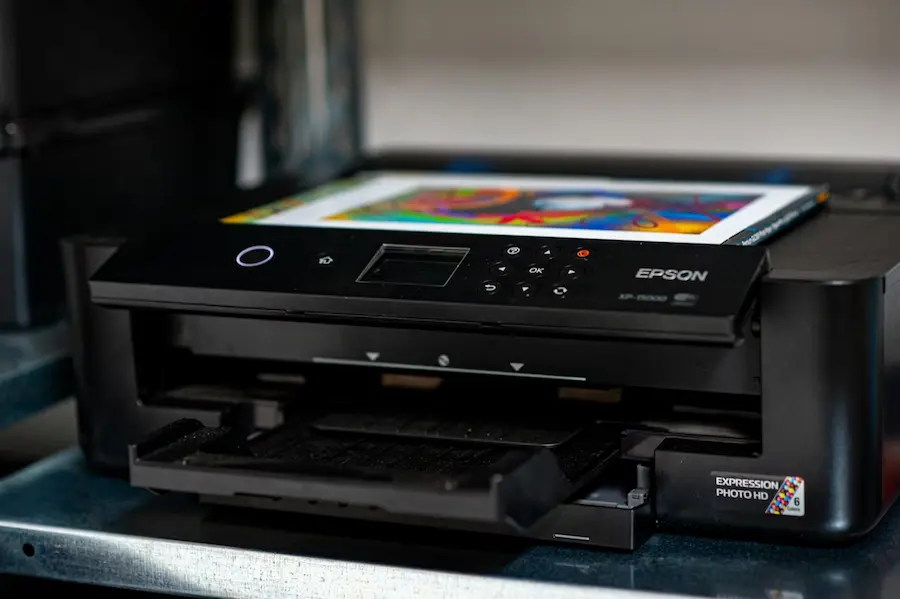
It may also be the case that a Wi-Fi printer needs an initial USB setup before it can work wirelessly. Connecting it temporarily to the computer may be enough for the system to recognise it and complete the installation. Afterwards, if everything is configured correctly, you should be able to remove the cable and continue printing over the network.
If the model uses Bluetooth, check that Bluetooth is enabled on the computer and that the printer is ready to pair. In Windows, you can open quick settings with Windows + A; on Mac, use the Bluetooth icon in the menu bar or Control Centre. Some printers require a specific pairing mode, so the manual may be more useful than it seems.
For USB connections, check that the cable is firmly connected and in good condition. Trying another cable can save you an afternoon of pointless troubleshooting. On Macs with a single USB-C port, Apple recommends using a multiport adapter and connecting it to power to avoid excessive battery drain.
Finally, some printers depend on the manufacturer’s software or a configuration profile, especially in managed network environments. If the operating system or drivers are out of date, detection problems can also appear. Keeping Windows or macOS up to date will not turn a printer into a cutting-edge smart gadget, but it does help stop it behaving like technology from another era.


