
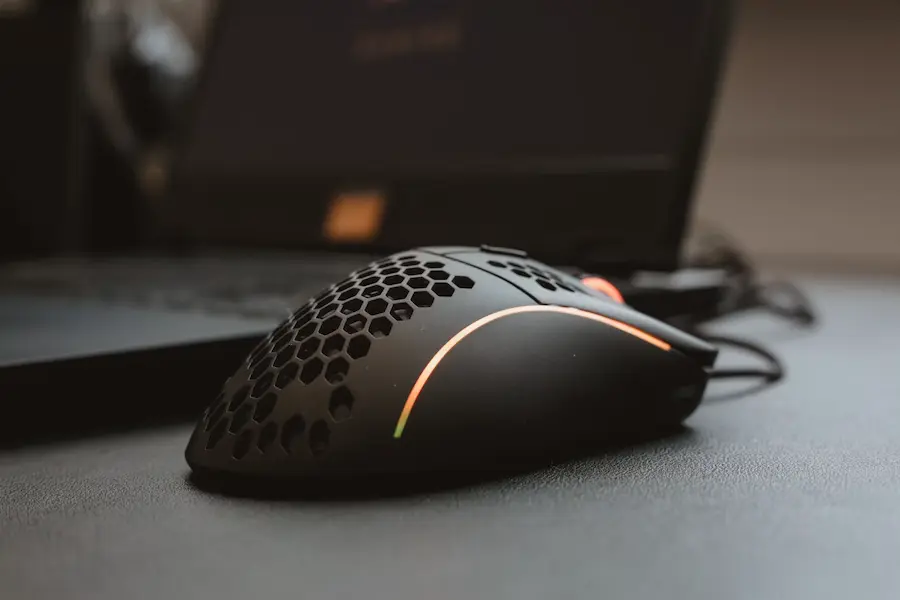

Changing the primary mouse button in Windows is one of those small options that can significantly change the way you use your PC, especially if you are left-handed, share your computer with someone else, or simply want to adapt the peripheral to the way you work. In Windows, the primary click is assigned to the left button by default: the one used to select items, open menus, press buttons, and do almost everything we take for granted when navigating the system.
The good news is that you do not need to install obscure drivers, buy a special mouse, or dive into hidden menus worthy of an old BIOS. Windows lets you swap the primary and secondary buttons from Settings, which is the most direct route in Windows 11 and Windows 10, or from the classic Control Panel, which is still there for anyone who prefers the traditional Windows settings. Does it make sense to change it? If you are going to use the mouse with your left hand, probably yes; although the physical design of the mouse itself can have a major impact on comfort.
Change the primary button from Settings
The quickest method is to open the Windows Settings app. You can do this with the Win + I shortcut, the no-nonsense power-user route, although you can also right-click the Windows icon on the taskbar and choose Settings, or open it from the Start menu. Once inside, the path changes slightly depending on your version of the system.
In Windows 11, go to Bluetooth & devices and then open Mouse. In Windows 10, the equivalent section is under Devices and then Mouse. There you will find the option dedicated to the primary mouse button, usually with a drop-down menu near the top of the screen. If you want the right button to become the primary one, simply select Right.
The change is applied instantly and Windows saves the setting automatically, so there is no need to look for a save button or restart the computer. From that moment on, however, the click logic is reversed: the physical right button will act as the primary click, while the left button will behave as the secondary one. If you want to return to the usual layout, go back to the same drop-down menu and select Left, bearing in mind that you will already be interacting with the swapped buttons.
Use Control Panel to swap the buttons
Control Panel also lets you do exactly the same thing, and it can be useful if you are used to classic Windows windows or if the Settings app is not your natural starting point. To open it, type Control Panel in the taskbar search box and select the corresponding result when it appears in the Start menu.
Once inside, it is worth changing the view from the menu in the top-right corner. If it is organised by categories, select Large icons or Small icons; this will make the Mouse shortcut easier to see. Opening it will bring up the mouse properties window, usually already on the Buttons tab. If not, just switch to that tab manually.
In the button settings, you will find a checkbox to switch primary and secondary buttons. When you tick it, the left click and right click immediately swap functions. To confirm the setting, click OK and close Control Panel. If you later want to undo the change, you will need to go back to the same checkbox and untick it, remembering that the primary click will already be assigned to the opposite button. A small detail, but enough to make it feel as if Windows has gone into mischievous mode for a few seconds.
When it is worth changing it and what to keep in mind
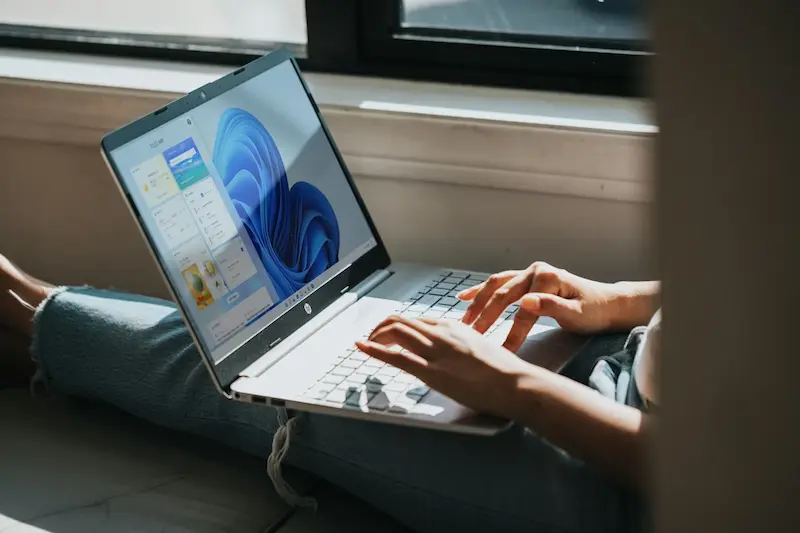
You do not need a special mouse to change the primary button in Windows. The system allows you to do it with the peripheral you are already using, so the option works with both basic mice and more advanced models. The practical question is ergonomics: if your mouse has a very pronounced right-handed shape, swapping the buttons may work at software level, but it might not be comfortable to use with your left hand for long periods. If you are doing it for comfort or accessibility, it may also be worth reviewing settings such as high contrast in Windows.
In those cases, the source points to a fairly logical alternative: using a left-handed mouse or a flatter, more universal model. It is not essential, but it may be a better fit if the change is not occasional but part of your daily setup. Windows makes the digital side easy; physical comfort, as is often the case with keyboards, chairs, and other desktop items, depends on the hardware in front of you.
It is also a practical option for quickly adjusting a shared PC. If each person uses their own account, changing the user name in Windows is another simple setting in that same scenario. If one person uses the mouse with their left hand and another with their right, it only takes a few clicks to switch between both modes from Settings or Control Panel. There is no magic, no additional software, and no serious learning curve: just a system setting that, when used well, makes the computer adapt better to the user instead of forcing the user to adapt to the computer.


