
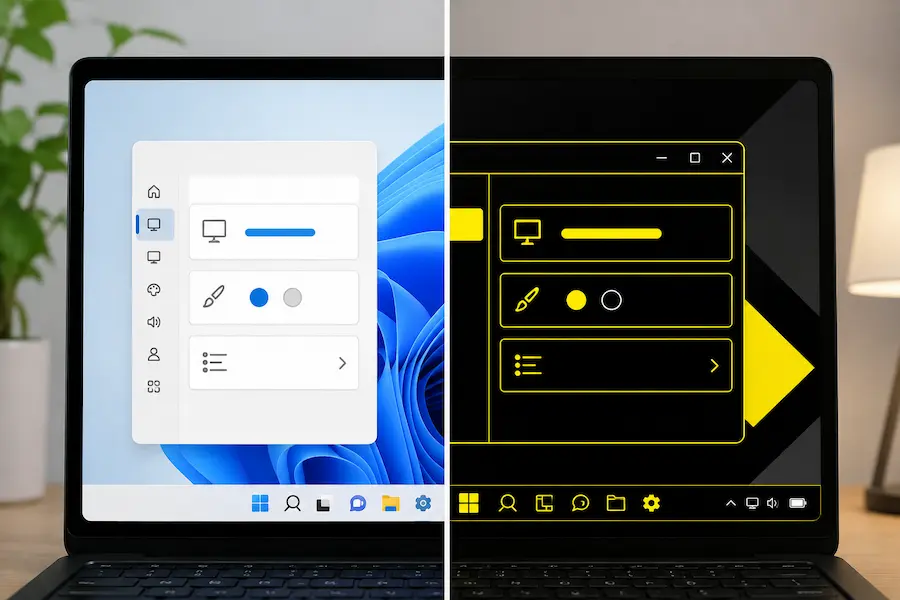

Windows high contrast mode is one of those accessibility features that tends to go unnoticed until you actually need it: it changes the system’s appearance so that text, links, buttons and other interface elements stand out more clearly on screen. If you came here looking for a quick way to turn it on or off, the short answer is simple: in Windows 11 and Windows 10, you can toggle it with the shortcut Left Alt + Left Shift + Print Screen, as long as the option is available and your keyboard supports it.
The point is that Microsoft does not treat it as a simple visual filter, but as a contrast theme that can be applied across the whole system and, in some cases, customised. It is not the kind of setting most people change just for geeky style points, although more than one user has turned it on by accident and wondered whether Windows had suddenly entered cyberpunk mode. Who has not pressed a mysterious key combination and feared the worst for half a second?
The fastest shortcut to turn high contrast on or off
The most direct method works in both Windows 11 and Windows 10: hold down Left Alt, then Left Shift, and then press Print Screen. On some keyboards this key appears as PrtSc, Prt Scr or Print Screen, so it is worth locating it before blaming the operating system. If that key shares a function with another one, such as Insert or Right Shift, you may also need to hold down the Fn key.
A small but useful detail: the order can matter. The recommended combination is Left Alt, then Left Shift and finally Print Screen; if Fn is needed, it should be pressed before Print Screen. When you release the keys, Windows may turn high contrast on or off directly, or show a pop-up window asking you to confirm the change. That prompt helps avoid surprises, especially if you share the computer or if your keyboard seems to have more layers than a high-end motherboard.
If the shortcut does not respond, it does not necessarily mean something is broken. In Windows 11, the keyboard shortcut for contrast themes may be disabled, in which case you will need to go through Settings. There is also the option to enable visual alerts or a sound when the shortcut is used, a fairly obvious signal that the change has been applied.
How to set it up in Windows 11 step by step
In Windows 11, high contrast is managed through contrast themes, inside the accessibility section. The quickest way to get there is to press Windows + I to open Settings. From there, go to Accessibility and then Contrast themes. On that screen you will see several options available from a drop-down menu, with previews that help you choose before applying the change.
When you select a theme, click Apply. It is normal for Windows to take a few seconds to change the system’s appearance; during that brief interval, the screen may appear to be processing the update. Once applied, that theme is ready to be toggled with the keyboard shortcut mentioned above, which is much more convenient if you need to enter and exit high contrast mode frequently.
To disable it from the menu, simply go back to Settings, open Accessibility, go to Contrast themes and choose None from the drop-down menu. It is a fairly consistent approach for modern Windows: fewer standalone switches and more settings grouped by purpose, even if that sometimes means digging a little deeper than expected.
In that same area, you can check whether the keyboard shortcut for contrast themes is enabled. You can also turn on a notification when using it from the keyboard and set up a sound to indicate when it has been enabled or disabled. It is not the most glamorous setting in the panel, but when it comes to accessibility, predictability matters more than any polished animation.
Options in Windows 10 and access from the sign-in screen
In Windows 10 the path is slightly different, because Microsoft was still using the Ease of Access section to group these features. Open Settings with Windows + I, go to Ease of Access and select High contrast in the side menu. There you will find the switch to turn the feature on. When you do, a waiting screen may appear for a few seconds before the new look is fully applied.

As well as turning high contrast on or off, Windows 10 lets you choose a theme from a drop-down menu. If the default look does not fit what you need, you can change it and adjust specific colours for elements such as text, buttons or links. You then need to click Apply to save the changes, and once again there may be a short wait while the system updates the interface.
To turn it off, the process is just as simple: go back to Settings, open Ease of Access, go to High contrast and disable the corresponding switch. Once you have chosen a theme, you can also toggle it with the keyboard shortcut, avoiding the need to repeat the full path every time. That is the difference between having a feature hidden in menus and turning it into a genuinely useful tool.
There is another useful point in both Windows 11 and Windows 10: high contrast can also be enabled from the sign-in screen. In Windows 11, this is done from the accessibility icon, shaped like a person; in Windows 10, from the Ease of Access icon. From there, you can turn the option on or off before even signing in to your account, which is especially useful if the screen is difficult to read from the very beginning.
In short, if you want speed, the Left Alt + Left Shift + Print Screen shortcut is the most efficient route. If you want to choose a theme, control alerts or customise colours, you will need to go through Settings. There is nothing to install and no advanced options to touch: Windows already includes the tool, and knowing where it is can save you quite a few clicks when screen visibility is not on your side.


