
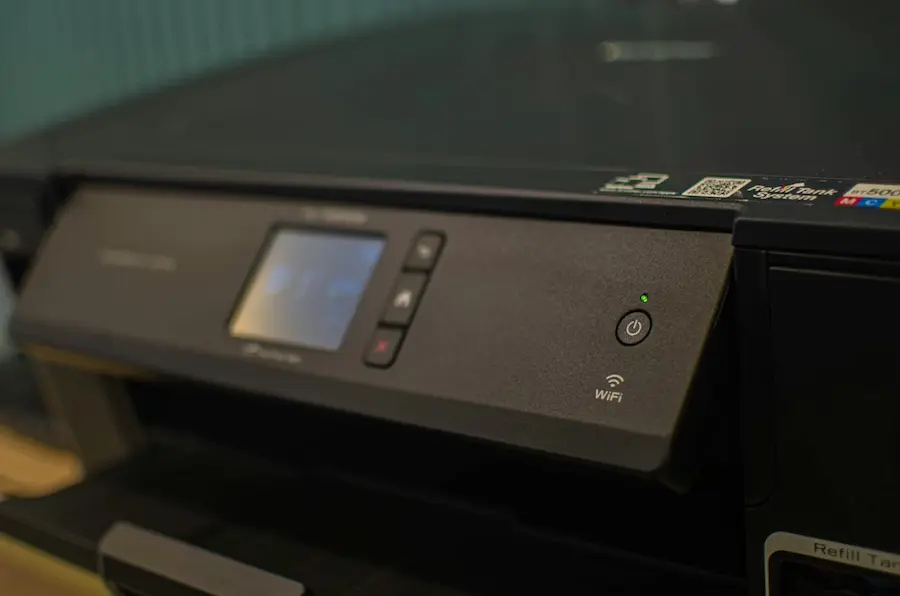

Having your computer show a printer as offline just when you need to print something urgently is one of those home computing classics that seems designed to test your patience. The good news is that, in most cases, it does not mean the printer is broken or that you need to rush out and buy a new one: it is usually caused by a temporary glitch, the wrong setting, a stuck print queue or a Wi-Fi connection that is not where it should be.
The goal here is clear: get the printer back as quickly as possible, whether it is an HP, Canon, Epson, Brother or another model, and understand why Windows or macOS shows it as disconnected even though it is switched on. It is worth starting with the basics, because the fix is often closer to a restart than to digging through menus worthy of a 1990s BIOS.
Why a printer appears offline
The offline status usually appears when the computer cannot communicate properly with the printer. It can happen with models connected via USB cable, but it is especially common with Wi-Fi printers, where the router, the selected network, connection stability and the way the operating system remembers the device all come into play.
One common cause is that the printer and the computer are not on the same wireless network. If the laptop is connected to one network and the printer to another, the system will see it as unreachable, even if both devices are powered on and apparently working. It can also happen that the USB cable is loose, damaged or incorrectly connected, which may be less glamorous than talking about drivers, but is just as decisive.
Windows also has a specific option to use the printer offline. If it is enabled by mistake, the computer will keep treating the device as unavailable even if it is physically ready. Add to that the usual suspects: blocked print jobs, outdated drivers, problematic manufacturer software or a default printer that is wrongly configured. What is the point of having three printers installed if the document is being sent to the one that no longer exists?

Quick fixes before changing advanced settings
The first step should be to turn off the printer, unplug it from the power outlet and, if it uses a cable, disconnect it from the computer as well. After waiting at least 30 seconds, plug it back in and switch it on. This full restart can clear small temporary faults that make the system detect it as disconnected. It is not magic; it is just electronics being electronics.
Next, restart the computer. If the printer works over Wi-Fi, it also makes sense to restart the router: unplug it, wait around two minutes and plug it back in. The network may take a few minutes to stabilise, so it is best not to draw conclusions too quickly while the router lights are still putting on their little LED show.
If you use a wired connection, check that the USB cable is firmly inserted at both ends and look for any visible damage. Trying another cable is a simple way to rule out the problem without changing any settings. For wireless printers, check on the printer’s own screen which network it is connected to and compare it with the active network on the computer. In Windows, you can see this from the Wi-Fi icon on the taskbar; on Mac, from the Wi-Fi menu at the top.
It is also worth checking the default printer. In Windows, go to Settings, Bluetooth & devices, Printers & scanners, disable automatic default printer management if it is interfering, and manually choose the printer you want to use. In macOS, go to System Settings, Printers & Scanners, and select the correct printer as the default. It is a small setting, but it prevents the system from sending the document to a phantom destination.
Windows and macOS settings if the problem persists
If the above does not work, it is time to look at the print queue. A blocked job can jam the entire system and trigger offline warnings. In Windows, from Printers & scanners, open the printer queue and cancel any pending jobs. In macOS, go to Finder, Applications, Utilities and Print Center to delete any documents left waiting.
In Windows, there is another key point: the print queue service. Search for Services from the Start menu, find Print Queue or Print Spooler, right-click it and restart it. This component manages the jobs sent to the printer, so when it gets stuck it can make everything look offline even though the printer is perfectly available.
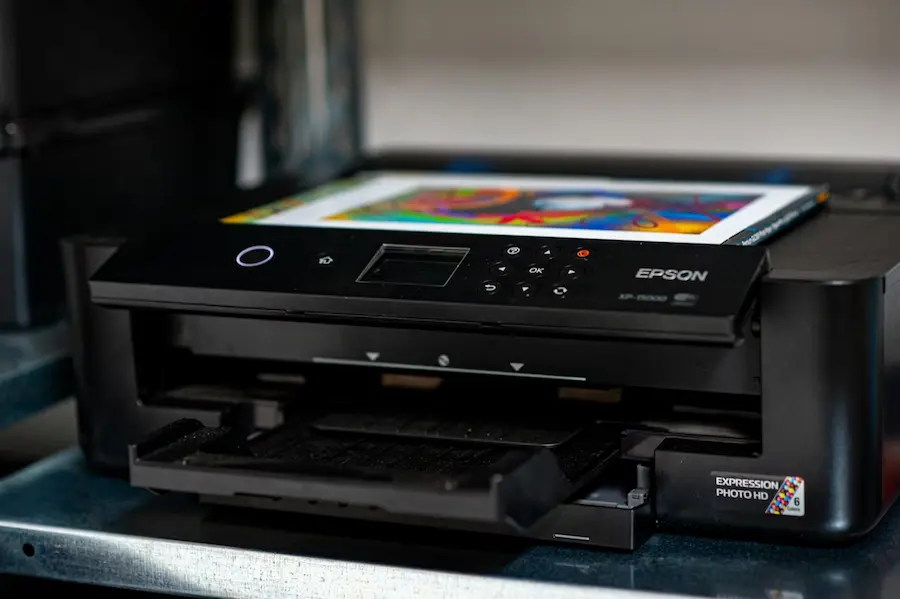
The manufacturer’s software can also help. Many printers include apps with diagnostic tools, such as HP utilities for detecting and fixing errors. If there is a newer version of the program on the manufacturer’s website, updating it may resolve conflicts. On Mac, many models work through AirPrint, but if manufacturer-specific software is being used, it is worth making sure it is the right version.
Drivers are another sensitive area, especially in Windows. From Device Manager, you can check for updates to the printer driver; if Windows does not find anything, the manufacturer’s website may offer a newer version. On Mac, system updates usually take care of these components, so keeping macOS up to date helps avoid incompatibilities.
As a more drastic measure, remove the printer and add it again from Printers & scanners, both in Windows and macOS. On Mac, there is also the option to reset the printing system, which deletes printers and previous settings so you can start from scratch. And if you use an ARM PC, such as some Copilot+ PCs, it may be necessary to install the printer from Windows instead of using the manufacturer’s installer, even adding it manually via its IP address. If the fault points to the computer’s network, reviewing the network adapter options in Windows can also help rule out connection issues. It is not the prettiest route, but sometimes it is the one that brings the printer back to the land of the living.


