
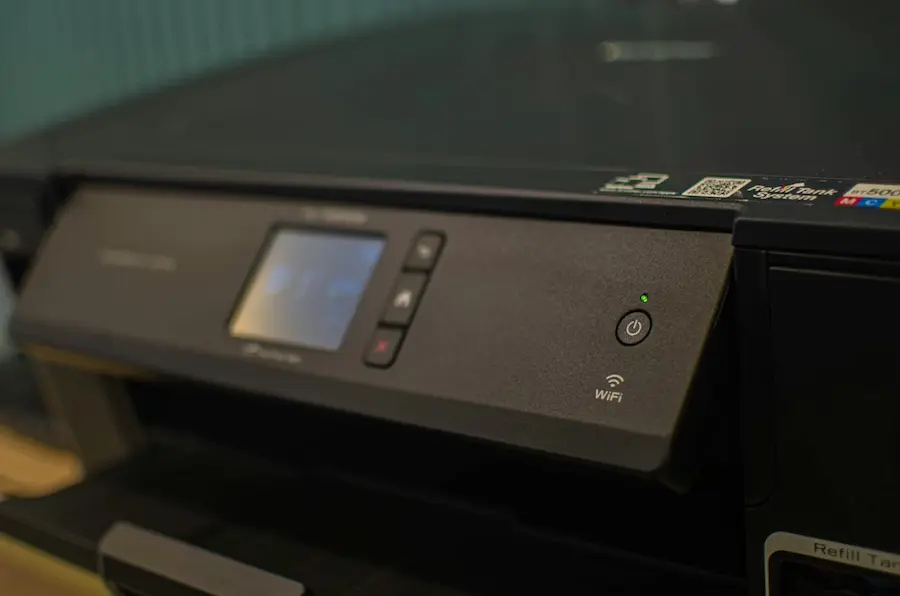

Setting up a network printer is still one of those home and office tasks that seems simple—until your computer decides to get mysterious. The good news is that, on both Windows and macOS, the process is fairly straightforward as long as the printer is properly connected to the same network. The trick usually isn’t the Print button, but the step before it: getting the printer onto the network via Wi‑Fi or an Ethernet cable so it’s visible to the rest of your devices.
If your model has built-in networking, the usual approach is to connect it directly to the router or Wi‑Fi from the printer’s own screen, then add it from your computer’s settings. If it doesn’t have network connectivity, there’s still a plan B: install it via USB on one computer and share it with the others. It’s not the most elegant solution in the peripheral multiverse, but it still works.
How to add a network printer on Windows and Mac
On Windows, once the printer is already on the network, open Settings, go to Devices, then Printers & scanners. From there, Add a printer or scanner starts the automatic search. If Windows detects it, just select it and click Add device. In many cases that’s all you need, although some manufacturers require you to install their software or the latest drivers to complete setup on Windows.
If it doesn’t show up, it’s worth checking the basics before you lose half an afternoon to menus and restarts: make sure it’s powered on, connected to the same network as the PC, and properly configured. Restarting it can help too. On Wi‑Fi printers with a display, it sometimes works to disconnect and reconnect to the wireless network using the printer’s own controls. When automatic detection fails, Windows also lets you add it by IP address or hostname—handy if you know the device’s IP, which is usually shown in the printer’s network, settings, or Wi‑Fi sections.
On a Mac, the approach is similar, and often friendlier when the printer supports AirPrint. After connecting the printer to the network, go to System Preferences and open Printers & Scanners. If it appears in the list, you can add it directly; if not, the + button triggers a new search. In some cases, macOS will ask you to download and install additional software. You can also add it manually by IP, choosing the right protocol depending on the printer’s compatibility. The nice part? The system usually figures out a lot on its own—provided your network and drivers don’t decide to behave like it’s still 2009.
What to do if the printer doesn’t have Wi‑Fi or Ethernet
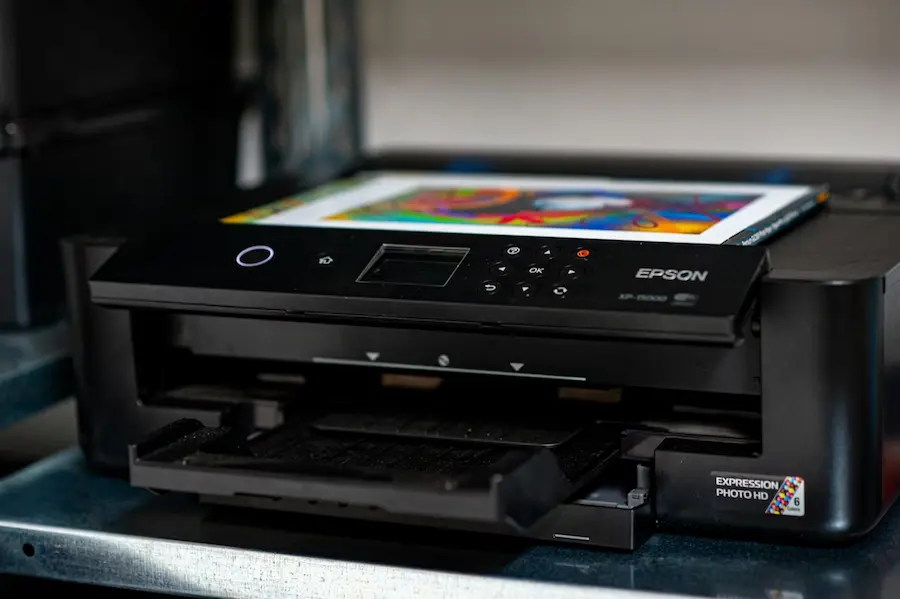
Not all printers can connect to the network on their own. When a model only works as a local printer, the alternative is to install it on a computer via USB and share it. In Windows, first connect it to the PC, add it from Printers & scanners, then under Manage and Printer properties, enable the Sharing tab. There you can check Share this printer and assign it a name. If there are Macs on the network too, that name should avoid unusual characters to prevent issues.
Next, you’ll need to adjust Windows sharing settings so the computer is visible on the network and has file and printer sharing enabled. This step matters even more than the install wizard itself, because if the host computer doesn’t advertise the printer properly, the other machines won’t be able to find it. Also, that PC must be turned on whenever someone wants to print—a limitation worth keeping in mind before turning any random desktop into a mini home server.
From another Windows computer, the shared printer may be detected automatically from the same Printers & scanners menu. If it doesn’t appear, you can add it by entering its network path in the format that matches the host computer name and the shared printer name. On a Mac, you can also use a printer shared from a PC: go to printers, click +, and browse the Windows section until you locate the computer sharing it.
macOS also offers the reverse option, though with an important limitation: a Mac can share a USB printer with other Macs on the same network, but not with Windows PCs. To do it, the printer must be installed locally on the Mac, then go to System Preferences, open Sharing, and enable Printer Sharing. From there you choose which printer is exposed to the network and, if needed, adjust access permissions for specific users.
Common issues and the most effective fix
If the printer isn’t detected, the problem almost always comes down to three areas: the network, the printer’s own settings, or drivers. The first check should be that the computer and printer are on the same network, whether via Wi‑Fi or cable. If one is on a different network, there’s no miracle fix. You may also need to verify that the router allows other devices on the network to discover the printer.

When everything looks correct but it still won’t work, one of the most effective moves is to reinstall the printer software from the manufacturer’s official website and run through setup as if it were the first time. It’s not glamorous, sure, but it’s extremely practical—especially for models that require an intermediate USB step to receive the initial wireless configuration.
If you also run into cable issues during that process, it may help to review how to fix a USB device not recognized in Windows 11.
Another useful option is to find the printer’s IP address and add it manually in Windows or macOS. This method avoids relying on automatic discovery and often gets you unstuck when a device seems invisible. And if the printer supports AirPrint, it will usually say so on the box—worth noting, since it makes integration with Apple’s ecosystem much easier.
In the end, installing a network printer isn’t that mysterious once you separate the scenarios: a printer with its own network connection, a shared local printer, and manual IP setup when everything else fails. With that map in mind, the process stops feeling like a technical raid and becomes just another configuration task.


