
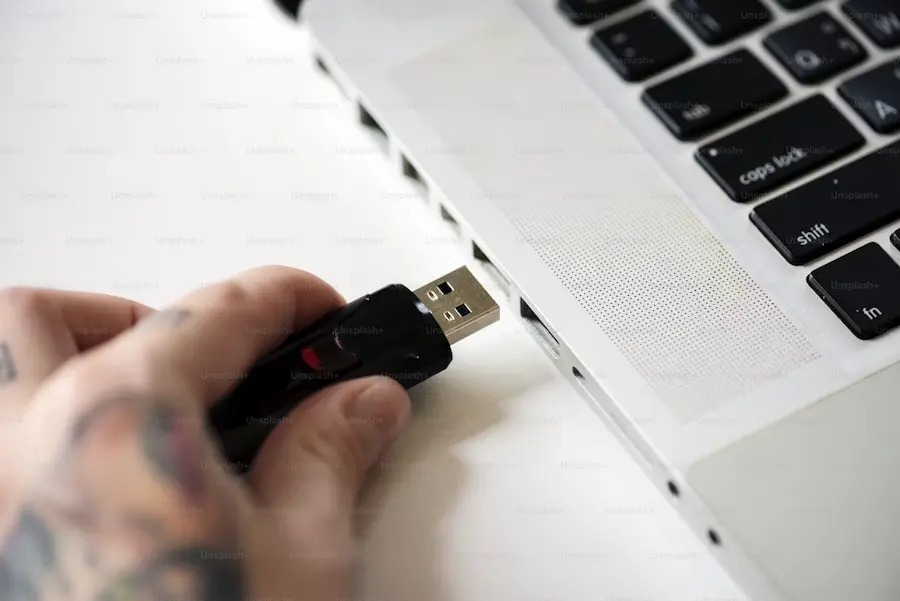

Plugging in a USB drive, a phone, or a USB adapter and immediately seeing the “USB device not recognized” in Windows 11 warning is one of those issues that kills your momentum on the spot. What you usually want at that moment isn’t theory, but a quick way to figure out whether the problem is the port, the cable, the accessory itself, or the system settings. And it’s best to tackle it step by step, because not all causes carry the same weight.
The first thing is to rule out the most common culprits: a temporary system hiccup, a poor physical connection, or a cable that looks fine but only works for charging. Yes, that classic silent villain at the bottom of the cable drawer. Before you touch any more delicate settings, there are a few basic checks that often solve the problem without much fuss.
What to check first if Windows 11 doesn’t detect the USB
The simplest step is still restarting your PC and reconnecting the device after boot. It may sound too basic, but it’s also the most direct way to clear one-off system errors that prevent the accessory from being recognized. If the USB device can be powered off and on, like a phone or camera, it’s also worth restarting it to force a fresh connection.
Next, check the hardware. Trying a different USB port helps you see whether the issue is limited to a specific socket, which is more common than it seems. If it works in another port, the problem is probably not the device. But if the error persists, it’s worth inspecting both the connector and the port for dirt, debris, or visible damage. To clean it, carefully remove any accessible grime and use compressed air to clear out the inside.
If the device connects via a cable, this becomes even more important. Some cables can charge but not transfer data, so Windows 11 will never properly recognize the device for use or file access. You should also watch for breaks, loose parts, or worn insulation, because beyond failing they can be dangerous. And if the connector doesn’t sit firmly, a small adjustment or gentle movement can help it make proper contact. Does it sound too hands-on for a digital problem? Sometimes, yes—but it works.
Drivers and updates: the next level
When the hardware seems fine, the next suspect is the drivers. If they’re outdated or corrupted, Windows 11 can show the error even if the device itself works perfectly. In that case, open Device Manager from the context menu on the Windows icon, find the peripheral under its relevant category, and first try updating the driver automatically.
If that isn’t enough, the next step is to reinstall it. To do that, disconnect the device, go back to Device Manager, uninstall the affected hardware and, if the option appears, try removing its driver as well. When you reconnect it, Windows will install it again automatically. This is a very effective approach when the issue comes from corrupted files or an installation that went wrong along the way. If you need to go a bit deeper, here’s a guide to manually updating drivers in Windows.
It’s also a good idea to check whether there are any pending Windows updates. In some cases, the system stops recognizing certain USB devices due to an internal bug that’s fixed precisely with a patch. Just search for updates from the search bar and see whether a new version is available. It’s not the fastest solution, but it’s one of the most relevant when the error isn’t caused by the device, but by the operating system itself.
The power setting that can cut the connection
There’s a less obvious detail that sometimes explains this behavior: power management. Windows 11 can turn off certain devices to save battery or reduce power draw, and that decision ends up making the USB stop responding or show up as unrecognized. It’s a useful feature in theory, although sometimes it behaves with the same enthusiasm as poorly tuned automation.
The fix is again in Device Manager. Once you’ve located the problematic accessory, open its properties and look for the Power Management tab. If you see the checkbox that allows the computer to turn off the device to save power, disabling it can stabilize the connection and stop the error from returning. It can also help to review options such as the screen timeout, especially on laptops where power saving is more aggressive.
If, even after all this, the device still doesn’t work, the takeaway changes. There may be physical damage to the accessory itself or, if it’s a USB storage device, a more serious issue. In that situation, replacing the device may be the most sensible way forward. And if it contains important files, data recovery becomes a specialized service—usually far more expensive than buying a new USB drive. That’s why it’s worth exhausting all the basic checks first: restart, ports, cable, drivers, Windows updates, and power settings. In most cases, the fault is there, hiding in one of those details that seem minor—until the system decides to act like you’re back to wrestling with hardware from another decade.


