
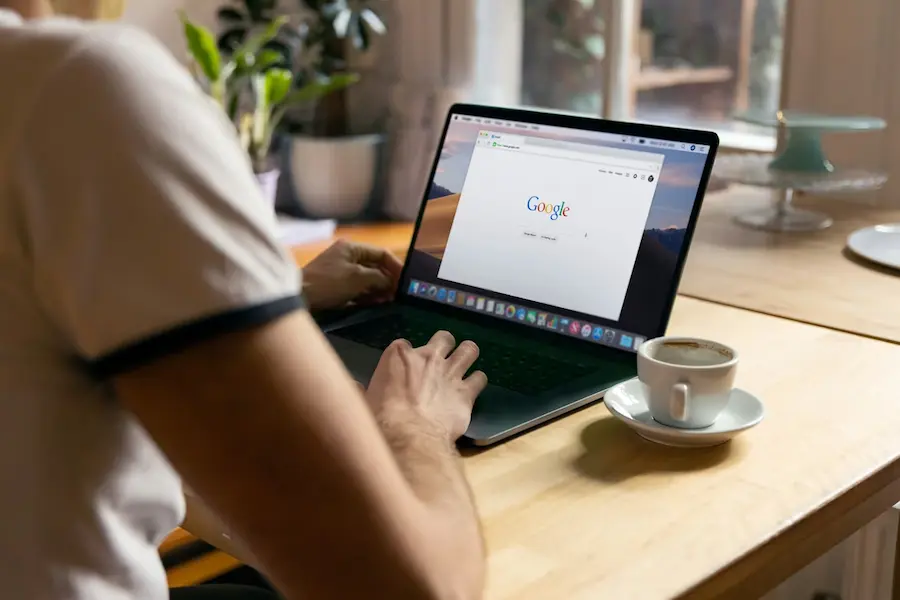

Adjusting your screen timeout is still one of those small settings that can noticeably change your day-to-day experience: if the display turns off too quickly, you end up unlocking your device over and over; if it takes too long, battery life takes a hit and your content stays visible longer than necessary. The good news is that Windows, macOS, Android, iPhone, and iPad all let you change this behavior from the system settings—no sketchy tools required, and no hidden menus that feel like something out of a 2013 ROM.
The goal is usually pretty straightforward: you want to know exactly where the setting is and what actually changes when you tap it. In almost every case, you’ll find it under display, power, or lock settings—and it’s worth distinguishing between turning off the display and putting the device to sleep, because they’re not the same. When the screen turns off, the system can keep working in the background; when the device goes to sleep, it reduces activity to save power.
How to change screen timeout in Windows and Mac
On Windows, the option lives in Settings. From there, go to System and then Power & battery (or, on some versions, the equivalent power and sleep section). You’ll see screen, sleep, and hibernation timeout options, where you can choose how long the device should be idle before the monitor turns off. On laptops, there are usually two separate scenarios: on battery and plugged in—key if you’re trying to balance battery life and convenience.
Windows also separates when the screen turns off from when the PC goes to sleep. That distinction matters more than it seems: if you only want the display to stop drawing power, shortening the screen-off timer is enough; if you also want to minimize overall system activity, it’s worth reviewing the sleep setting too. On some Windows 11 PCs you may also see extra features to turn off the screen when you walk away, wake it when you return, or even dim it when you look away—a slightly futuristic touch that’s starting to feel normal. And while you’re in display settings, you may also want to adjust brightness in Windows 10 and 11 to save battery.
On Mac, go to System Settings and then Lock Screen. There, you can choose how long it takes for the display to turn off when the Mac is inactive, also separating battery and power adapter use on MacBooks. If you need finer control over power behavior, some models also include a Battery or Energy section where you can prevent the Mac from automatically sleeping when the display is already off. It can be useful for certain background tasks, though it’s not something you should leave enabled by habit.
Android, iPhone, and iPad: where to find the setting
On Android, it’s usually pretty straightforward: open Settings, go to Display (or Display and touch), and look for Screen timeout. Depending on the manufacturer, the available intervals can vary, though they typically range from a few seconds to several minutes. Some phones also let you keep the screen on while you’re looking at it—a feature that may appear under names such as keep screen on while viewing or screen attention. If it’s enabled, your phone may take longer to turn off even if the timer looks short.
On certain Android models, you can also disable auto screen-off entirely with a Never option. If that doesn’t show up, some Android skins let you achieve something similar through developer options using Stay Awake, which keeps the screen on while the device is charging. It’s not for everyone, but it’s a practical alternative if the phone is being used as a fixed display or information panel.
On iPhone and iPad, the setting is in Settings > Display & Brightness > Auto-Lock. From there, you can choose how long the display stays on before it turns off on its own. On iPhone, the available times typically range from 30 seconds to 5 minutes, while on iPad you’ll see options like 2 and 15 minutes, plus the ability to keep the display on indefinitely. That said, if you disable Auto-Lock, you’ll need to press the power button manually to turn the screen off. Convenient? Sometimes. Efficient? Not so much.
What to consider before leaving the screen always on
If your screen turns off too quickly, the reason may be as simple as a timeout that’s set too low, running on battery instead of being plugged in, or having a power-saving mode enabled. On the other end, if it never turns off, it could be because the setting is set to Never, a third-party app is keeping the display awake, or the system has a feature that detects you’re still looking at the screen. It isn’t always a bug—sometimes it’s just an automation doing its job a little too enthusiastically.
It’s also worth keeping the impact of leaving the display on for long periods in mind. On modern LCD and LED screens it’s not usually a major issue, but keeping a static image up for too long can increase the risk of effects like burn-in on certain panels, or contribute to wear over time. And, of course, power consumption goes up—especially noticeable on laptops, phones, and tablets.
That’s why the best setting isn’t the longest or the shortest, but the one that fits how you actually use the device. If you work by reading documents or following recipes, extending the timeout makes sense; if you prioritize battery life, privacy, or simply don’t want your phone glowing on the table like a beacon, shortening it is often the most sensible choice. The key is knowing where to change it and what each option does, because in tech, it’s the small settings that you feel the most every day.


