

The iPhone includes a low-key feature that can be far more useful than any flashy iOS trick: Medical ID and emergency contacts in the Health app. The key point is that this information can be viewed from the lock screen, so someone assisting you can see allergies, medication, relevant medical conditions or who to call if you cannot respond.
There is, however, one rather unglamorous condition: you need to set it up beforehand. What is the point of carrying a phone that can connect via satellite if the essentials are still blank? The setup is done through the Health, Contacts and Settings apps, without installing anything extra.
How to fill in your Medical ID in the Health app
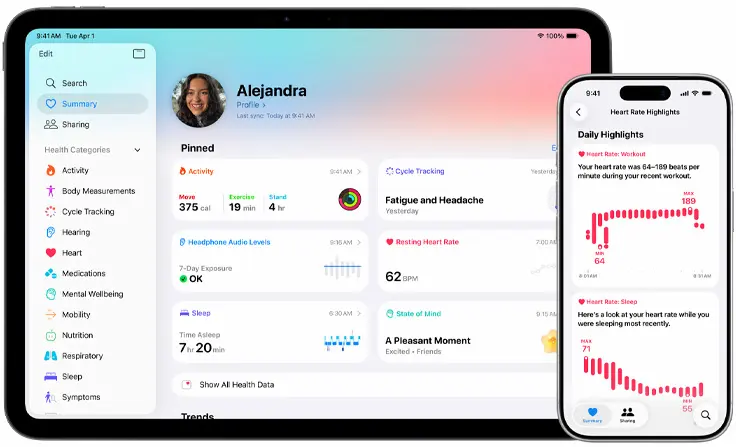
To start, open the Health app on your iPhone, go to Summary and tap your profile picture. From there, open Medical ID and tap Edit. The first things to enter should be the truly critical details: medication, allergies and illnesses or medical conditions. These are the fields that most help guide a quick response, so it is worth writing them accurately, using specific medication names instead of vague descriptions such as treatment for blood pressure.
You can then add further details such as age, height, weight, blood type and notes. That last field is useful for information that does not fit neatly into the previous categories, although it should not become a catch-all if there is a more suitable section. When you finish, tap OK or Done to save the changes.
The same screen also shows your emergency contacts. When editing, tap the add button, choose someone from your contacts and assign the appropriate relationship. If you can, add more than one contact, because the first person may not always be available exactly when needed. And there is a very human detail here: let them know. If they receive a location alert or an unusual message during an emergency, they will better understand what is happening.
Lock screen, privacy and automatic alerts
The Show When Locked setting determines whether someone can view your Medical ID without unlocking the iPhone. With it enabled, they only need to tap Emergency and then Medical ID from the passcode screen. This is the most sensitive part of the whole setup: hiding it better protects your privacy from curious eyes, but it also prevents a stranger or healthcare professional from checking the information when the phone is locked.
There is also Share During Emergency Call, which can automatically send Medical ID information to emergency services when a call or message is made from an iPhone or Apple Watch. Apple notes that this feature is not available in all countries or regions, and that the company cannot read that information once it reaches emergency responders.
For that sharing to work, check in Settings, Privacy & Security, Location Services, System Services that Emergency Calls & SOS is enabled. If you turn it off, Medical ID will not be shared during the call, although it can still be shown on the lock screen if that option is enabled. It is a balancing decision, almost like adjusting permissions for a sensitive app: the more accessible it is, the more useful it becomes; the more restricted it is, the more private it stays.
Emergency SOS, contacts and satellite connection
The other part of the system is found in Settings, under Emergency SOS. The usual method is to hold the side button together with one of the volume buttons for several seconds, which starts an audible countdown before calling. You can also enable calling by pressing the side button five times, which is faster in a real situation but more likely to be triggered accidentally if the phone is bouncing around in a backpack. If you enable that option, be careful with Call Quietly, because it removes the audible warning that could help you notice an unintentional call.
If an accidental call does connect, the recommended approach is to stay on the line and explain what happened. You can also consider Call After Severe Crash, which attempts to contact emergency services automatically if the user is incapacitated. For trusted people, there is also Emergency Bypass in Contacts, within the ringtone or message tone settings, so their alerts can sound even when the iPhone is silenced or in a Focus mode.
On iPhone 14 and later models, Emergency SOS via satellite comes into play, designed for areas without mobile coverage or Wi-Fi. Once connected, the iPhone can send answers to the emergency questionnaire, location with elevation, remaining battery and, if already configured, Medical ID and emergency contacts. Notifying those contacts is optional; if you choose to do so, people using iMessage on iOS 16.4 or later can receive a live transcript and a map, and must reply YES within 48 hours to keep receiving updates.
The final step is not technical, but it is decisive: keep it up to date. Every new prescription, diagnosis, phone number change or trip without coverage should be a reason to return to Health and check that the profile still describes the person carrying that iPhone in their pocket.


