


To update your printer drivers on Windows, you can use Device Manager or Windows Update. On a Mac, check Software Update first. If no updates are available, the next place to look is the manufacturer’s website, where you can search for the driver or app for your model.
How to update printer drivers on Windows
Using Device Manager
Device Manager lets you check for updates for a specific printer. This is particularly useful if you have several printers set up and want to view your connected printers before choosing one.
- Right-click Start and open Device Manager.
- Expand the Printers category, right-click the printer you want to update and select Update driver.
- Choose Search automatically for drivers and follow the prompts if Windows finds an available version.
- Once finished, restart your computer if prompted.
If the search returns no results, visit the manufacturer’s website and download the driver for your printer. If the file is compressed, extract it before continuing.
Return to the same Update driver menu, but this time select Browse my computer for drivers. Specify the folder where you saved the files, check the location and click Next. Windows will try to install them and may ask you to restart. If it detects that you already have a newer version, it will display a message saying that the best drivers are already installed. If the printer still does not respond after installation, first check whether it is an offline printer issue.
Using Windows Update
The other option is to check for drivers among the system’s optional updates:
- Open Settings → Windows Update. On Windows 10, go to Settings → Update & Security → Windows Update.
- Open Advanced options and look for Optional updates under Additional options. On Windows 10, View optional updates may only appear when updates are available.
- Select any drivers listed for your printer and click Download and install.
- Let the process finish before restarting.
How to update printer drivers on Mac
On a Mac, start by keeping macOS up to date, as system updates may include printer drivers, particularly if your printer does not use separate software.
- Open the Apple menu and go to System Settings.
- Go to General → Software Update.
- If an update appears, select the option to install it.
You can also configure automatic updates in this section to download new updates and install macOS updates, system data files and security updates.
If your printer relies on its own app, updating macOS may not be enough. In System Settings → Printers & Scanners, select your printer to check the driver version, then visit the manufacturer’s website to see whether a newer version of the driver or its Mac app is available.
If the app is distributed through the App Store, open the store, go to Updates and click Update next to the app when the option appears, as the updated software may include new drivers.
There is one point to bear in mind for Macs with Apple silicon: an incompatibility warning may appear because the app was designed for Intel processors. First, check the manufacturer’s website for a version suited to your Mac. Some Intel apps may need Rosetta to run.
Official software or third-party updaters: which should you choose?
Some manufacturers’ apps include a feature for finding and installing drivers, although they do not all offer the same options or support the same operating systems:
- HP Support Assistant, available for Windows and ChromeOS, lets you access updates from its main dashboard by selecting your computer and opening the relevant section.
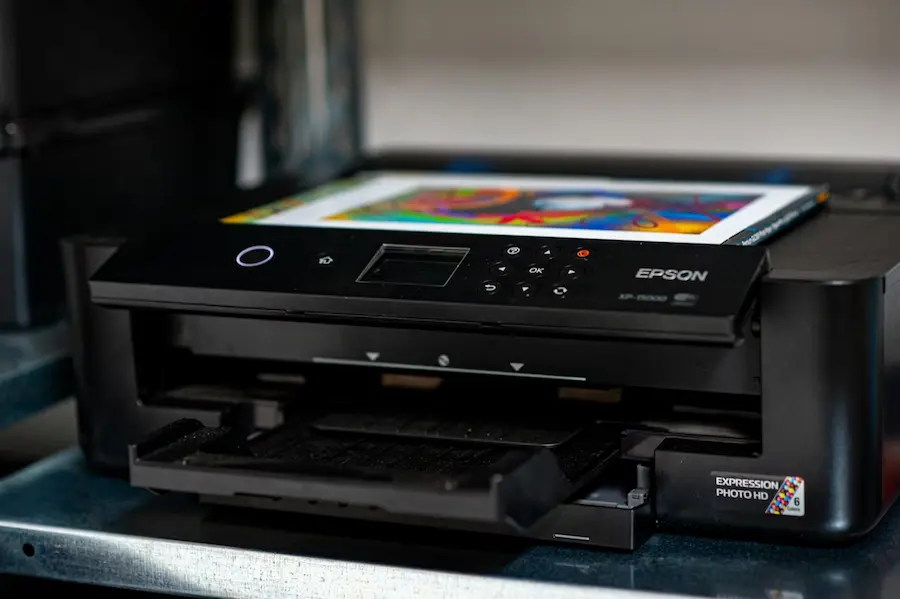
- Epson Software Updater, for Windows and Mac, lets you find and install updates for drivers, firmware and other components.
It is worth distinguishing these official tools from generic third-party driver updaters. Some of these apps charge a subscription for updates you can get for free through system tools or the manufacturer’s software. They may also install unnecessary programs or adware. You do not need them to keep your printer driver up to date. For other components, such as your graphics card, the process differs from updating a printer, so it is best to follow a dedicated guide to updating GPU drivers on Windows 11.


