
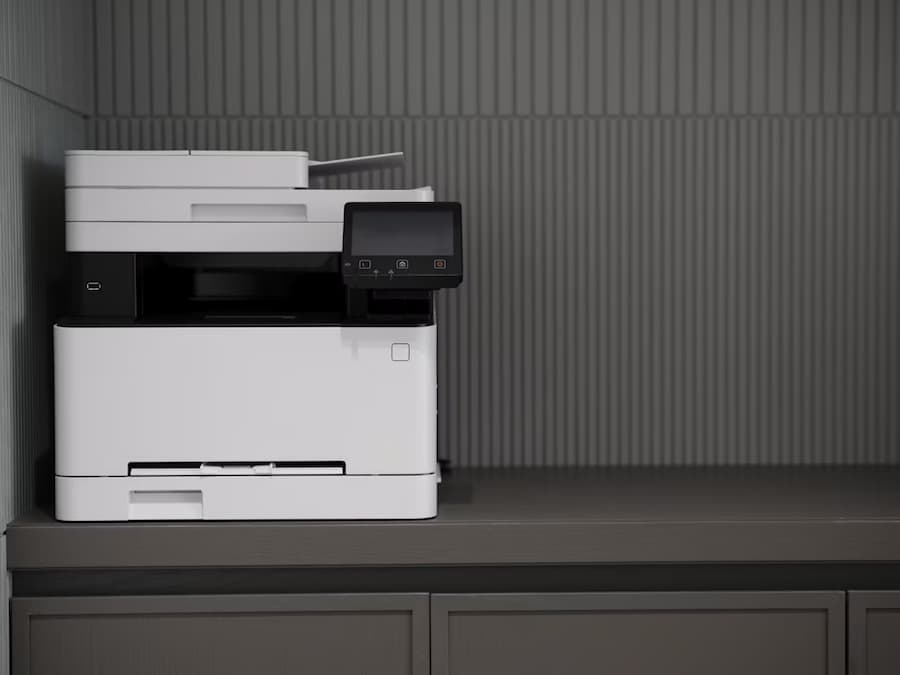

If your printer is printing slowly, start by lowering the print quality to standard or draft and selecting the type of paper you have loaded in the tray. An unnecessarily high quality setting, an incorrect paper selection or delays in your wireless connection can all increase waiting times without necessarily meaning you need to replace your printer.
If those adjustments do not solve the problem, work through these checks covering the document, paper, connection and software.
Check the print quality, document and paper
Adjust the print quality and paper type. Always printing at the highest quality can slow things down considerably, even when the document does not need that level of detail. For everyday documents, try standard or draft quality and select the paper you have actually loaded in the tray.
- On Windows: open Settings, go to Bluetooth & devices and open Printers & scanners. Select your printer, open Printing preferences and look for Paper/Quality to change both settings.
- On Mac: with the document open, go to File, then Print, and expand the Media & Quality section. If the application does not show it, look for an option to use the system print dialogue.
Reduce the file’s complexity. A large document or one packed with high-resolution images can take longer to print. Try compressing the file or reducing the resolution of its images to suit the results you need.
Check for paper jams and verify the paper weight. While a jam usually stops printing altogether, paper that is too thick or scraps interfering with the mechanisms can also cause problems. Check inside the printer following the instructions in the manual and remove any jammed paper. Also check the paper weights your model supports: selecting the correct type on screen will not resolve a physical incompatibility with the paper.
Try a cable connection and update the firmware
Rule out wireless connection delays. If you print over Wi-Fi, connect the printer directly to your computer using a compatible cable and try printing the same document again. Network latency may be causing the slowdown, and this comparison helps distinguish a connection problem from other possible causes. It does not guarantee that every print job will be faster.
Many printer cables use USB-A at the computer end and USB-B at the printer end. If your computer only has USB-C ports, you may need an adapter or a USB-C to USB-B cable. Check the connectors before buying one. If one port does not work, try another.
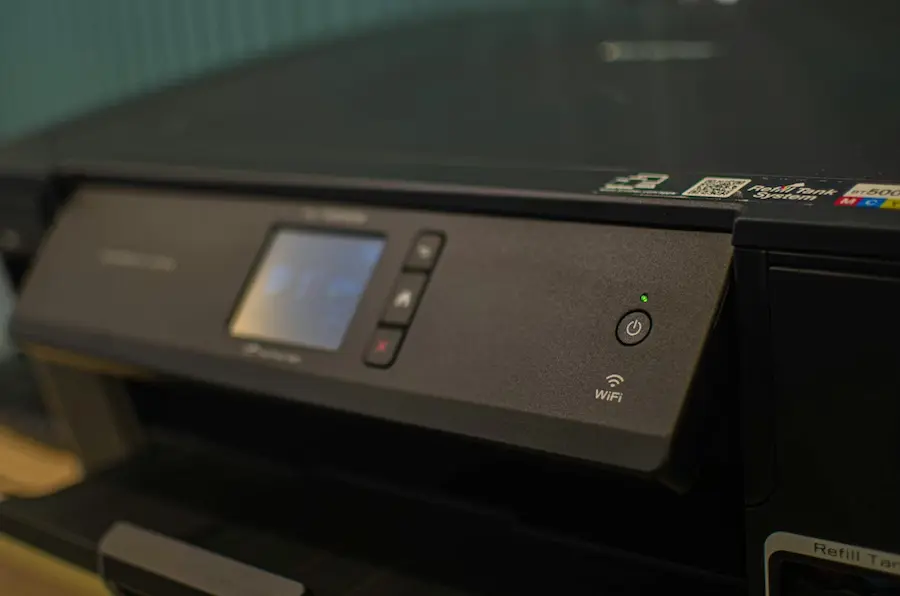
Update your printer’s firmware. Outdated firmware can cause performance issues, including slow printing. Wireless models with a display often have an update option in the device settings, although its exact location depends on the manufacturer and model.
If that option is not available, check the manual and the manufacturer’s official website to download the appropriate update. HP, Brother, Epson and Canon all have support and download sections; always look for software specifically designed for your printer.
Reinstall the drivers and check the print queue
Reinstall the printer to rule out a driver problem. A faulty driver can affect print jobs sent from your computer. If the previous checks have not helped, uninstalling and reinstalling the printer is one way to address this possible cause.
- On Windows: right-click Start and open Device Manager. Expand Printers, right-click your model and select Uninstall device. Tick the box that lets you attempt to remove its driver as well, then confirm the uninstallation. Afterwards, reinstall the printer by reconnecting it or using its wireless setup software.
- On Mac: open the Apple menu, go to System Settings and open Printers & Scanners. From there, you can remove the printer and add it again. If you also need to remove driver files, follow the manufacturer’s specific instructions.
Adjust the print queue settings in Windows. If printing is still slow, return to Printers & scanners, select your printer and open Printer properties, not Printing preferences. Under Advanced, enable the options to:
- Spool print documents.
- Start printing after the last page is spooled.
- Print spooled documents first.
This adjustment changes how print jobs are handled: waiting until the last page is spooled means storing the entire document before printing begins, so it should not be mistaken for a way to get the first page sooner.


