


If you want your meetings to appear the same in Microsoft Teams and Outlook, the key is understanding a detail that’s often overlooked: when you use the same Microsoft 365 account, both services rely on the same underlying calendar. In other words, under normal conditions there’s no manual sync switch to turn on, because events created in one app should automatically show up in the other. When that doesn’t happen, the issue is usually down to a setting, a disabled add-in, or a temporary service hiccup.
That’s why so many people try to “force” a sync when what they really need is to check where the bridge has broken. And yes, it’s one of those very Microsoft situations: on paper everything is integrated, but sometimes a gear decides to behave as if it never left 2016.
How syncing works between Teams and Outlook
Microsoft Teams and Outlook display the same calendar information as long as you’re signed in to both with the same Microsoft 365 account. If you add an appointment or meeting in either one, it should also appear in the other without exporting, importing, or manually linking anything. That’s why the first real step is to confirm you’re not using different profiles—more common than it sounds in workplaces where multiple accounts are in play.
It’s also worth checking in Outlook that Microsoft Teams is selected as the meeting provider. In the calendar settings, under events and invitations, the option to add online meetings with Teams should be enabled. It doesn’t change the shared calendar itself, but it does help prevent inconsistencies when scheduling meetings from Outlook.
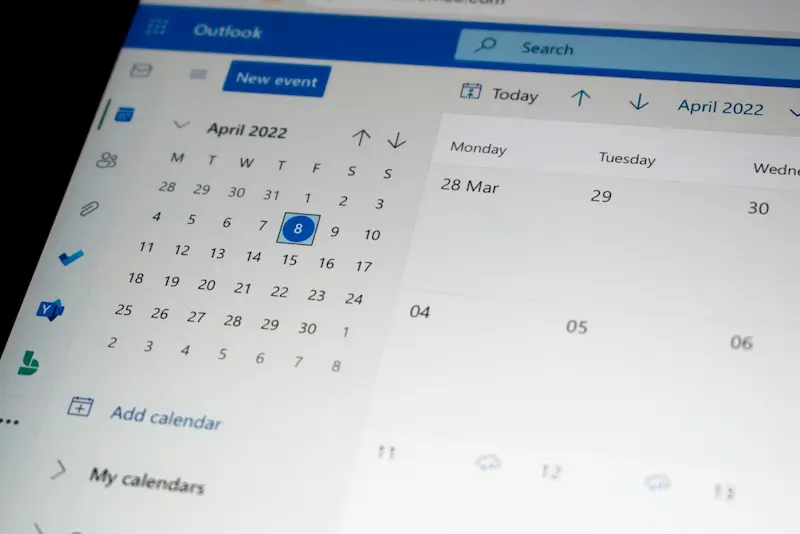
If you use the web versions of both tools, there’s a clear advantage: updates roll out automatically, so you don’t have to worry about running an older build. On desktop, however, an outdated Teams or Outlook installation can cause changes not to show properly, so it’s worth checking for new versions before moving on to heavier fixes.
What to do if the Teams calendar doesn’t show up in Outlook
When events aren’t appearing where they should, the most effective approach is to start with the basics and only go further if needed. Updating both apps is usually the first sensible move. In Teams, you can do it from the profile menu, while in Outlook it’s found in the Office account options. If one of the apps is several versions behind, communication between services can break down.
The next usual suspect is the cache. Temporary files—both in the apps and in the browser if you’re using the web version—can prevent information from refreshing correctly. Clearing the browser cache or cleaning the local cache for Teams and Outlook on desktop can bring syncing back to normal. It’s not the most glamorous fix, but few things solve as many silent issues as often.
You should also check the Teams add-in in Outlook. That add-in lets you schedule Teams meetings from Outlook and, if it’s disabled, it can trigger odd behavior. In Outlook’s add-in settings it should appear as active; if it’s listed as disabled, you can re-enable it from COM Add-ins management and restart the app.

In some cases, the issue isn’t Teams at all, but other Outlook add-ins that get in the way. Temporarily disabling non-Teams add-ins and testing again helps you pinpoint conflicts. If everything works afterward, just re-enable them one by one until you find the culprit. Tedious? A little—but far more useful than waiting for a digital miracle.
If you’re also dealing with other common app issues, this quick guide for when the camera doesn’t work in Microsoft Teams can also help you rule out configuration problems on your device.
The channel calendar case, and when it depends on the administrator
There’s a different scenario worth separating from the rest: the Teams channel calendar. That calendar may be hidden by default in Outlook, and in this case it’s not enough to double-check the account or update apps. If you’re a Microsoft 365 organization admin, you can make it visible via Exchange Online PowerShell—first connecting to the relevant module and then running the command that disables its hidden status for Exchange clients.
This nuance matters because it’s not really a sync failure, but a visibility limitation. Once the channel calendar is shown in Outlook, its events will appear there, but management still comes with an important caveat: changes and new events must be created from Teams. Outlook can display that calendar, but in this context it isn’t designed for normal editing.
Finally, if everything seems correctly configured and still nothing updates, it’s worth checking whether there’s a temporary incident affecting Microsoft 365 services. Both Teams and Outlook can experience outages or partial disruptions, and at those times any local tweaks will be pointless. Checking service status lets you quickly confirm whether the issue is on your side or on the other end—which does happen too, even if it doesn’t make it into a keynote.


