
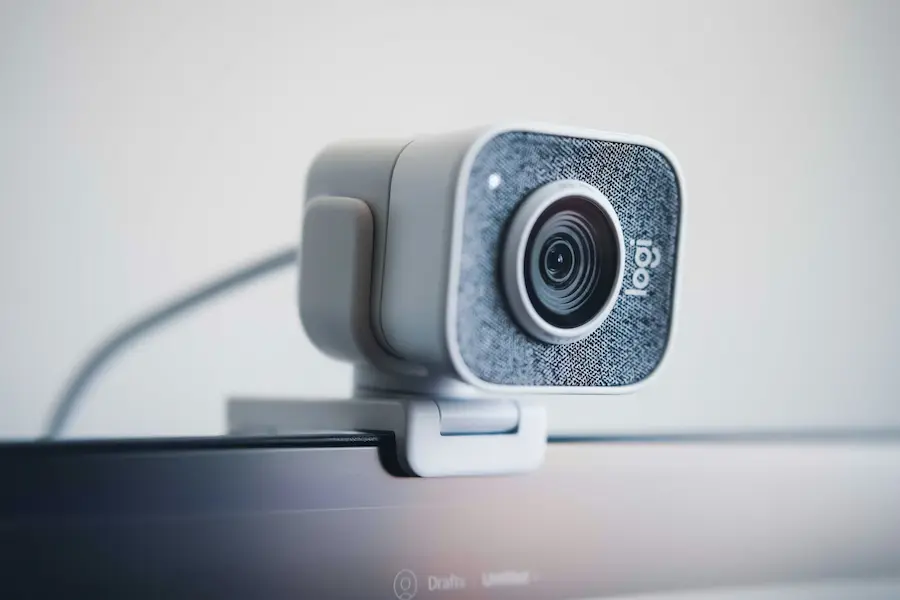

When Microsoft Teams decides to leave you without a camera right before a video call, that’s the kind of “plot twist” nobody asked for. The good news is that, most of the time, it’s not a serious failure—it’s usually a mix of common culprits: a disabled permission, another app hogging the webcam, the wrong device selected, or a minor Teams freeze. At ActualApp, you already know that we’re Teams experts.
If what you want is to get back on screen as quickly as possible, even with a blurred background, the key is to follow a logical order: rule out physical and obvious issues first, then check Teams settings and system permissions, and only then move on to more “serious” steps like reinstalling or updating drivers. Best of all, you can verify almost everything in minutes.
Quick checks: hardware, apps, and settings inside Teams
Before diving into advanced menus, it’s worth confirming the basics—more cases get solved here than we’d like to admit. Start by making sure the camera is actually on and connected. If you use an external webcam, check whether it has a physical on/off switch and whether it needs additional power; also try another USB port and inspect the cable and connector for damage. If you’re on a laptop, look on the keyboard for a key with a camera icon (sometimes shown as a crossed-out camera) in the function row: the webcam may be disabled at the hardware level.
Next, consider this: is another application using the camera? Teams typically won’t access the device if it’s already in use. Close common apps that might be capturing video (Zoom, FaceTime, OBS Studio, the Camera app, Messenger, and similar) and don’t forget the browser—any tab with camera permission can be just as “greedy.” If you suspect background processes, on Windows open Task Manager with Ctrl + Alt + Supr and end apps that may be interfering; on Mac, use Activity Monitor from Spotlight and force quit if needed.
Inside Teams, a couple of details get overlooked when you’ve connected multiple cameras. In a meeting, click the arrow next to the camera icon and confirm the correct webcam is selected. This is especially tricky if you plugged in a capture card, switched USB devices, or the system “remembers” the last hardware used. And if you’re seeing a black screen, check something even more basic: a privacy shutter, tape, or anything else blocking the lens.
Finally, keep in mind a limitation that isn’t on you: in some meetings, the host can disable camera use, and on work or school accounts an admin may enforce policies that prevent video from being enabled. In that case, no matter how many times you restart, Teams still won’t allow it.

System permissions and restarts: when the issue is software
If everything looks fine but Teams still won’t show an image, it’s time to check camera access at the operating system level. On Windows, open Settings with Win + I and go to Privacy & security > Camera; make sure camera access is enabled and that Teams also has its toggle turned on. On Mac, open System Settings (or System Preferences, depending on the version) and go to Privacy & security > Camera to confirm Teams has permission. It’s the kind of setting you change “once” and then forget… until the meeting starts.
If permissions are fine, try restarting the app. Teams can get stuck and fail to reclaim the device even when the camera works perfectly—typical behavior for any app living between services, drivers, and permissions. On Windows, open Task Manager with Ctrl + Alt + Supr, end Teams, and launch it again; on Mac, open Activity Monitor, force quit Teams, and relaunch it. If that still doesn’t help, restart your computer: besides clearing temporary system glitches, it will also close processes that may have been using the camera without you noticing. If you need more options, here’s a guide to force-closing unresponsive apps in Windows.
If the problem persists, check whether the camera works outside Teams. Open the Camera app or try another compatible app (for example, Zoom or OBS Studio) and see if you get an image. This test is decisive: if the camera works in other programs, the conflict likely points to Teams, permissions, or configuration; if it doesn’t work anywhere, focus shifts to drivers or hardware.

Updates, drivers, and last-resort steps (reinstalling or switching cameras)
If you suspect the issue is system-level or compatibility-related, the next step is to make sure your device is up to date. On Windows, go to Settings > Windows Update and check for updates; on Mac, open System Settings > General > Software Update and install what’s available. These updates don’t just fix OS bugs—they often include driver improvements that directly affect devices like your webcam.
On Windows, you can also update the camera driver manually through Device Manager: right-click Start, open Device Manager, expand Cameras, and use Update driver with automatic search. And if your webcam is external, remember that some manufacturers require installing their own drivers or software from the official website—something that can make a real difference with more advanced models.
Another useful Windows tool is the dedicated camera troubleshooter. You’ll find it under Settings > System > Troubleshoot > Other troubleshooters, where you can run Camera and follow the prompts. It won’t always work miracles, but when the conflict involves configuration or services, it can save a lot of time.
If, after all that, the camera still doesn’t work in any application, it’s reasonable to suspect a hardware issue. In that case, try another webcam: if you’re on a laptop, an external USB camera can both confirm the diagnosis and get you through the call. And if Teams works with the alternative camera, you’ve got your answer—the original one is the bottleneck. Because yes, sometimes the most geeky solution is the most pragmatic: swap the peripheral and move on, like when a restart “mysteriously” fixes things nobody wants to explain.


