

If you want to play Minecraft online with friends even if each of you is on a different platform, it all comes down to two things: using Minecraft: Bedrock Edition and signing in with a Microsoft account (an Xbox account also works, as it’s part of the same ecosystem). From there, it’s pretty straightforward: add friends using their gamertag, join their worlds when they’re available, or send invites from your own game. And yes, it works across PC, consoles, and mobile—so there’s no longer any excuse for the group to split up because of hardware.
Minecraft is one of the few titles that truly takes crossplay seriously, and that’s probably why it’s still going strong, and it does it in a practical way: you can play with people on Windows 10 and 11, Chromebook, Xbox One and Xbox Series X, PlayStation 4 and PlayStation 5, Nintendo Switch, as well as Android and iOS. The important thing is understanding which edition you’re using, because there’s a common trap here that can easily cost you an entire afternoon of testing.
What you actually need: Bedrock Edition and a Microsoft account
The first filter for playing with friends across different platforms is the edition of the game. Only Minecraft: Bedrock Edition supports cross-play. If you’re on Minecraft: Java Edition, or on older platform-specific editions like PlayStation 4 Edition or Xbox One Edition, you won’t be able to join the same cross-platform multiplayer. In practice, that means if your goal is to play with people on console or mobile, you’ll almost certainly need Bedrock—even if you play on PC.
The second requirement is your account. To use crossplay, you must sign in with a Microsoft account, regardless of what device you’re playing on. This is handled from the game’s home screen: after launching Minecraft, you’ll see the Sign in option. Once you log in with your email and password, the game is ready to sync friends across platforms. It’s the kind of system that makes sense in 2026: a single login and a centralized friends list—almost like the game is a social network… just with creepers.
If you don’t have an account, you’ll need to create one on Microsoft’s website: go to the account page, choose sign in, and select the option to create a new one. The process lets you use an existing email address or create a new Outlook one, then follow the usual steps to set up your credentials. Once that’s done, you just use those details to sign in to Minecraft.
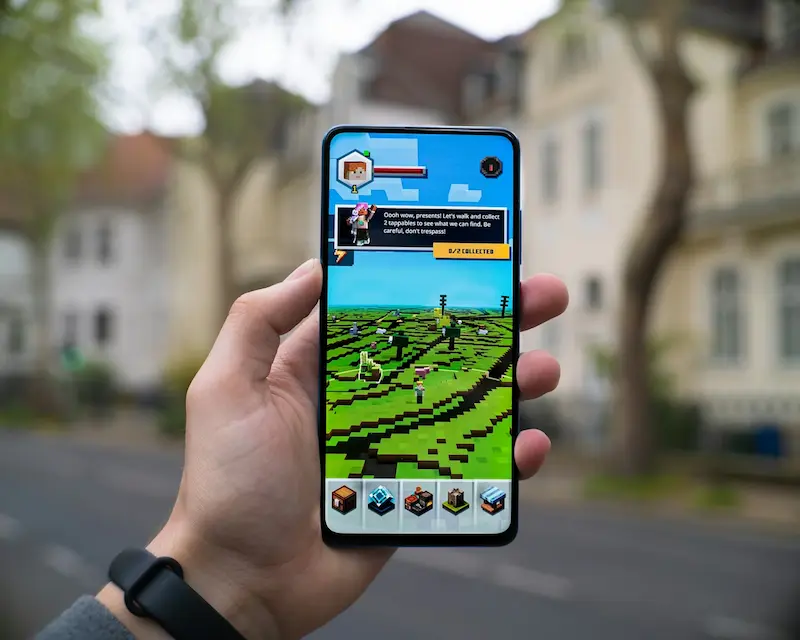
Add crossplay friends and join their games
With Bedrock and your session signed in, the next step is to add your friends. From Minecraft’s main screen, go to Play and, within the selector, open the Friends tab. There you’ll see both online friends and options to add new contacts.
The most confusing part is which identifier you need to enter. If your friend is on the same platform, you can usually find them using that platform’s gamertag. But if they’re on a different one (for example, you’re on Nintendo Switch and your friend is on PlayStation 5), then you need their Microsoft/Xbox gamertag. In the friends menu you’ll see an option to add or search for crossplay friends: on PC and mobile it’s often shown as a large button at the top, while on consoles it may appear as “find cross-platform friends” at the bottom of the menu. The interface shifts slightly by device, but the result is the same: enter the right gamertag and send the request.
Once your friend accepts, they’ll show up in your list, making it easier both to invite them and to find available sessions. And here’s what most people really want to know: how do you join a friend’s game? In the same friends tab, Minecraft shows a section for friends you can join—meaning those who are currently playing and have their world accessible. Select that world, confirm the warning that you may encounter chats and unrated user-generated content, and you’ll load into their session.
Also, if any of your friends has Minecraft Realms, you may see the option to join a Realm. It’s a way to access a persistent world you can enter at any time, even if the host isn’t online. For groups that play irregularly, this often works better than relying on someone to “open” the world every time.
Invite friends to your world and adjust multiplayer settings
If instead of joining you want to host, the flow is just as simple: from the home screen go to Play, select an existing world or create a new one, and once inside you can invite friends from the pause menu. On PC you open it with Esc, on consoles with the relevant options button, and on mobile with the pause icon at the top.
Before sending invites, it’s worth checking a setting that matters more than it seems. In the game menu, go to Settings, then Multiplayer. There, make sure the multiplayer toggle is enabled and choose the access level: allow friends only, friends of friends, or set it to invite only. This is the difference between a controlled session and that classic moment when someone says “it won’t let me join” while everyone else is already chopping wood like it’s day one.
With multiplayer configured, go back to the pause menu and open the invitations section (usually on the right side). Your friends list will appear, whether they’re online or not, and you can select multiple people at once. Minecraft lets up to eight friends join a game, and once you confirm, invites are sent to everyone you checked. If they accept, they’ll load straight into your world.
Finally, a practical nuance: you can only invite a friend into someone else’s game if the host has set their world to allow “friends of friends.” It’s a small setting, but it explains why sometimes you can’t “pull” someone into the server even though you’re already in it.
Once these steps are clear, playing Minecraft via crossplay stops being a mystery and becomes what it always should have been: an online hangout without platform arguments, with a single account and a centralized friends list. Isn’t that exactly what we expected when games started taking “multiplatform” seriously?


