
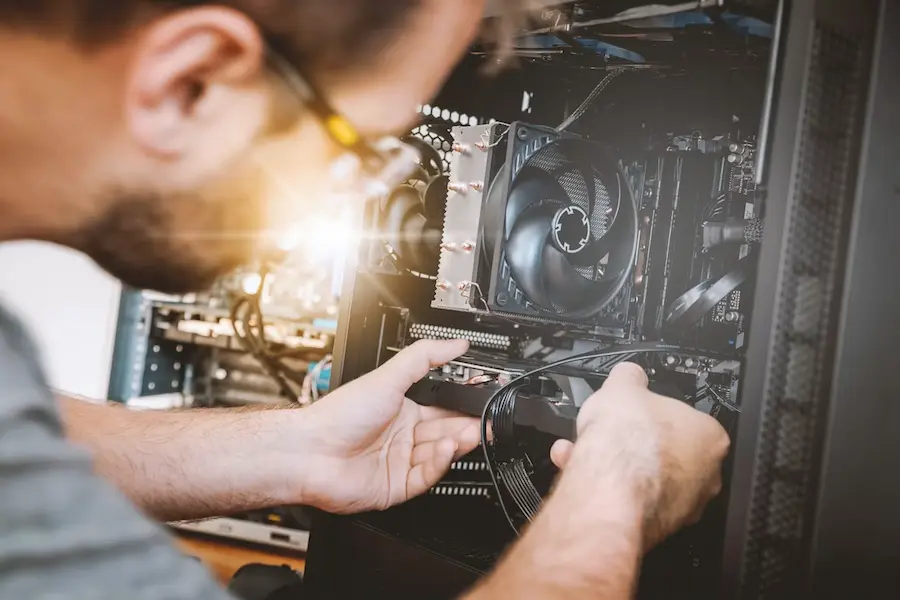

If your computer won’t turn on, the first check is not to reinstall Windows or assume the motherboard is dead: you need to distinguish between a machine that is receiving no power and one that is getting power but cannot boot. That difference determines whether you should check the wall socket, the screen, or the internal components.
Watch what happens when you press the power button: lights, beeps, fans, or a brief image on the screen are all clues. Why dismantle half the tower if the problem is the power strip? Start with the symptom you recognise.
The computer shows no signs of life
When there are no lights and no fan noise, check the external power supply. Try a different wall socket and plug another device into the original outlet to confirm it works; if you use a power strip, make sure it is switched on and try connecting the computer directly to the wall.
Next, check that the cable is firmly connected both to the computer and to the wall socket, and, when removable, to the charger brick. Look for visible damage, dirt in the port, or bent pins. On a desktop PC, also check the rear switch on the power supply unit: it should be in the “I” position. Sometimes the diagnosis is far less dramatic than building a PC from scratch.
Disconnect printers, external drives, and any other non-essential accessories. If you have a laptop with a removable battery, take it out and try turning the laptop on using only the charger; if it works that way, the battery becomes the main suspect.
You can also discharge residual electricity: with the laptop unplugged and the removable battery taken out, hold the power button down for about 15 seconds, then reinstall the battery and connect the charger before trying again.
If nothing changes, check the manual for instructions on resetting the RTC clock and CMOS battery, because not all models allow the same procedures. The power supply, motherboard, or the power button itself may also be faulty; before replacing parts, it is best to get a technical diagnosis, especially if you are not experienced with handling hardware.

It shuts down immediately or freezes during startup
If the computer starts working and then shuts down immediately, pay attention to beeps and blinking light patterns. These codes can point to specific components, such as the RAM or processor, but their meaning should be checked in the manufacturer’s documentation.
Also check ventilation: a computer that is too hot may shut down to protect itself. Clear the vents, remove any dust blocking them, and place the device somewhere with good airflow, especially if a temperature warning appears.
On a desktop PC, a poorly seated component or a short circuit can also cause this behaviour. If you know how to inspect the inside, do so only with the computer fully powered off, unplugged, and with no accessories connected; check the memory modules and cables, and look for loose screws or damaged wiring. If you recently installed new hardware, removing it can help identify the cause.
When the issue is a freeze during startup or a restart loop, first try holding down the power button until the computer turns off, then switch it on again. If the problem persists, safe mode lets you start the system without non-essential apps and processes; from there, you can restart or run an antivirus scan.
Also remove unnecessary peripherals and reconnect them one by one if startup works again. Reinstalling Windows or macOS should be left for when the previous checks do not fix the fault, bearing in mind your backup for restoring files and settings and, if you use Windows, your digital licence.

It turns on, but the screen stays black
A black screen does not necessarily mean the computer is turned off. If you use an external monitor, check its power supply and the cable connections at both ends; testing it with another computer helps rule it out as the cause. On a laptop, connecting an external display lets you check whether the issue affects the built-in screen.
Try a forced restart by holding down the power button until the computer shuts down, then turning it back on after a few seconds. In Windows, if the system is running, press Windows + Ctrl + Shift + B to restart the graphics driver: you may hear a beep or see a flicker before the image returns.
If you can see the desktop on another screen or via safe mode, open Device Manager and check “Display adapters”. From there, you can update the driver; if the fault appeared right after updating it, use the option in its properties to roll back to the previous driver.
On a Mac, access to Recovery depends on the processor. With an Apple chip, hold down the power button until you see the startup options, then select “Options” and “Continue”. On Intel models, turn it on and immediately hold Command + R. From Recovery, you can try repairing the startup disk with Disk Utility.
If the screen remains black, some Macs with an Apple chip or T2 may need a firmware recovery using another Mac. This is an advanced procedure: restoring it erases the content, so it should not be confused with the revive option. If Recovery does not appear either, technical diagnosis should take priority over continuing to try fixes blindly.


