


If you’ve forgotten your Windows Hello PIN—or you simply want to switch to a new one—the good news is that Windows gives you several ways to do it without too much hassle. The key is knowing which situation you’re in: whether you can still sign in, whether you’ve only lost the PIN, or whether you also can’t remember the account password. That detail completely changes the path forward, so it’s worth being clear about it from the start—unless you want to wander through menus like it’s an RPG side quest.
At a high level, there are four possible scenarios. The most straightforward is changing the PIN from Windows Settings while you still have access to the account. If you can’t use the PIN on the sign-in screen, you can also choose the “forgot my PIN” option and verify your identity using another method. And if the issue goes further—because you don’t remember the password either—you’ll need to recover that credential first (whether it’s a Microsoft account or a local account) before you can set a new PIN.
What to do if you forgot your Windows Hello PIN
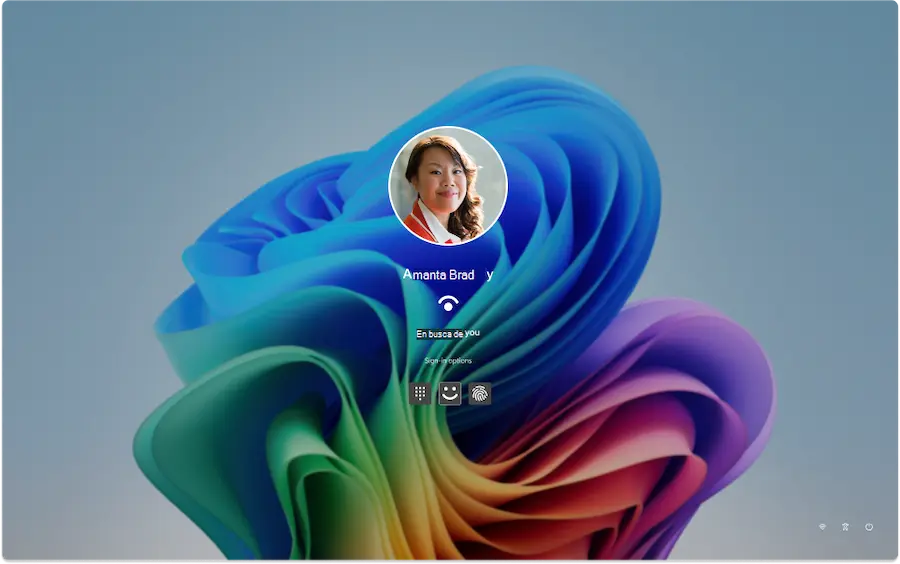
The fastest route, when it’s available, is right on the sign-in screen. Under the PIN field, you may see the option I forgot my PIN. When you select it, Windows starts a verification process to confirm you’re actually the account owner. During this process, the screen may refresh several times, which is normal for these kinds of checks.
Next, you’ll need to authenticate using another supported method. Depending on how your account was set up, you might use a passkey saved on an Android phone, iPhone, or iPad where you’re already signed in to Microsoft services, or a security key configured with another authenticator. Once your identity is confirmed, Windows lets you enter a new PIN and re-enter it to validate. By default, the PIN uses numbers only, though you can also allow letters and symbols by selecting the relevant option.
When you’re done, the system will let you sign in with the new PIN. You may need to sign back in to some linked services afterward, but it’s nothing major. In the end, that small reset is far easier than being locked out of your PC entirely—which is exactly the kind of twist nobody wants to deal with on a Monday morning.
How to change the PIN from Windows Settings
If you can still access your session, the most convenient method is in the Settings app. Open it, go to Accounts, then Sign-in options, and find Windows Hello PIN. From there, Windows gives you two choices: change the PIN if you remember the current one, or start the recovery process if you don’t.
In the simplest case, just select Change PIN, enter the old PIN, and type the new one twice. Just like on the lock screen, you can keep it numeric-only or expand it with letters and symbols. It may sound like a small detail, but it matters if you want a bit more security without giving up the convenience of Windows Hello.
If, within the same section, you choose I forgot my PIN, Windows will walk you through a process similar to the one on the sign-in screen. The difference is that you’re already signed in here, so everything tends to be smoother. Ideally, take advantage of having access while you do and keep your sign-in method updated before the next scare hits.
If you’re looking for the opposite, you can also see how to remove the PIN in Windows 11 even when the option is greyed out.

What if you also forgot the password?
This is where it helps to separate two worlds: Microsoft accounts and local accounts. If your PC uses a Microsoft account and you don’t remember the password, you’ll first need to reset it on Microsoft’s sign-in page. The system will ask you to receive a code via SMS or email, depending on what recovery options you’ve set up, and with that code you can create a new password. Only after recovering that password will you be able to sign back in to Windows and reset the PIN from Accounts > Sign-in options > Windows Hello PIN.
If you use a local account, the process depends on the security questions you set up when you created it. On the sign-in screen, enter an incorrect password, select OK, and then use the Reset password option. Windows will show the security questions and, if you answer correctly, it will let you create a new password. From there, you can sign in and set a new PIN in system settings.
The tricky part is that if you don’t remember the answers for that local account and you also don’t have access to another administrator account on the same PC, your options become quite limited and you may need to reset the PC. That’s why, out of all the approaches, the cleanest one is still keeping your recovery details up to date and checking from time to time how your Windows 11 setup is configured. It’s not as exciting as unboxing a new gadget, but it saves you from problems that feel anything but futuristic.


