
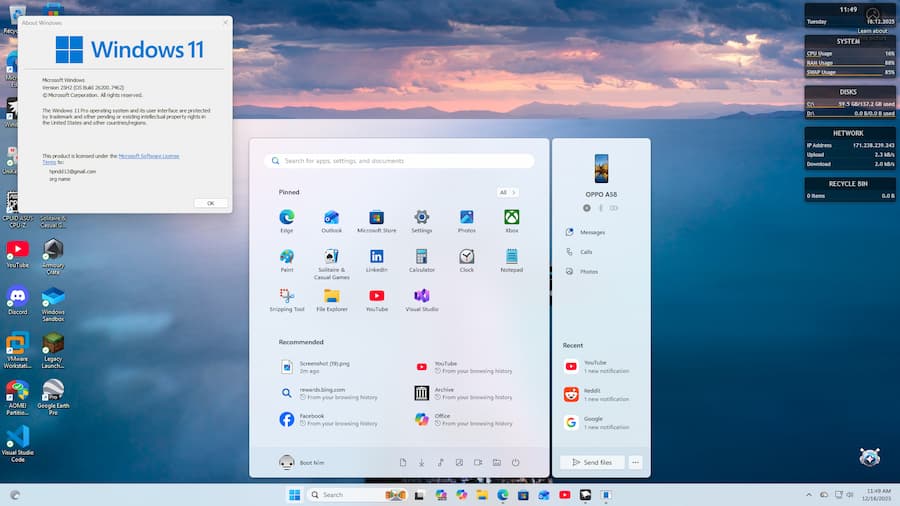

When the Start menu stops responding in Windows 11, it feels a lot like losing the system’s front door: everything is still there, but getting to it suddenly isn’t so straightforward. If nothing happens when you click the icon—or if you also notice Search or the taskbar acting strangely—there are several fixes that can bring things back to normal without jumping straight to drastic measures. The key is to start with the quickest options and only escalate if the issue persists.
The fastest first step is restarting Windows Explorer from Task Manager, since it controls a large part of the interface, including the taskbar. Open Task Manager, find Windows Explorer, and click Restart. The taskbar may disappear for a few seconds, which is completely normal. If the Start menu works again, you’ll have saved yourself a long troubleshooting session—because we all know Windows can sometimes turn those into unplanned side quests.
Another quick option is restarting the Start menu’s own process. In PowerShell, you can force-close StartMenuExperienceHost with Stop-Process -Name StartMenuExperienceHost -Force. Then, if it doesn’t come back on its own, you can relaunch explorer.exe using Start-Process explorer.exe. It’s a small tweak, but that’s exactly why it’s worth trying early: if the problem is limited to the UI process, this step may be enough.
What to do if the issue started after an update
A pretty clear sign is if the Start menu stopped opening right after installing a recent Windows 11 update. In that case, it makes sense to roll back the latest quality update from the Windows Recovery Environment, known as WinRE. You can get there from the sign-in screen by holding Shift while selecting Restart, or through the system’s advanced recovery options.
In WinRE, go to Troubleshoot, Advanced options, and Uninstall updates. From there, you can choose to uninstall the latest quality update, which the source highlights as the best way to restore Start menu functionality when an update has broken something in the interface. It may take a bit of time, and then your PC will load Windows again with the change applied.
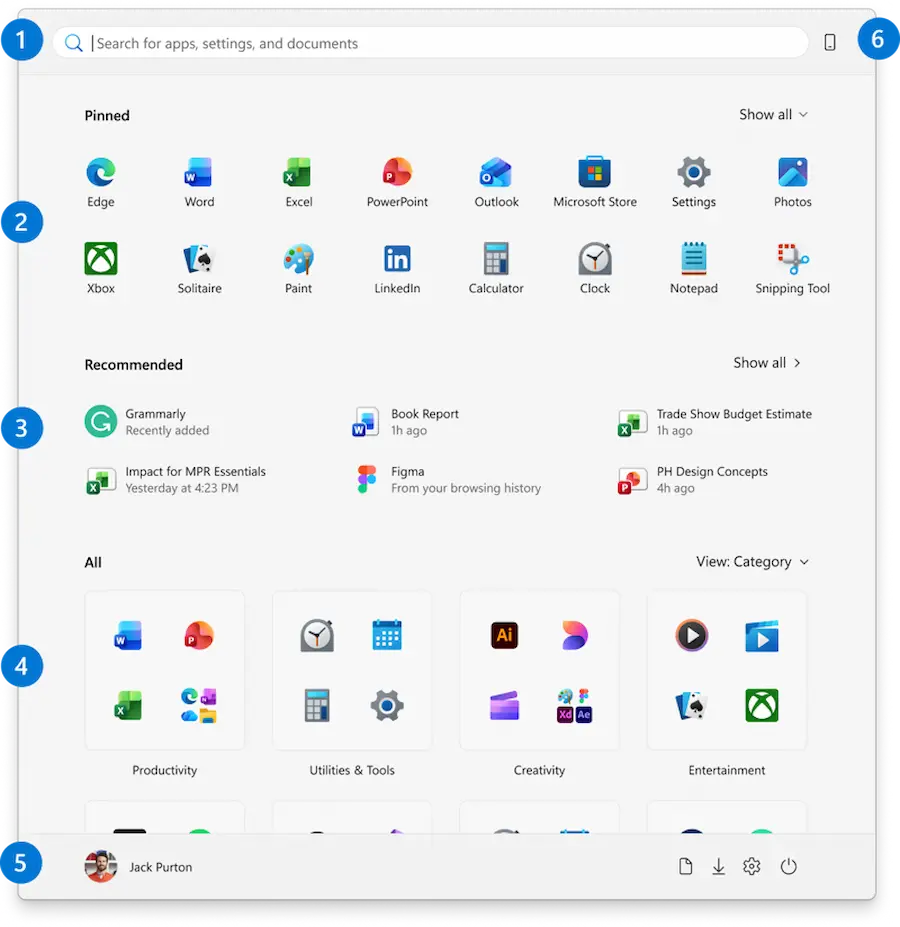
If Windows can’t remove that update, or if the issue doesn’t seem tied to a recent patch, there’s still a sensible step to try before considering more invasive procedures: using System Restore. If there’s a restore point created before the problem appeared, it can return your PC to a previously working state. Launch it with rstrui.exe, pick an available restore point, and the system will apply the rollback after restarting. There won’t always be a saved point, of course—because the balance between prevention and digital laziness is still very much alive, even in 2026.
Commands and checks to repair files and services
When the problem isn’t solved by restarting processes or rolling back an update, the next set of fixes targets deeper causes: system files or components that have been registered incorrectly. One of the suggested approaches is to re-register items related to the Start menu experience from an elevated terminal. To do that, run Get-AppxPackage -AllUsers Microsoft.Windows.ShellExperienceHost and Get-AppxPackage Microsoft.Windows.StartMenuExperienceHost. You may see red text during execution, but the source says it can be ignored. Then restart the PC and check whether the menu responds.
It’s also worth checking the integrity of system files. Windows includes two well-known tools for these situations: DISM and SFC. First run DISM.exe /Online /Cleanup-image /Restorehealth, then sfc /scannow. Microsoft recommends that order because DISM repairs the system image, and SFC scans for and fixes corrupted or missing files. Is it the most glamorous fix? Not really, but when the issue comes from internal corruption, it’s often the most logical approach.

There’s also a less obvious detail worth keeping an eye on: the search service. If the search bar next to the Start menu is failing too, the Search or SearchHost.exe process may be stuck in an error loop, which can affect Start itself. In Task Manager, you can find that process and end it with End task; Windows will restart it automatically. It’s an easy connection to miss, even though it makes sense given how the current system architecture ties multiple UI elements together more tightly than it seems.
If you’re running into other common system issues, it may help to keep guides like how to fix Bluetooth in Windows 11 or how to fix sound problems in Windows 11 handy.
Overall, the most effective order usually looks like this: restart Windows Explorer, restart the Start menu process, check whether Search is involved, repair files with DISM and SFC, and leave uninstalling the latest update or restoring the system for later. That way you save time, start with the least risky steps, and tackle the most likely causes first—which is ultimately what anyone wants when the Start menu freezes in Windows 11.


