
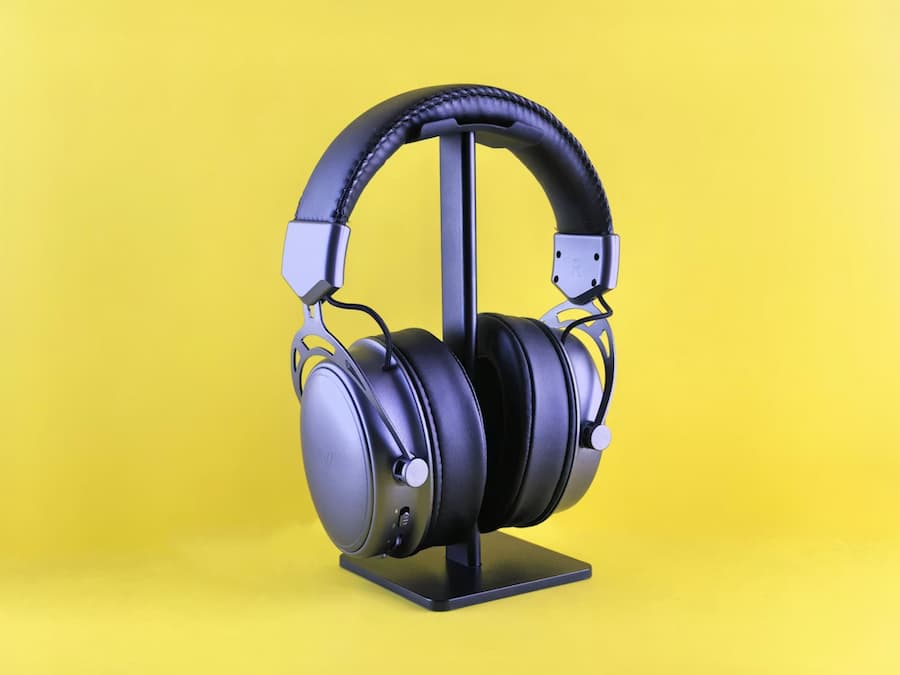

When audio stops working in Windows 11, it’s one of those problems that feels dramatic for five minutes and pretty routine once you know where to start. If you can’t hear anything when playing a video, launching a game, or plugging in headphones, the most common causes are the selected output device, the hardware connection, or a driver that’s gone sideways. The good news is that Windows 11 offers several fairly straightforward ways to get sound back.
Before diving into less obvious menus, it’s worth checking the basics: look at the speaker icon on the taskbar, make sure the volume isn’t at minimum or muted, and also check any physical controls on the audio device itself, if it has them. It sounds like the kind of step nobody wants to admit to, but with touch buttons on headphones and overly eager sensors, it wouldn’t be the first time the silence comes from there.
Check the audio output and the device connection
The next key point is Windows 11’s sound settings. In Settings > System > Sound, the system lists available devices under output. If your PC is sending sound to the monitor instead of your headphones, or to a Bluetooth device you’re no longer using, audio can seem “gone” when it’s actually just going to the wrong place. From there you can also open the specific device, confirm it isn’t disabled, and use the test button to see whether it responds.
If the device you want to use doesn’t appear at all, it’s time to look at the connection. With wired speakers or headphones, the logical move is to unplug and plug back in, and even try another USB port or audio jack if one is available. With wireless gear, on top of making sure it’s powered on and charged, you may need to remove the Bluetooth pairing and connect again from Bluetooth & devices. For similar situations, this guide to fixing Bluetooth audio issues may also help. A clean reconnect often solves those cases where Windows “remembers” the accessory, but no longer communicates properly with it.
Another very useful check to isolate the issue is to try the same headphones, speakers, or headset on another computer, phone, or tablet. If they don’t work there either, the cause isn’t Windows 11—it’s the device itself. And yes, sometimes the investigation ends before it ever reaches Enterprise-level “engineer mode.”
Adjust the audio format and use Windows tools
When the correct output is selected and you still get no sound, it’s worth opening the device’s advanced settings and changing the audio format. In that same sound path, Windows lets you choose different bit depth and sample rate combinations, such as 24-bit and 48,000 Hz. Trying other options can bring audio back if there’s a conflict between the device and the current setting. If none work, it’s best to return to the original format.
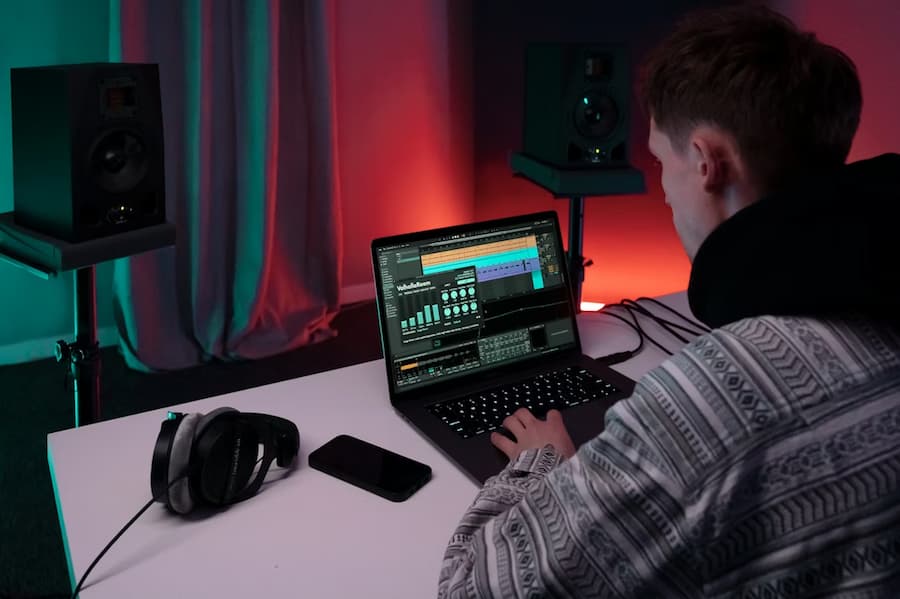
In that menu, it’s also a good idea to temporarily disable the device’s default effects and, if spatial sound is enabled, try turning it off. These features can improve the experience when everything works, but they can also introduce incompatibilities, especially with certain headphones or sound cards. Who hasn’t seen a “smart” enhancement complicate something that used to work perfectly?
If the issue persists, Windows 11 includes a dedicated audio troubleshooter in Settings > System > Troubleshoot > Other troubleshooters. When you run it, the system attempts to detect the cause and apply automatic fixes—or at least point you toward the next step. It won’t always perform miracles, but it can save time when the problem is a relatively common internal setting.
Another helpful step is restarting the audio services from the Windows Services tool. The three worth restarting are Windows Audio, Windows Audio Endpoint Builder, and Remote Procedure Call (RPC). If one of them is stuck, sound can come back with that restart—less dramatic than reinstalling half your system, but far more efficient.
Update drivers and leave a system reset as a last resort
If the sound icon shows a red X, or none of the above has worked, attention shifts to drivers. In Device Manager, under Sound, video and game controllers, you can look for an automatic update for the sound card, which on many PCs will be Realtek, though it may also be Intel, Creative, or Qualcomm. If Windows finds a newer driver, it will install it and, after a restart, audio may return to normal.
When no updates are available or the driver is corrupted, a stronger option is to uninstall the device—checking the box to also try removing the driver—and restart the computer. Once it boots again, Windows reinstalls a clean copy of the driver. If the result still isn’t great, you can also switch to a generic driver from the list available in the system—less elegant on paper, but effective on some machines.
There’s also a specific case: computers with IDT High Definition Audio CODEC. On those, you may need to replace that driver with High Definition Audio Device, Windows’ standard alternative. It doesn’t apply to every PC, but if that codec shows up in Device Manager, it’s worth keeping in mind.
Beyond manual drivers, don’t forget Windows Update. Some audio updates arrive through that route, including optional driver updates. Installing everything pending and restarting can fix issues that seemed more complex than they really were.
Only if the problem continues after checking volume, output, connection, format, services, updates, and drivers does the deeper option come into play: resetting Windows 11 while keeping your files. This returns the system to a clean state without deleting personal documents, though it does require reinstalling apps and reconfiguring settings. At that point, it may also help to review boot and diagnostic options with MSConfig in Windows 10 and 11. If the device uses BitLocker, you’ll also need the recovery key before you start. It’s not the first step—and it shouldn’t be—but it’s the logical closing move once everything else has been ruled out.


