
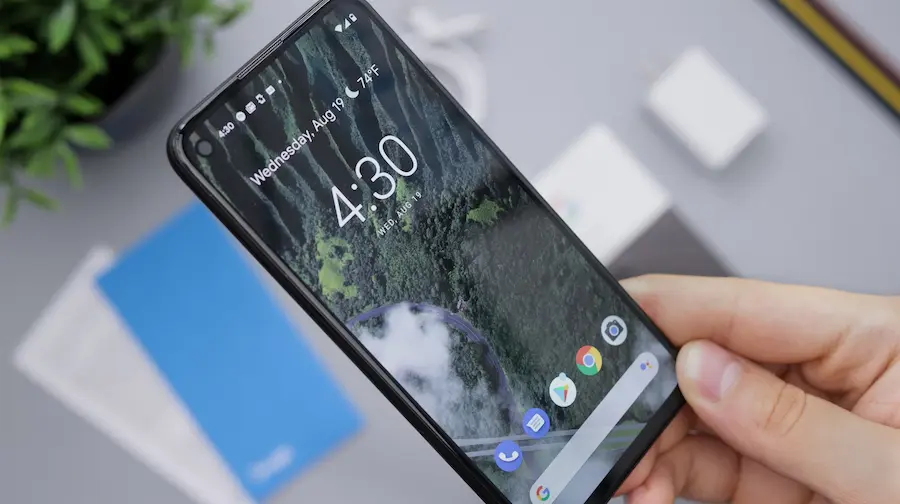

Hiding apps on Android remains one of those features many people look for—whether for privacy, to keep things tidy, or simply to stop certain tools from showing up in the app drawer. The good news is there isn’t just one way to do it: it depends heavily on your phone’s brand, the Android version you’re on, and how “hidden” you actually need the app to be. Hiding an icon isn’t the same as fully isolating an app inside a protected space.
On newer Android phones, the most straightforward route is often found in the system settings themselves. Some manufacturers include an option to hide apps from the home screen and the app menu, so they disappear from view without installing anything extra. If your phone has this feature, it usually lives in the Home screen settings. You simply select the apps you want to hide and confirm. It’s quick, clean, and avoids relying on external solutions—which is always welcome when you don’t want to turn your phone into a mini launcher-testing lab.
That said, this option isn’t available on every device. Android, as an ecosystem, is still very flexible—and a bit chaotic at the same time. That’s why it helps to distinguish between hiding icons, creating a private space, or using third-party tools, because each method solves a different need.
The best built-in options depending on your phone
If you have a device running stock Android (or very close to Google’s version), models compatible with Private Space offer a much more robust solution than simply hiding a shortcut. This private space works like a separate profile inside the phone, letting you install apps independently and protect them with their own lock. It’s also recommended to use a different Google account to avoid mixing data with your main space.
However, it comes with significant limitations. Apps installed there stop working when the private space is locked, so it’s not a great choice for apps that rely on background processes or critical notifications. It also doesn’t automatically transfer to a new phone, so if you switch devices you’ll need to set it up again. Even so, for storing sensitive apps or keeping certain content separate, it’s one of the most complete options Android has added.
On Samsung Galaxy phones, the equivalent alternative is Secure Folder. The approach is slightly different, but the logic is the same: create a protected area secured with a PIN, password, pattern, or fingerprint, where you can add copies of apps you already have installed or download new ones directly from the Google Play Store or Galaxy Store. From the outside, those apps are kept apart from everyday use—and that’s a clear step up from superficial icon hiding.
Huawei also offers a similar feature through PrivateSpace, which works as a second user environment. In this case, if an app is already installed in the main space, you need to uninstall it before reinstalling it inside the private space. OnePlus, meanwhile, includes a dedicated app-hiding feature that lets you access hidden apps from a protected icon—or even via a code in the phone dialer—very much in line with those custom skins that add clever ideas without making too much noise about them.
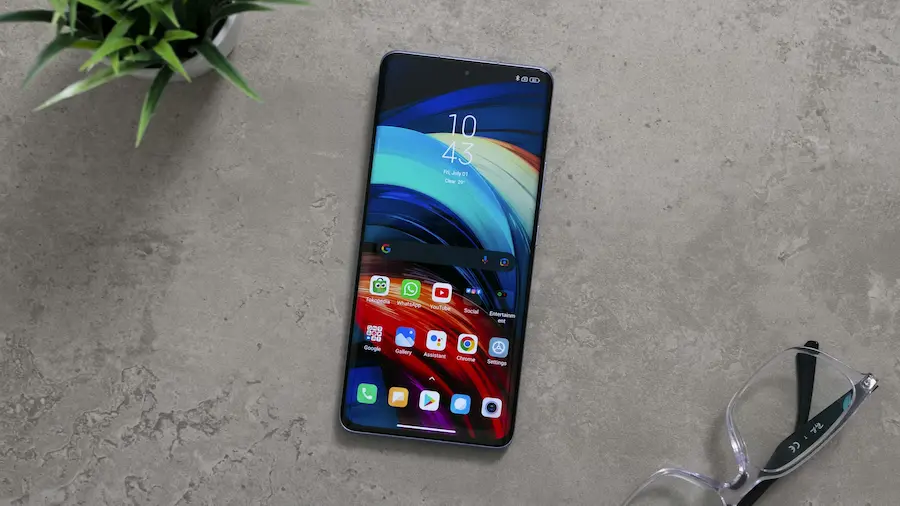
What to do if your Android doesn’t include that feature
When the system doesn’t allow you to hide apps natively, there are still two common paths: using a compatible launcher or turning to a dedicated app. Among launchers, Nova Launcher is one of the best-known names, although the option to hide apps is reserved for its paid version, Nova Launcher Prime. The advantage is clear: it doesn’t create an isolated space, but it does let you remove apps from the drawer and home screen while keeping the rest of the experience intact. Other launchers offer similar features too, although the steps can vary.
The other option is so-called app hiders—apps designed to conceal other apps inside a disguised interface, often made to look like a calculator. They typically ask for file access permissions, let you protect access with a PIN or fingerprint, and only reveal hidden apps once you enter the correct code. They can work, yes, but you need to be more selective here: in the end, you’re trusting a third-party app with exactly what you wanted to keep out of sight. Checking reviews and reputation is almost mandatory.
There’s also a more limited but useful solution in some cases: disabling preinstalled apps. On many Android phones, you can go into the Apps section, show all apps—including system apps, if the manufacturer allows it—and tap “Disable.” This stops the app from running and also prevents it from receiving updates through Google Play. It doesn’t always disappear completely, and not every system app supports this option, but it helps reduce visual clutter and clean up the app menu.
Which method makes sense depending on your privacy needs
If you just want to tidy up your phone and get rarely used apps out of the way, hiding icons from settings or via a launcher is usually enough. It’s the simplest, least invasive method. On the other hand, if you want a real barrier against prying eyes, the sensible choice is a protected space like Private Space, Secure Folder, or Huawei’s PrivateSpace—because apps there are separated and locked behind additional authentication.
Third-party apps sit somewhere in the middle: they can be convenient, but they also require more trust in external developers and more permissions on your device. Is it really worth using a fake calculator to hide an app your phone can already hide natively? In many cases, no.
In short, Android offers several ways to hide apps, but not all of them provide the same level of protection—or serve the same purpose. The best option depends on whether you want visual discretion, real isolation, or simply a cleaner app drawer. That’s the key: choose the method based on your goal, not a passing curiosity—because as it is, we already have enough on our plates dealing every day with custom skins that sometimes feel like they were designed by a committee of sci-fi villains.


