
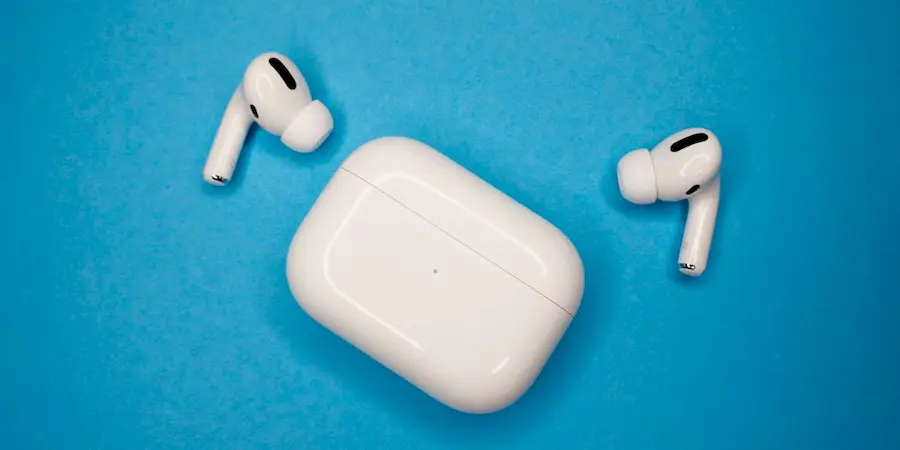

If your Bluetooth headphones are only playing on one side, or they’ve suddenly gone from stereo to flat, odd-sounding audio in Windows, you’re not looking for theory: you need proper sound back as soon as possible. The good news is that, in many cases, the issue isn’t the headphones at all, but the way Windows paired them—or an audio setting that’s been left wrong.
The most effective fix is often the simplest: remove the headphones from the system and pair them again from scratch. When pairing goes wrong, Windows can detect the device incompletely and end up playing in mono or at a lower quality than expected. This is especially annoying with true wireless earbuds, where synchronization between both sides already has plenty to handle—almost like Bluetooth is trying to bring back less glamorous times.
How to pair your headphones correctly again
The first step is to open Bluetooth settings in Windows. In Windows 11, go to Settings > Bluetooth & devices, while in Windows 10 the path is Settings > Devices. Once there, find your headphones in the list, select them, and use the option to disconnect and remove them from the PC.
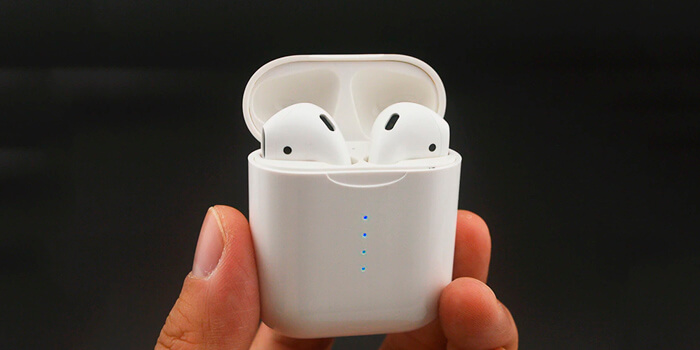
Next, turn Bluetooth off for a few seconds and then back on. That small reset can clear temporary connection glitches that prevent the device from registering properly. Then put the headphones back in their charging case and enable pairing mode. There isn’t a universal rule here—it depends on the brand and model—so the right approach is to follow the manufacturer’s method, usually using a button on the case.
With the headphones ready to connect, go back to Windows and click Add device, choose Bluetooth, and select them when they appear. In some cases, the system may ask to pair each earbud separately. It sounds a bit absurd for devices designed to work as a pair, but it may be necessary for Windows to recognize both channels properly.
If the problem was a bad pairing, it’s usually fixed at this point. If nothing changes, then it’s time to check the system’s sound settings, because that’s where the real culprit sometimes hides. If you need to go a step further with the connection, here’s a guide to fix Bluetooth on Windows 11.
Windows settings that can ruin stereo
One of the most important things to check is that mono audio isn’t enabled. If this option is on, Windows mixes both channels and the result completely removes the stereo effect. In Windows 11 you can check this from Settings > System > Sound; in Windows 10, from Settings > Ease of Access > Audio. If the mono toggle is enabled, simply turn it off.
The audio format is also worth a look. If the system is using a quality setting that’s too low—or a configuration that doesn’t play nicely with the device—sound can degrade. A good reference is 2 channel, 16 bit, 48000 Hz, labeled as DVD quality. In Windows 11, you can adjust it from the output section of the Sound menu when you select your headphones; in Windows 10, you’ll need to open the device’s additional properties and go to the Advanced tab.
Another easy-to-miss detail is the balance between the left and right channels. Your headphones can be working in stereo and still have one side much quieter than the other because of an uneven setting. From the same Sound section, you can check the volume assigned to each channel and set both to the same level. How often does it feel like a hardware failure, only to turn out to be a misplaced slider?
If the issue still persists, there are two additional options: update the headphones’ firmware from the manufacturer’s website, and try a full reset of the device by following the official instructions. Both are meant to fix persistent connection problems and small internal glitches.
If what you’re noticing is a general audio problem (not just Bluetooth), it may help to review this guide to fix sound problems in Windows 11.
How to keep it from happening again
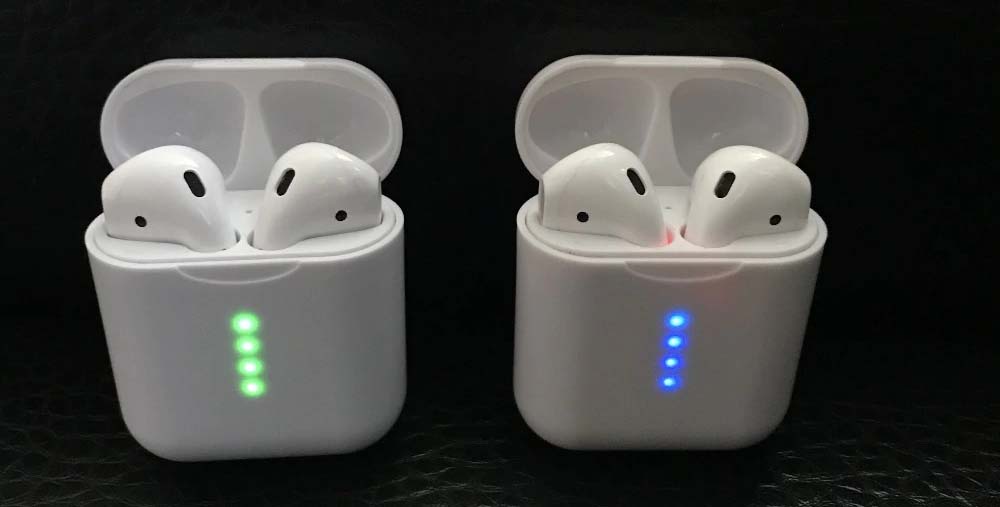
Once stereo sound is back, the ideal is to prevent the issue from returning. The most basic—and most commonly overlooked—step is to make sure both earbuds have enough battery. If one is dead or nearly out of charge, you can get strange behavior that looks like a Windows issue but is actually much simpler.
It also helps to reduce the number of active Bluetooth connections. If your PC has several devices connected at the same time, or there are too many wireless devices operating nearby, interference or incomplete connections can happen. It doesn’t always occur, of course, but when it does the result looks a lot like those temperamental glitches that turn a quiet afternoon into an at-home tech support session.
Another thing to consider is physical maintenance of the headphones. Dirt or earwax buildup can make one side sound quieter, creating the false impression that stereo is broken. Cleaning them regularly helps rule that out before you change anything in the system.
Finally, it’s a good idea to keep Windows and your drivers up to date. An outdated system or an old Bluetooth driver can cause connection and recognition issues. From Device Manager, you can check for updates for both the headphones and the computer’s Bluetooth adapter. If Windows doesn’t find anything new, the alternative is to check the manufacturer’s website and install the available driver manually. In Windows 10, if you’re also getting dropouts or low quality with wireless audio, this guide to fixing Bluetooth audio and Miracast issues may help.
Overall, the most effective order is pretty clear: re-pair, check mono, format, and balance—and only then move on to firmware, a device reset, or drivers. It may not be the most futuristic solution in the world, but it works—and once stereo is back in both ears, you don’t really need more drama than that.


