
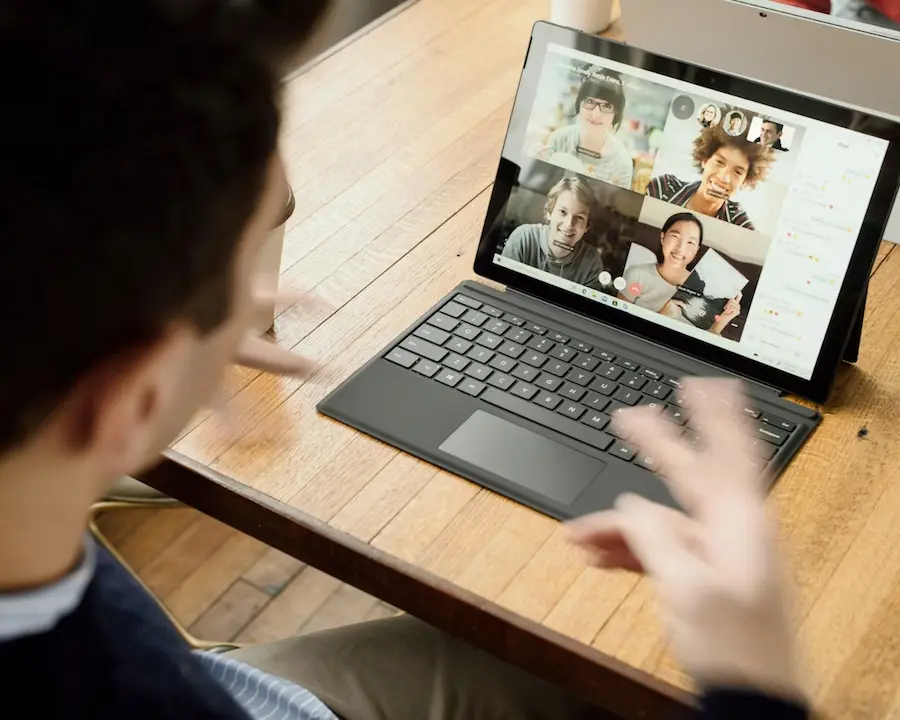

A microphone not working in Windows 11 is one of those problems that seems minor—until you join a video call, open Zoom, Google Meet, or Discord, and realize the system can barely hear you, like a 2012 phone left inside a drawer. The good news is that, in most cases, the cause usually comes down to three very specific areas: blocked permissions, the wrong input device selected, or an audio driver that’s gone sideways along the way.
If what you want is to get your microphone back as quickly as possible, it’s best to start with the basics: check whether Windows 11 detects the device, whether it’s set as the main input, and whether the app you’re using has permission to access it. That first pass saves a lot of time—and helps you avoid digging into deeper settings when the issue was simply a toggle turned off in Settings.
Check permissions and the active microphone in Windows 11
The first step is in Settings > System > Sound. In the Input section, Windows 11 lists the available microphones, including the laptop’s built-in mic, a headset mic, or a USB/Bluetooth model. If you have several connected, make sure the right one is selected—because it wouldn’t be the first time Windows decides to prioritize the least useful microphone of the bunch, as if it had a secret hobby of complicating meetings.
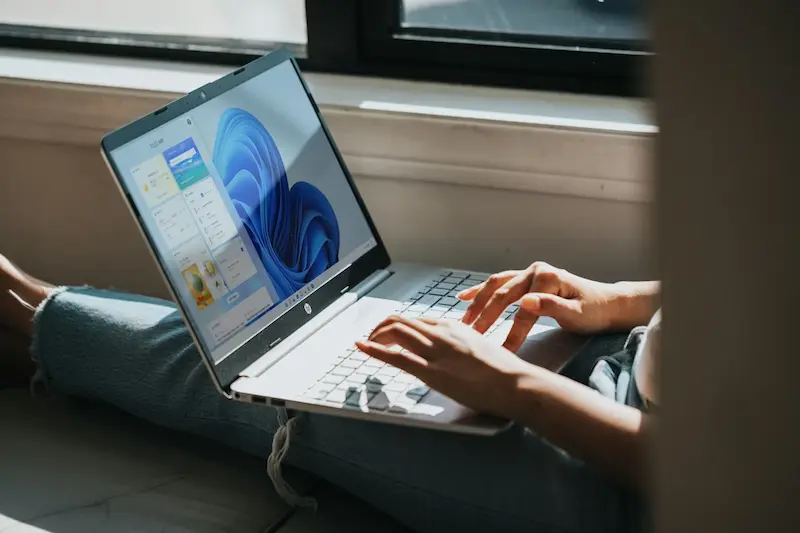
From that same screen, you can open the device, set the input volume to maximum, and run a voice test. If Windows doesn’t register any sound, it’s worth checking something as simple as the physical mute button or the volume control on the mic or headset itself. On many headsets, that small switch has more authority than any system setting.
If the microphone works in Windows but doesn’t show up in an app, you’ll need to review permissions. In Settings > Privacy & security > Microphone, both Microphone access and Let apps access your microphone should be enabled. Then check which specific apps are allowed, and also enable Let desktop apps access your microphone—which is essential for programs like Zoom, Slack, or your browser.
In some cases, it’s also worth checking the camera permission—especially if you’re using a webcam with an integrated microphone. And if the issue happens inside the browser, look at the microphone icon next to the address bar: if it’s blocked, the site won’t be able to capture audio even if everything else is configured correctly.
What to do if Windows 11 doesn’t detect the microphone
When the problem isn’t within an app, but rather that Windows 11 doesn’t detect the microphone at all, the focus shifts to drivers. Open Device Manager, expand Sound, video and game controllers, and uninstall the audio devices or drivers you see there. It’s a more drastic step, yes—but that’s exactly why it often resolves stubborn internal conflicts (if you need a broader guide, here’s how to fix sound issues in Windows 11).
After uninstalling, restart your PC. On reboot, Windows automatically reinstalls the default drivers for the connected devices. Then it’s worth going back to Device Manager and using Scan for hardware changes, which forces a fresh detection and helps the system restore audio properly.
Once that’s done, there’s still one more layer: updating drivers from Device Manager itself. If a newer version is available, Windows can install it. In an ideal scenario, that should solve everything—without having to wander through menus like you’re unlocking a side quest.

If you’re using a USB or Bluetooth microphone, it’s also a good idea to reconnect it. For Bluetooth, make sure it’s paired and active under Bluetooth & devices. If it doesn’t appear, you’ll need to put it back into pairing mode and add it again from scratch. If it’s giving you trouble, this guide on how to fix Bluetooth in Windows 11 may help. And if it still won’t be detected, the most sensible move is to try another microphone to rule out a physical fault or a compatibility issue with your PC.
If people hear you very quietly or not at all in calls
There are situations where Windows recognizes the microphone, but in calls nobody hears anything—or the volume is far too low. In that case, check the device’s physical status again: the USB connection seated properly, headphones plugged in correctly, or Bluetooth connected with the active indicator. Switching to a different USB port can also help if the connection is flaky.
Then go back to Settings > System > Sound, open the relevant microphone, and raise the input level. From that same panel you can start a test, speak for a few seconds, and play the recording back to confirm whether the volume is now correct. Still nothing even there? Then run the recording troubleshooter, available in the advanced sound section under the option to fix common input issues.
Finally, don’t forget each app’s own settings. Google Meet lets you change the microphone from within the meeting, and Zoom includes a dedicated audio section where you can choose the device and test it before joining. If the app is pointing to the wrong microphone, it won’t matter how perfectly Windows is set up.
In short, to fix a microphone that doesn’t work in Windows 11, the most effective approach is to follow this order: check selection and volume, review permissions, verify physical blocks, reinstall and update drivers, re-pair or reconnect the device, and only at the end review the specific app. It’s not the most glamorous issue in the PC ecosystem, but at least it’s usually fixable without drama. If the problem is specifically happening with headphones, you may also want to check whether your Bluetooth headphones only play through one side in Windows.


