
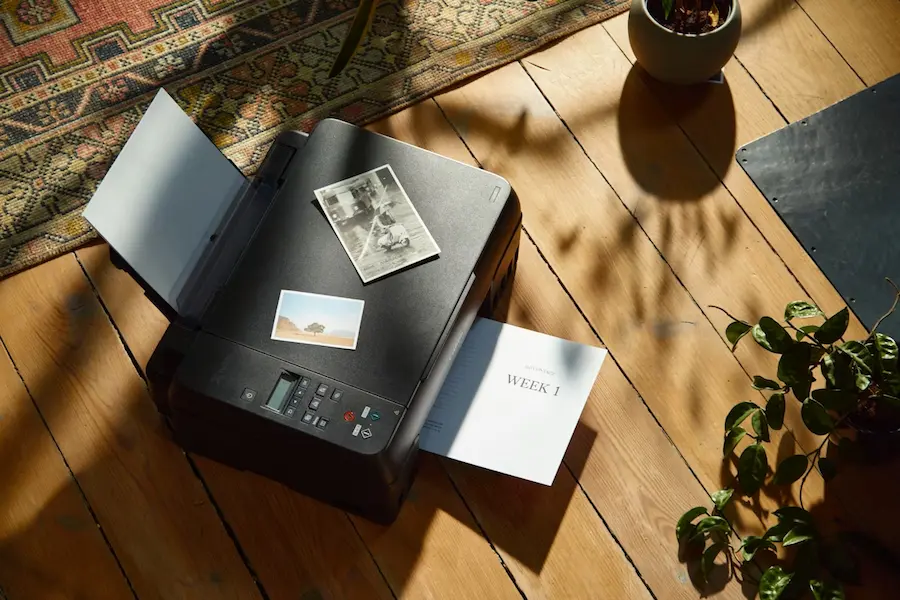

Connecting a wireless printer to a Windows PC is usually much easier than it looks, as long as the printer is already ready to communicate over Wi‑Fi or Bluetooth. If what you want is to add it in Windows 10 or Windows 11 and start printing without fighting with cables or impossible menus, the key comes down to two things: set the printer up properly and use the right section of the system settings.
The logic is pretty straightforward. First, the printer needs to be connected to the Wi‑Fi network or put into Bluetooth pairing mode; then, in Windows, you simply open the Printers & scanners section to find it and add it. It almost sounds too easy for a printer, yes—but in most cases it works exactly like that.
Prepare the printer before adding it in Windows
Before you touch anything on the computer, it’s worth placing the printer in a suitable spot: a stable surface, close to a power outlet, and—if it’s going to run over Wi‑Fi—within range of the router. If you’ll be using Bluetooth, it should be relatively close to the computer, with a range of around 9 metres (30 feet), since distance and obstacles can affect pairing.
The truly decisive step is making it discoverable. On a Wi‑Fi printer, that means opening its interface and looking for the network or Wi‑Fi settings to connect it to the same wireless network your PC uses, entering the network name and password. Some models also support WPS, the system where you press a button on the printer and another on the router within a limited time—something like an “easy mode” that can save you several menus.
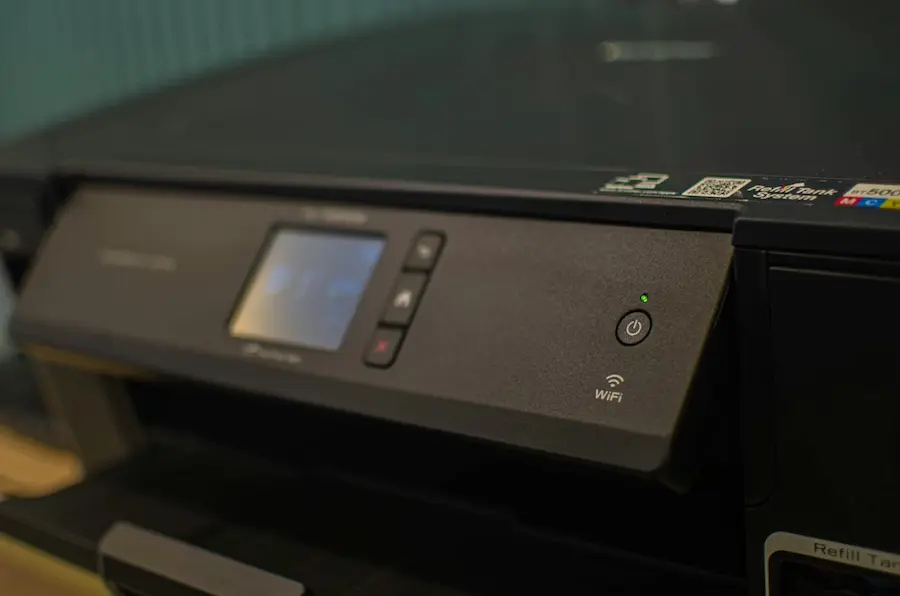
If the printer uses Bluetooth, you typically need to press and hold the corresponding button or enable pairing mode from its settings menu. Since every manufacturer organises these sections differently, if it’s not obvious on the screen, the smartest move is to check the manual for that specific model instead of improvising and ending up digging through menus like it’s a 2007 BIOS.
Add the printer in Windows 10 and Windows 11
Once the printer is ready, it’s time to switch to Windows. The quickest way in is to press Win + i to open Settings. In Windows 11, go to Bluetooth & devices and then Printers & scanners. In Windows 10, the path changes slightly: you go to Devices first, then the same printers section.
If your PC has already detected the printer on the network, it may show up in the list automatically without you doing anything else. If it isn’t installed, click Add device and wait a few seconds while Windows loads the available devices. The printer should appear in that list, either over Wi‑Fi or Bluetooth. All that’s left is to select it and confirm with Add device.
After it’s added, Windows will have it ready to print. If you have multiple printers connected—very common in homes and small offices—you can choose which one will be the default. To do that, go back to Printers & scanners, select the printer you want to use most often, and click Set as default. That way, print jobs will go there automatically and you’ll avoid the classic mistake of sending a document to another machine on the network.
What to do if Windows can’t detect the printer
If the printer doesn’t appear or you get errors during installation, the first move is still the most basic—and the most effective: restart the computer and fully power off the printer, even unplugging it for a moment before turning it back on. It’s not glamorous, but it still fixes more issues than many AI assistants would like to admit.
Next, check the connection. If it’s Wi‑Fi, the computer and printer must be on the same wireless network, and the signal needs to be stable enough. If the network is acting up, restarting the router can help too. If it’s Bluetooth, make sure Bluetooth is enabled in Windows and that the printer is still within range.
Another common issue is the default printer. If you’ve used multiple models on the same PC, Windows may keep a different one selected, which creates confusion even if the installation is fine. It’s also worth checking whether the manufacturer provides its own installation tool, because some models require specific steps.
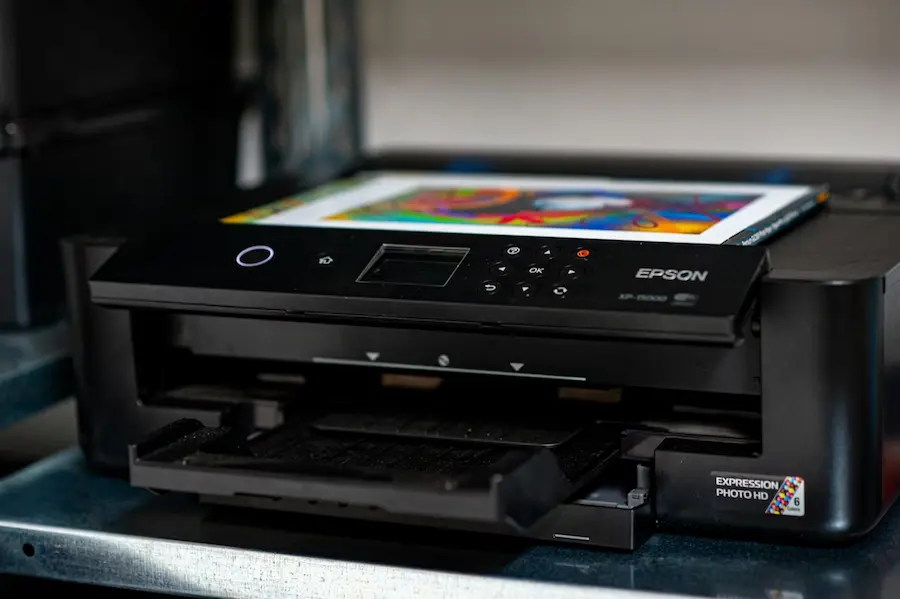
In most situations, Windows installs drivers automatically—but not always. If that fails, you can download them from the manufacturer’s website or update them via the Device Manager, locating the printer in the system and running the driver update option. Windows also includes a dedicated printer troubleshooter, accessible from the Troubleshoot menu, which checks for common errors and attempts to fix them.
If the printer still won’t respond, there’s the more heavy-duty option: remove it from Printers & scanners and reinstall it from scratch. It’s not the most elegant solution, but when an installation gets stuck halfway or Windows insists on remembering an old configuration, reinstalling often clears the path and gets the printer working again.
In short, to connect a wireless printer in Windows, you just need to make sure it’s discoverable over Wi‑Fi or Bluetooth, add it from Settings, and—if anything goes wrong—check the network, drivers, and diagnostic tools before reinstalling. It’s a fairly approachable process, even if printers still have that special talent for acting up on the exact day you urgently need to print something.


