
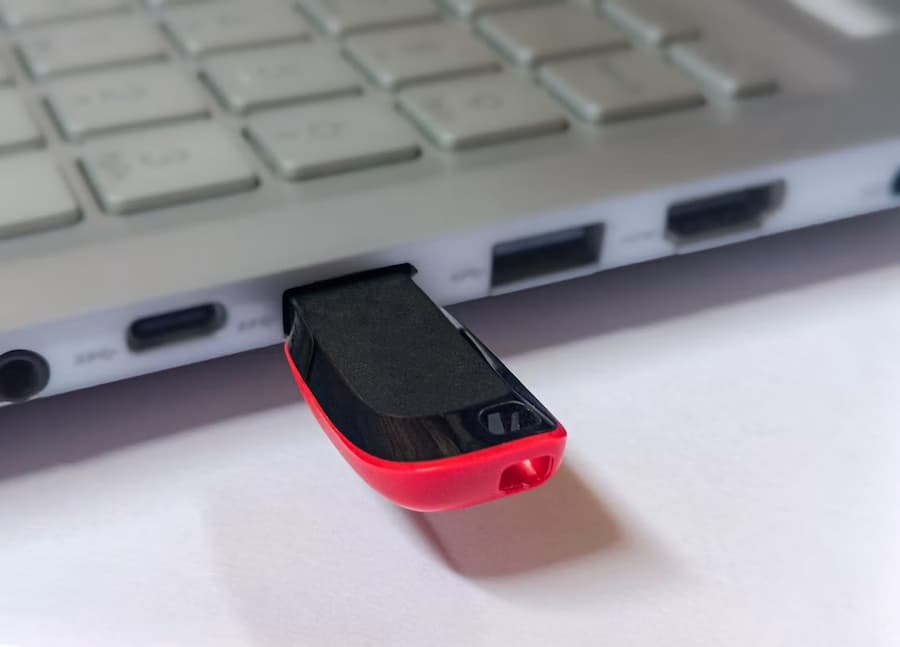

To transfer photos to a USB drive on Windows or Mac, connect the drive to your computer, open it and drag the images you want to save into its window. This creates a copy, so the original photos remain on your computer. Wait for the transfer to finish and safely eject the drive before unplugging it.
How to copy photos to a USB drive on Windows
- Connect the drive to a USB port on your computer. If Windows asks what you want to do with it, choose the option to open the folder to view its files. If no prompt appears, you can access it through File Explorer.
- Open the USB drive. Press Windows + E to open File Explorer. Look for the drive’s name in the left-hand panel, or go to This PC and find it among the available devices and drives. Double-click to view its contents and leave that window open.
- Find your photos. Press Windows + E again to open another window and go to the folder where you keep them. They are usually in Pictures, inside your user folder, but if you saved them elsewhere, go to that location instead.
- Select the photos and drag them into the USB drive’s window. To select several individual images, hold down Ctrl while clicking them; to copy everything in the folder, use Ctrl + A. You can also select a group by dragging a selection box with your mouse.
When you drop the files onto the USB drive, copying will begin without deleting the originals from your computer. Repeat the process for any other photos you need, making sure there is enough space on the drive.
How to transfer photos to a USB drive on Mac
On a Mac, start by checking the connection: if your drive uses USB-A and your computer only has USB-C ports, you will need a USB-A to USB-C adapter or a drive with a USB-C connector.
- Connect and open the drive. It should appear on the desktop. Double-click its icon to open it; if you cannot see it, open Finder and look for the USB drive in the sidebar.
- Find your photos. With Finder active, press Command + N to open a second window. Go to the Pictures folder or wherever you saved them. If they are in the Photos app, you can also select them there and drag them into the USB drive’s window.
- Select and copy the images. To select several photos individually, hold down Command while clicking each one. To select everything in the current location, use Command + A. Then drag the selection onto the USB drive and wait for the transfer to finish.
As on Windows, this copies the photos without deleting them from your Mac.
How to safely eject the USB drive
Do not unplug the USB drive while files are being copied. Once the transfer is complete, eject it through the operating system to reduce the risk of photos being corrupted or lost when you remove the drive:
- On Windows: right-click the USB drive icon next to the clock and select the option to eject the relevant drive. If the icon is hidden, click the arrow to show additional icons.
- On Mac: use the eject button next to the USB drive’s name in Finder. You can also drag its icon from the desktop to the Trash to eject it.
Common questions about copying photos
- How do I transfer them to another computer? Connect the drive to that computer and drag the images from it into the destination computer’s Pictures folder.
- Does copying free up space on my computer? No. To free up space, you will need to delete the photos from your computer separately once copying is complete. Deleting them from your computer does not delete the copies already saved on the USB drive.
- Why are they in a different order? The drive may use a different sort order; this does not mean the photos were copied incorrectly. Open the context menu in an empty area of the window and adjust Sort by to use the same criteria as the original folder, such as date or type.
- What if the photos are on my phone? One option is to upload them to Google Drive, then access them from your computer and download them to the USB drive.


