
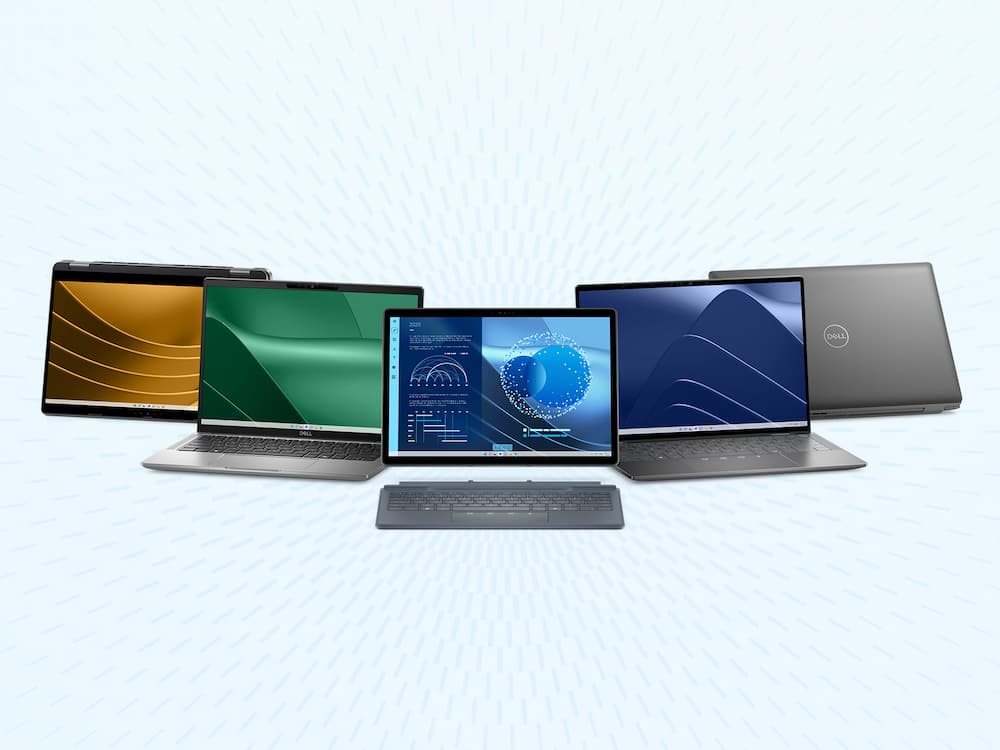

Splitting the screen on a Dell computer is one of those small features that makes a big difference day to day—especially if you work with multiple windows, compare documents, or simply don’t want to keep bouncing between apps like you’re running a tab raid. The good news is that, in most cases, you don’t need to install anything: Windows already includes tools to place two or more windows side by side in seconds.
This works on Dell PCs running Windows 7, Windows 8.1, Windows 10, and Windows 11, although the latest version adds extra options to better organize your desktop. If what you want is to keep two apps on screen at once, resize them, or make the most of a Dell monitor with more advanced layouts, here are the essentials—no fluff.
The quickest ways to split the screen
The most straightforward method is to open the two windows you want to use and drag the first one by its title bar to the left edge of the screen. When your cursor hits that edge, the window snaps automatically to fill the left half. Then do the same with the second window, dragging it to the right edge so it takes the other half. From there, you can adjust how much space each one uses by dragging the center divider line between them.
If you’d rather go faster—or avoid mouse issues—Windows also lets you do it with the keyboard. Select a window and press Win + Left Arrow to snap it to the left side. Then select the other one and use Win + Right Arrow. It’s a particularly handy shortcut on laptops or in setups where dragging windows doesn’t always behave as it should.
And you’re not limited to two halves. You can also place a window in a corner so it takes up a quarter of the screen, which is great if you’re juggling a browser, chat, notes, and a third app at the same time. It’s not quite a sci-fi command center—but it’s close.
What’s different in Windows 11—and when to use Dell Display Manager
In Windows 11, Microsoft has significantly refined this feature with Snap Layouts. Hover over a window’s maximize button and a menu appears with several layout options: two columns, three zones, four blocks, and other combinations depending on your screen size. Just choose where you want that window to go, then fill in the remaining spots with the other open apps.
There’s another option built into the same system: drag a window to the top of the screen to reveal the layout bar. From there, drop it into the arrangement you prefer. It’s more visual and very convenient if you work with lots of apps at once and want to reorganize your desktop without breaking your flow.
That said, if you use a compatible Dell monitor, Dell Display Manager comes into play. This app adds an Easy Arrange tab, which shows different layout templates for dividing your monitor into specific zones. You simply pick a layout and drag each app into place. Compared with Windows’ built-in tools, the advantage here is finer control over space—especially useful on large or ultrawide screens, where splitting into two perfectly even halves can feel limiting.
Common issues and how to fix them
If a window doesn’t snap automatically when you drag it, the most likely reason is that window snapping is disabled. In that case, go to Settings, open System, then Multitasking. Make sure Snap windows is turned on. In that same section, you’ll also see additional options to enable behaviors like showing layouts when you drag a window to the top—especially useful in Windows 11.
Another common situation happens when you use two monitors in extended mode. When you try to move a window to the left or right edge, instead of snapping it may jump to the other monitor. The fix? In the same Snap settings menu there’s an option related to dragging windows to the edge of the screen. If you turn it off, Windows can show the snap outline before you reach the absolute edge, making it easier to position the window without it flying over to the other display.
If you want a quick way to review all open apps before arranging them, use Alt + Tab to cycle through them. It’s a simple detail, but it helps a lot when your desktop has turned into a small multiverse of windows.
In practice, for most Dell users, mastering side snapping and keyboard shortcuts is enough. Windows 11 adds more flexible layouts, and Dell Display Manager provides an extra layer for those using the brand’s monitors. The end result is the same: less time organizing windows, and more time doing what you actually opened them for in the first place.


