
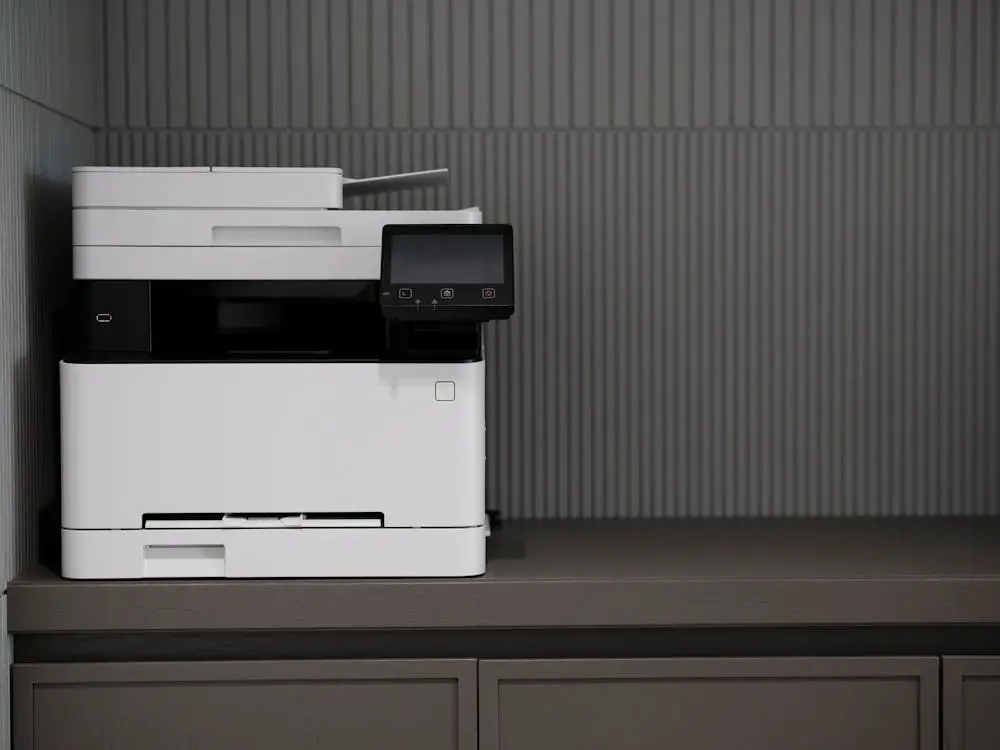

Connecting a scanner to your computer is usually pretty straightforward, but when the device doesn’t show up or the system doesn’t detect it right away, things can get more frustrating than they should. If you want to get it running as quickly as possible, the key is to figure out whether your model uses a USB cable or works wirelessly, and then follow the right path on Windows or Mac without getting lost in unnecessary menus. In the end, it almost always comes down to three things: the scanner is powered on, the computer can see it, and the correct drivers are installed.
There’s also one detail that often gets overlooked: many all-in-one devices appear in the system as printers rather than as standalone scanners. It’s one of those small quirks of the computing ecosystem that has basically become tradition. From there, the steps vary slightly by platform, although the logic is very similar in every case.
Connecting a scanner on Windows and Mac
If your scanner is wired, start by plugging it into power, turning it on, and connecting it to your computer via USB. In many cases, Windows will recognize it automatically and show the instructions needed to complete the software or driver installation. If that doesn’t happen, on Windows 10 and Windows 11 you can go to Settings, open the Devices section, and look for Printers & scanners. From there, the option to add a printer or scanner lets you find the model and register it with the system.
With a wireless scanner on Windows, the process is similar, although you may need to enable pairing mode first—especially if it uses Bluetooth. Some models require pressing a specific button to enter discovery mode, so checking the manufacturer’s manual can save more time than you’d think. Also, if the connection is over Wi‑Fi, both the computer and the scanner must be on the same network; if one of them is going through a repeater, detection can fail.
On a Mac, the route goes through the Apple menu and System Settings (or System Preferences on older versions), then Printers & Scanners. If the device is already listed, you just need to select it. If it isn’t, use the option to add a printer, scanner, or fax and choose the model. On compatible devices, macOS usually downloads the latest software automatically, so installing the manufacturer’s apps first isn’t always the best idea. In fact, for models that aren’t AirPrint, updating the drivers before or during the process can make all the difference.
What to keep in mind if you’re using a wireless connection
Going cable-free is much more convenient for a clean, flexible desk setup, but it also adds more variables. The most important one is that the scanner and the computer share the same Wi‑Fi network. It sounds obvious, yes, but it’s the home equivalent of checking whether a cable is plugged in: basic, not glamorous, and surprisingly effective. If the scanner is too far from the router or the computer, or there are obstacles that weaken the signal, the system may not detect it even if the device is powered on and working.
In some cases—especially on Mac—you may need to do an initial setup over cable before enabling wireless scanning. It’s not the most elegant scenario, but it’s quite common with hardware that doesn’t play nicely with first-time Wi‑Fi configuration. Some manufacturers also recommend using their own app to scan documents without relying on the computer, which is handy if you just want to scan quickly and move on without turning it into a technical side quest.
Another practical point is the type of port you have available. If your Mac only has USB‑C and the scanner uses a traditional USB connector, you’ll need a multiport adapter or similar. It doesn’t change the steps, but it does save you from that all-too-classic moment of having everything ready and realizing there’s nowhere to plug it in.
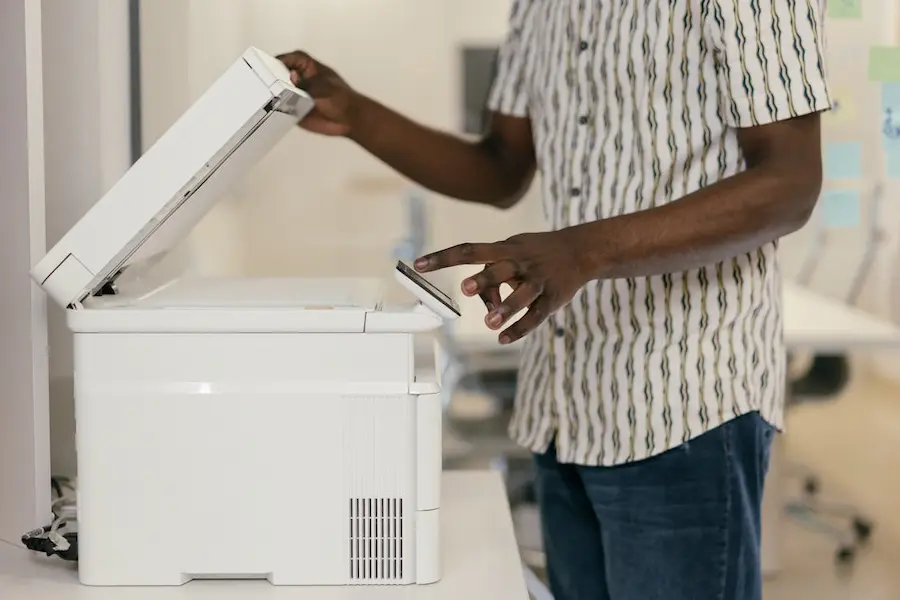
How to troubleshoot if the scanner doesn’t show up
When a scanner won’t connect, the most useful approach isn’t trying twenty random fixes—it’s tackling the most common causes first. The first is to install the correct drivers from the manufacturer’s official website, searching for the exact brand and model. After installing those drivers, restarting your computer is still one of the most effective solutions, even if it sounds like a support tip from another decade.
It’s also worth restarting the scanner itself using its power button and, if needed, unplugging it for a few minutes before plugging it back in. That said, if it has a power button, it’s better to use it rather than cutting power directly—especially if a scan was in progress. If the issue is on the wireless network side, a useful alternative is connecting the scanner via Ethernet so the computer can recognize it more easily.
If it still doesn’t appear, it’s worth checking whether the firewall or antivirus is blocking communication. The scanner needs permission to talk to the system, and it doesn’t always get it on the first try. Keeping Windows or macOS up to date helps too, as does making sure the device is within wireless range. And if you’re dealing with a very old scanner connected to a modern computer, you may run into a hard-to-avoid compatibility limit: sometimes it’s not the setup that’s failing, but time catching up with software support.
Once you’ve cleared that hurdle, all that’s left is to open your preferred scanning app and start digitizing documents or photos. The fact that we’re still wrestling with drivers in 2026 has a hint of accidental retro-computing, but at least the path to fixing it is usually fairly clear.


