
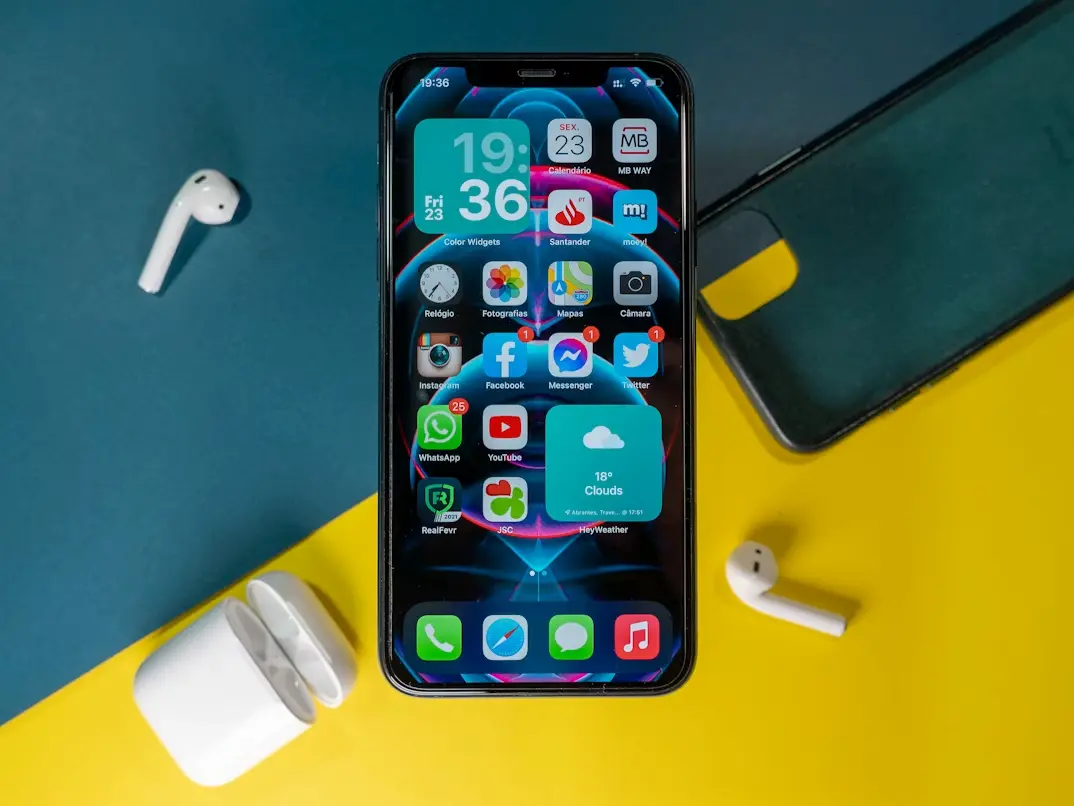

If you’ve made it this far, you’re probably looking for a very specific answer: how to put music on an iPhone so you can listen whenever you want, with or without an internet connection, without getting lost between apps, subscriptions, and sync options. The good news is that iOS still offers several ways to do it—although Apple has wrapped everything in its trademark “everything is connected” philosophy… right up until the moment you need to find the right button.
Today you can add songs to your iPhone through Apple Music, buy them directly from the iTunes Store, sync MP3 files from a Mac or PC, or use platforms like Spotify to save music and listen offline. And if what you want is free music, the picture changes: there are apps that let you stream with ads and a few specific solutions—such as library-linked services—but not everything that sounds “free” actually ends up inside your iPhone’s Music library.
The most straightforward ways to add music to iPhone
The most integrated route is still Apple Music. If you have a subscription, you just need to enable Sync Library in Settings and, if you want to streamline it even more, turn on automatic downloads too. From there, inside the Music app you can search for a song, album, or playlist, press and hold the item, and download it to listen offline. It’s the easiest method because everything stays within the iPhone’s native ecosystem—no cables and no extra steps.
If you’d rather buy music instead of relying on a subscription, you can still do that through the iTunes Store app. Just search for the artist, song, or album, tap the price, and confirm the purchase with Face ID, Touch ID, or your Apple ID password. Once the download finishes, it appears in the Music app. It’s not the most popular option in the streaming era, but it’s still handy for anyone who wants their tracks available without a monthly fee.
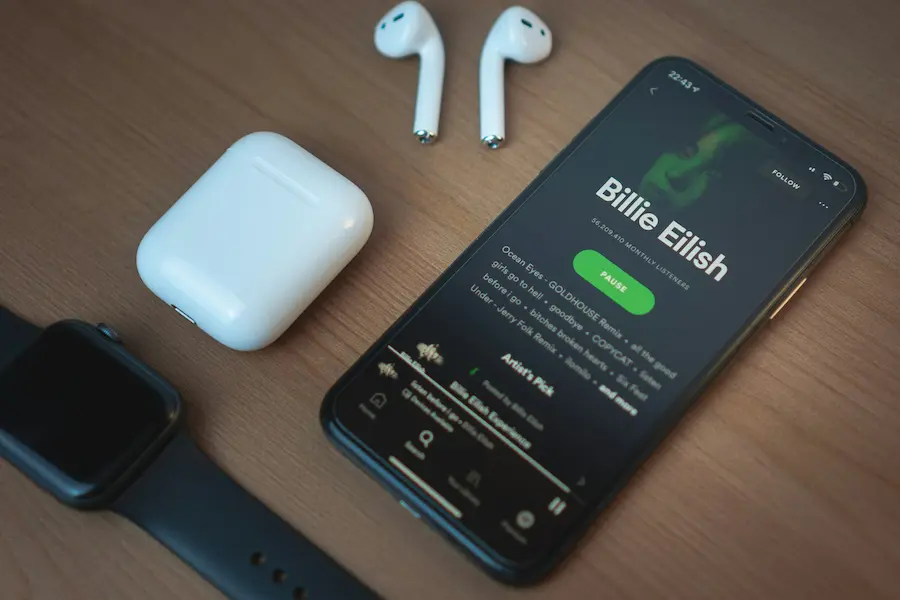
There’s also Spotify, although it’s worth clarifying: you can download songs, albums, or playlists for offline listening only if you have Spotify Premium. The content stays inside the app and isn’t added to Apple’s library. In other words, it works for offline listening, but not for “transferring music to iPhone” in the classic sense many users still have in mind. If you also want to use it in a browser, here’s a guide to the Spotify Web Player.
How to transfer MP3 files from a Mac or PC
If you already have your music collection on your computer—your own files or MP3s you’ve kept for years—you can transfer them to your iPhone. On a Mac running macOS Catalina or later, you do this through Finder. First, connect your iPhone with a cable, select it in the sidebar, and enable manual management of music, movies, and TV shows. Then open the Music app on your Mac and drag songs, albums, or artists into the iPhone tab in Finder.
On Windows, or on macOS Mojave and earlier, the process still runs through iTunes. After connecting your iPhone, go to the device icon, disable automatic syncing if you want to manually choose what to copy, and open the Music section. If your files aren’t in your iTunes library yet, you can add folders or songs from the File menu. Then enable Sync Music and decide whether you want to transfer your entire library or only specific playlists, artists, albums, or genres.
One detail worth keeping in mind: an iPhone can only hold music synced from a single iTunes library. If you try to add songs from a different computer, the previous content may be removed before copying the new one. It’s not exactly the most intuitive behavior in Apple’s world, but that’s still how it works.
What about free music—and which option fits best?
If your priority is listening to free music on iPhone, the most realistic approach is to use streaming apps with free accounts. Among those mentioned in the sources are Spotify, Pandora, YouTube Music, Audiomack, iHeartRadio, and TuneIn Radio. They work well for listening on the go, although they typically include ads and limits on skipping songs or replaying a specific track. In other words, they’re great for discovery and playback, but not always for fine-grained control.
SoundCloud sits in an interesting middle ground. It lets you listen to plenty of songs for free, follow artists, favorite tracks, and create playlists, but it doesn’t offer true downloads to your device as files. With a subscription, you can save content for offline playback within the app. That distinction matters, because “offline access” isn’t the same as “having the file in your library.”
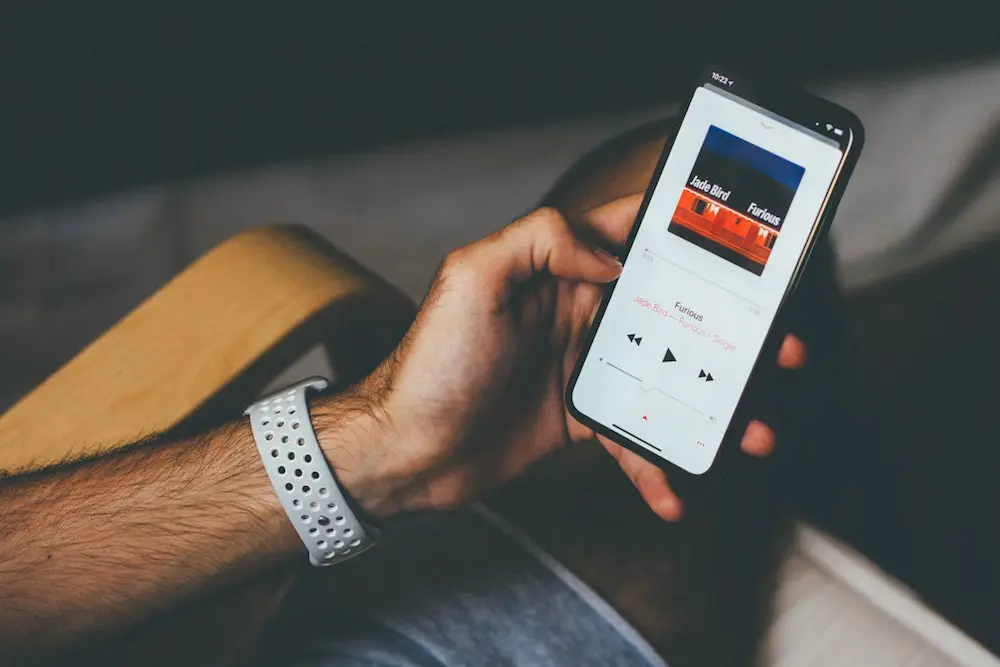
Amazon Music also offers free listening with certain limitations, while Amazon Prime members get fewer restrictions and access to additional features, such as mixing albums, artists, or playlists. And then there’s Freegal, a fairly specific option: it works through local libraries, asks you to choose a participating library and sign in with the corresponding library card, and lets you download a limited number of songs per week to listen offline within the app.
So, which method is best for you? For convenience, Apple Music is the cleanest path. If you already have files on your computer, Finder or iTunes are still the practical solution. If you just want to listen without paying, free streaming does the job—although with the usual ad-supported limitations, that small toll the internet never quite forgets. Ultimately, the key is to tell the difference between syncing, buying, downloading for offline, and listening for free via streaming: they may sound similar, but on iPhone they operate in very different leagues.


