

A MiFi is basically a pocket router: a wireless hotspot that shares Internet access over a mobile data network, so your laptop, tablet, or even a phone can browse as if you were at home—without relying on public Wi‑Fi. If you’ve landed here, you’re probably looking for two very specific things: how to connect to a MiFi correctly in just a few steps, and what to do when something goes wrong—whether the network doesn’t show up, the connection is slow, or the device seems “dead.”
The good news is that the process is usually straightforward, because in most cases your carrier activates the MiFi automatically. Even so, like any gadget that mixes battery, cellular signal, and Wi‑Fi, there are a handful of common situations worth knowing so you don’t waste time, data, or patience.
Connecting a MiFi: basic steps and what to check
To begin, turn on the MiFi by pressing the power button on the front of the device. This simple action—like waking a handheld console—is the first checkpoint: if the MiFi won’t power on, the rest of the steps don’t matter. Once the unit boots and connects to your carrier’s mobile network, it’s ready to share the connection over Wi‑Fi.
Next, open the list of Wi‑Fi networks on the device you want to connect from. On Windows it’s usually in the system tray, on macOS in the top-right corner, and on iOS or Android phones it’s in Settings. Look for the MiFi’s network name (SSID), which in many cases includes the provider name and is typically printed on a sticker on the back of the device. This matters when you’re surrounded by similarly named networks—or when someone, in a burst of geek creativity, has renamed their Wi‑Fi with an inside joke.
Select the MiFi SSID and enter the password. Usually the device includes the key right under the network name on the same label, or your carrier provided it. If you can’t find a password anywhere, “admin” may work as a default in some cases, although it’s not a universal guarantee. After entering the password, the network status should switch to “Connected,” and from there you should be able to browse normally.
If everything looks right but you still don’t have Internet, pay attention to a detail that often gets overlooked: whether the MiFi is actually connected to the carrier’s mobile network. The device can broadcast Wi‑Fi even if the cellular side has no coverage; in that scenario, your device “connects,” but there’s no real way out to the Internet. Who hasn’t seen perfect Wi‑Fi bars and still watched a page load forever?
What to do if the MiFi doesn’t show up or the connection is poor
When the MiFi doesn’t appear in your Wi‑Fi network list, the first step is to refresh or update the available networks list on your computer or phone. Sometimes the hotspot takes a moment to show up and may need up to about 15 seconds to appear—especially if the MiFi has just powered on or if the device you’re connecting from is switching between saved networks.
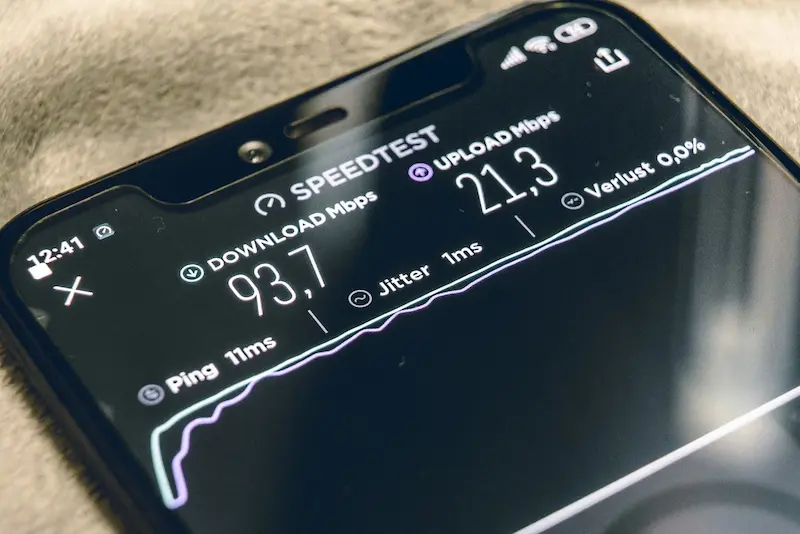
If the MiFi shows up but the connection is slow even when you’re right next to it, here’s a surprisingly practical tip: move the MiFi itself. It’s not only about distance, but about how well the mobile signal reaches the device. Indoors, things like walls or large furniture can weaken or block cellular signal, so relocating it (near a window, on a clearer table, in a room with fewer obstacles) can improve stability. It’s the kind of trick that sounds basic until it works—like positioning an antenna correctly and suddenly everything clicks.
If you’re seeing power issues or unexpected shutdowns, the battery is usually the prime suspect. Many “won’t turn on” or “turns off by itself” problems come down to low charge or a degraded battery. Keep in mind that, based on the typical behavior of these devices, the battery may last around four hours and can also drain even when it’s not being used. If you haven’t used it in a while, it may simply need a recharge before it works normally again.
And if what you’re wondering is whether a phone absolutely needs an active line to connect, the key is to separate concepts: a phone can work as a Wi‑Fi-only device even without active service from a carrier, as long as it can connect to the MiFi’s wireless network. This is handy for reusing an old phone as a secondary device or an “extra screen” for basic tasks when you’re away from home.
Resetting the MiFi and when to call your carrier
If, after checking everything above, you still can’t connect or the MiFi behaves erratically, resetting it to factory settings is one of the most effective steps because it restores the default configuration. Just keep in mind it will erase any previous tweaks, so it’s best done after you’ve ruled out the basics.
The reset process is usually physical and designed to prevent accidental presses. Remove the battery cover and take the battery out of the MiFi. Underneath you’ll find a very small button labeled “Reset.” Using a pin, press and hold it for about five seconds. The MiFi will reboot automatically and, once it finishes starting up, it will return to its default settings. From there, connect again using the SSID and password printed on the device label, as if it were the first time.
That said, there’s one scenario where a reset may not fix anything: when the service hasn’t been properly activated. If you can’t connect because the MiFi can’t establish the mobile network connection, or if you have no Internet even though Wi‑Fi works, the most sensible move is to contact your carrier to confirm activation is complete and that the associated data plan is actually added to your account. Sometimes the problem isn’t your settings or the device—it’s the service activation.
With these steps, connecting a MiFi and getting past the usual issues stops being a mystery. In the end, like any connectivity device, it all comes down to three pillars: power, mobile signal, and Wi‑Fi credentials. If one fails, everything else falls apart—even if the “connected” icon tries to convince you otherwise.


