

If Gmail keeps showing 1 unread email even though you have checked your inbox from top to bottom, you are not dealing with a tech mystery worthy of the X-Files. It is usually one of those small sync quirks that can appear in the browser as well as on Android, iPhone or iPad. Most often, the message really exists, but it is hidden in a secondary category, buried in “All Mail”, or the interface counter simply has not refreshed properly.
Before restarting half the Google ecosystem as if it were a router in 2008, the priority is to find out whether there is actually an unread email left. Gmail can split the inbox into tabs such as Primary, Promotions or Social, which means a pending message does not always appear where you look first. It can also happen that the alert gets stuck because of cache, especially in the mobile app, even when there is no visible new message. The good news is that there are several quick ways to force Gmail to reveal that ghost email or clear the alert once and for all.
First, make Gmail show you unread messages
The most direct way to tackle the problem is to temporarily change the inbox type so Gmail places unread messages at the top. In the web version, open Gmail and click the gear icon in the upper-right corner to open quick settings; from there, look for the inbox type and select the equivalent of “Unread first”. In the mobile app, open the side menu, go to Settings, select your account and change the inbox type in the relevant section.
This change does not delete anything or alter your emails: it only reorganises the view so pending messages rise to the top. If the culprit message appears, the most reliable option is not simply to select it and tap “Mark as read”, but to open it directly. Some users have found that opening the email removes the persistent counter when the mark-as-read button does not fully update the notification.
If you have several tabs enabled, it is also worth checking “All Mail”, because the email may not be in Primary. Once the alert disappears, you can return the inbox to the layout you were using before, whether that is the default view or any other configuration.
Use Gmail search to track down the hidden email
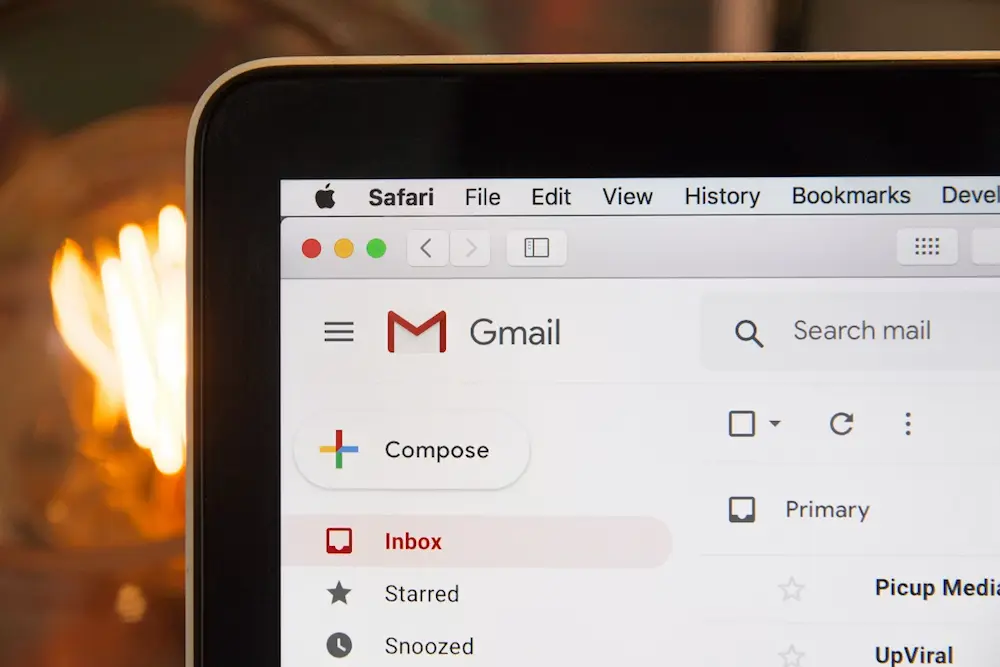
When reorganising the inbox is not enough, Gmail’s search bar is usually the precision tool you need. Type category:primary is:unread to show only unread messages inside the Primary tab. If you suspect the alert comes from another section, you can replace primary with categories such as promotions or social, depending on where the email may have slipped in. It is a simple trick, but a fairly effective one when Gmail seems to be playing hide-and-seek with a single message; in fact, mastering these operators has quite a lot in common with searching Google like an expert.
You can also broaden the search with is:unread, which shows all unread emails without limiting the results to a specific category. It is worth being a little careful here if you have a lot of accumulated messages, because Gmail may return more results than you expected; the “1” counter can sometimes look deceptively harmless, like a notification that has decided to rent space on your screen.
In the web version, after searching for is:unread, you can select the results and use the open-envelope icon to mark them as read. If the link appears to select all conversations that match the search, use it only if you are sure you want to clear all those unread messages. On mobile, selecting messages is also possible, although the app works with page limits and may not cover all results at once.
If the counter is still stuck, force sync
If you have already opened the email, checked categories and marked pending messages as read, but Gmail still shows the badge with the number 1, the problem is probably cache or sluggish syncing. In that case, signing out and signing back in can push Gmail to recalculate the real status of the account. On the web, click your profile photo and sign out; if you have several accounts open, you may need to sign out of all of them and log back in one by one. If the issue appears on a Windows computer and system access is also causing trouble, keeping instructions on how to reset your Windows Hello PIN at hand can help avoid another distraction.
On mobile, the usual route is to tap your profile photo, open the device’s account management section and temporarily remove or disable the affected account, then enable it again. If the problem is only the Gmail app badge, switching the main account may be enough to make the counter update. It is not a glamorous solution, admittedly, but in the world of software there are still few things as therapeutic as forcing an app to start over.
Another reasonable option is to restart the device. On Android or a computer, simply use the system restart option. On an iPhone without a Home button, press and hold the side button together with one of the volume buttons and turn off the phone; on models with a Home button, holding the side button is enough. Then turn it back on and open Gmail to check whether the alert has disappeared. Something similar happens with other devices in the Google ecosystem, where issues such as the Chromecast remote disconnecting also usually require a device-specific check.
There is one useful nuance that can save you time: muted conversations with unread replies should not be added to the inbox unread counter, because muting them removes that label. To find them, you would need to go to “All Mail”, but they are not usually the cause of the persistent little number in the inbox. That is why, if Gmail flags a single pending email and the Primary inbox looks clean, the most logical route is to check categories, search for is:unread and only then force sync by signing out or restarting the device.
In short, the 1 unread email in Gmail alert is almost always fixed by opening the real message if it is hidden, marking search results as read, or refreshing the account when the counter has frozen. You do not need to delete the app or blindly empty your inbox: with these checks in the right order, you can get back to a clean inbox and stop a simple notification from calling the shots.


