
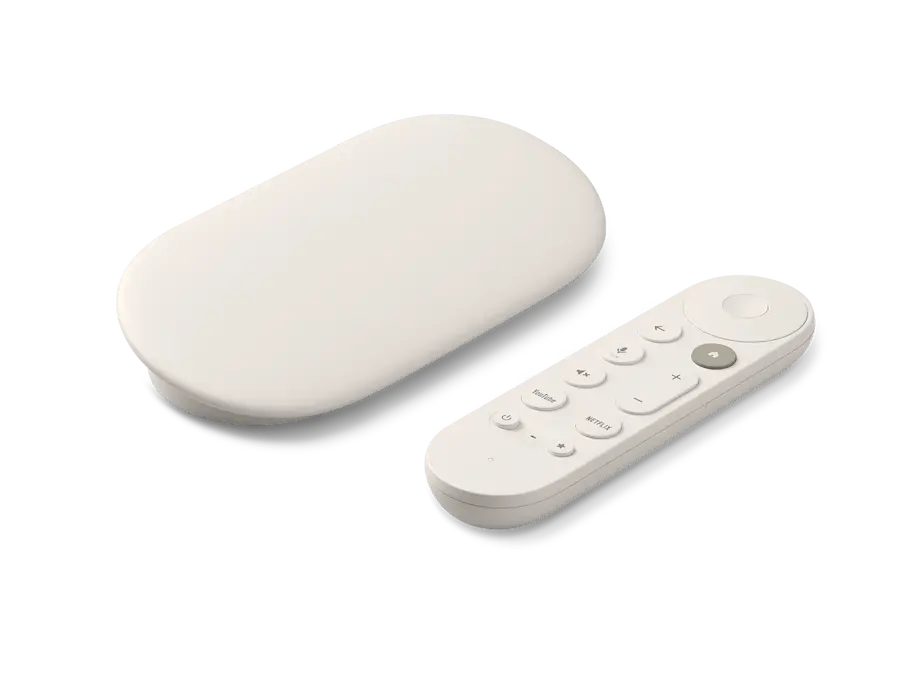

If the remote for your Chromecast with Google TV or Google TV Streamer stops responding, it does not always mean the accessory has died or that the batteries have decided to give up halfway through an episode. The issue being reported on these devices points mainly to pairing problems: in some cases, the device believes it is linked to another remote, almost as if it had summoned a phantom peripheral, while in others the connection drops intermittently even though everything appears to be configured correctly.
The key is not to rush into buying a new remote straight away. Google acknowledged more than a year ago a specific bug in the Google TV Streamer that could cause the device to pair with a remote other than the one originally included, but there has been no public confirmation that a fix has been rolled out. In addition, Chromecast with Google TV users have also reported repeated disconnections that force them to pair the remote again or restart the device. The good news is that there is a fairly logical sequence to regain control before spending any money.
What is actually going wrong with the remote
The strangest case affects the Google TV Streamer: the device registers a remote you are not holding as valid and stops responding to the original one. From the outside, the situation is confusing, because the remote appears to be fine, there is no clear on-screen message, and it is easy to blame dead batteries, interference or a hardware fault. However, the place to check is Settings > Remotes & Accessories, where you can see which remote the system thinks is connected.
The second pattern is less dramatic, but just as irritating: the remote pairs, works for a while and then disconnects again. This matches recent reports from Chromecast with Google TV users, where the problem is not a permanent total disconnection but instability that forces you to repeat the same steps. Is there anything more frustrating than a modern streaming device failing precisely at the play button?
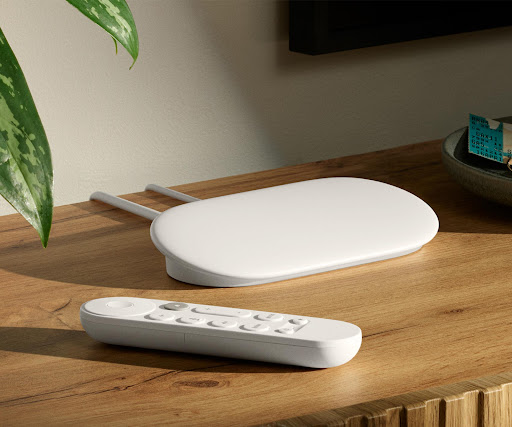
Before changing anything, it is worth having an alternative way to control the device. The Google TV app on your phone can work as a virtual remote and lets you access the necessary menus. If your TV has HDMI-CEC enabled, the TV remote itself can also serve as a temporary workaround.
How to pair it again without overcomplicating things
The first step is still the least glamorous one: replace the batteries. A low charge can cause erratic behaviour, with connections and disconnections that look like a more sophisticated bug than they really are. If everything goes back to normal after inserting fresh batteries, there is no need to keep digging.
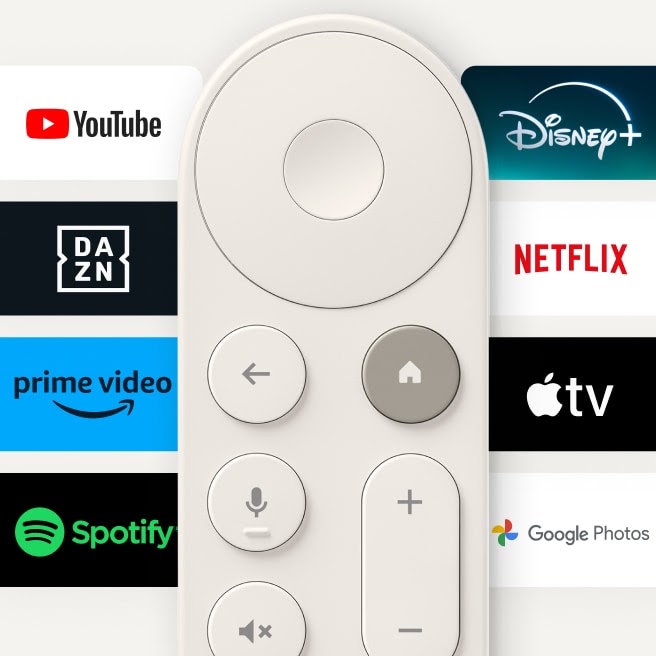
If the problem continues, use the Google TV virtual remote to go to Settings > Remotes & Accessories and check which device appears as paired. If the listing does not match the physical remote you are using, you need to force a new pairing. To do this, press and hold the Home and Back buttons on the remote at the same time until the white light flashes, then select it from the pairing menu. This step fixes the wrong-remote case without having to reset the entire player.
When the disconnection is intermittent, a coordinated restart usually works better. From the Google TV app, go to Settings > Device Preferences > Restart, or press and hold the physical rear button on the Google TV Streamer for around 15 seconds. While the device is restarting, remove the batteries from the remote and do not put them back in until the system has fully booted. Then pair it again from Remotes & Accessories > Pair remote or accessory. The order matters for a technical reason: if the remote wakes up too early, the same faulty pairing state may be recreated.
When to remove the remote or buy another one
If the restart does not hold and the remote fails again, the next step is to remove it completely from the system and link it from scratch. Using the Google TV app, go to Remotes & Accessories, select the remote that is not responding and use the option to remove it. Then start a new pairing process, press and hold Home and Back until it appears on screen, select it and confirm the connection.
This method goes deeper than a quick pairing, because it forces the device to clear an entry that may be corrupted or incorrectly associated. In practice, it is the TV equivalent of deleting a problematic Wi-Fi network and entering it again, a move any seasoned gadget user has performed more times than they would admit.
Only when the batteries, pairing, restart and full removal fail to solve the issue does it make sense to think about hardware. Google sells an official replacement remote, and there are also cheaper compatible third-party alternatives, although buying a new one will not fix a software error if the player is still mishandling connections.
The wider context is not particularly reassuring: Google acknowledged the Streamer pairing bug, but has not publicly confirmed that a fix has already been distributed, and the broader Chromecast with Google TV disconnection issues have not received a clear official response. Since these devices continue to receive software support, an update could arrive through the usual channel. Until then, keeping the Google TV app installed is almost part of the basic survival kit.


