


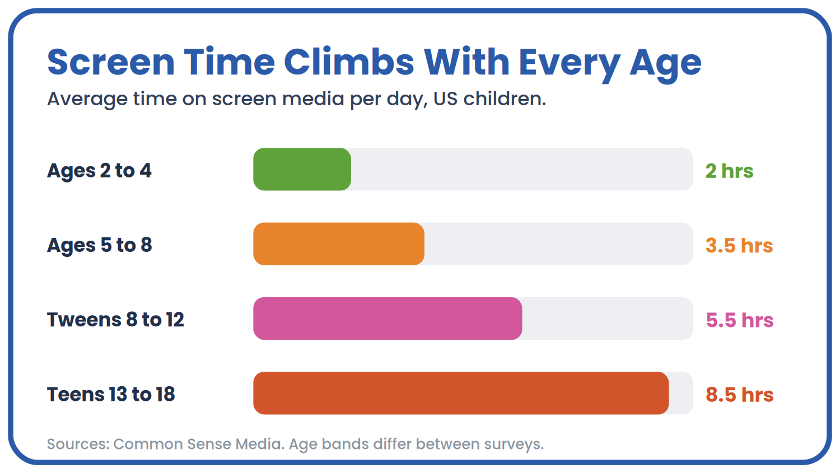
US tweens average roughly five and a half hours of screen media a day, and the number only climbs from there. Here is how to take back control of a Windows PC, step by step, without turning the family computer into a battleground.
Is your child still glued to the PC long after the agreed cut-off? You are not alone. In the most recent full survey of the age group, 8 to 12 year olds in the US averaged about five and a half hours of screen media a day, rising to more than eight and a half hours through the teen years. On a Windows machine, the good news is that there are several ways, free and paid, to get back in control.
This guide compares the tool built into Windows with dedicated third-party software, and gives you the concrete steps to limit screen time, filter the web, and block specific apps.
The Short Version
- US tweens (ages 8 to 12) average about five and a half hours of screen media a day, and that figure keeps climbing with age.
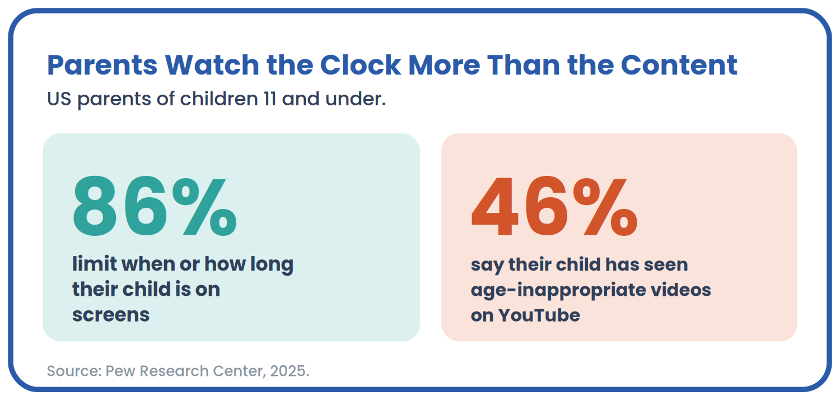
- Almost nine in ten parents cap screen time, yet content is where protection leaks: nearly half of under-12s who watch YouTube have still run into age-inappropriate videos.
- The Windows web filter (Family Safety) only works inside Microsoft Edge. On Chrome or Firefox it filters nothing.
- A dedicated tool such as Salfeld Child Control goes further: per-app blocking, keyword filtering, and one shared time limit across devices.
Why Parental Controls on a PC Are Hard to Skip in 2026
By 2026, the question is no longer whether your child will use a digital device, but from what age and for how long. Digital childhood now starts early: in the US, 40% of children have their own tablet by age two, and nearly one in four have their own phone by age eight. In the UK, Ofcom reports that around one in five 3 to 5 year olds, and nearly a third of 6 to 7 year olds, already have their own mobile. For many families the shared PC is still the first real doorway to the open internet.
Exposure ramps up faster than most parents expect. In the US, recreational screen media averages about two hours a day for 2 to 4 year olds, roughly three and a half hours for 5 to 8 year olds, five and a half hours for tweens, and more than eight and a half hours for teens. UK figures point the same way: Ofcom’s passive-tracking study found children aged 8 to 14 spend just under three hours a day online, with YouTube and Google reaching almost every child.
One number reframes the whole problem. In the US, about 86% of parents of 5 to 11 year olds say they limit the time of day or the length of time their child spends on screens. Managing the clock, in other words, is close to universal. Content is another story. Even with limits and controls in place, 46% of parents say their child aged eleven or younger has seen videos on YouTube that were not right for their age. Most families watch the duration far more closely than what the child actually sees. That gap is exactly where a filtering tool earns its place.
Field note. In most households the trigger is not an abstract worry about screens. It is a specific incident: a grade that slips, an inappropriate site stumbled onto by accident, a fight over bedtime. That is usually the moment parents start looking for a technical fix rather than one more spoken rule.
Turning On the Built-in Windows Controls, Step by Step
Windows includes free parental controls, built into the system through Microsoft family accounts. In a few minutes you can cap PC usage time and put a first layer of protection in place without installing anything.
- Open Windows Settings, then go to Accounts > Family.
- Select Add a family member, then Create an account for a child if they do not have a Microsoft address yet.
- Fill in the requested details and confirm the invitation.
- Sign in at family.microsoft.com with your organizer (admin) account.
- Select the child’s profile, then open the Screen time
- Set the number of hours allowed per day, with different windows on different days if you want.
- Under Content filters, turn on web filtering and choose an age limit for websites and the Microsoft Store.
Once the limit is reached, the child sees a “time’s up” message and cannot sign back in unless they request more time, which you approve remotely. It is a solid free safety net, well documented by Microsoft, and enough for basic use.
Where the Built-in Windows Controls Fall Short
Microsoft Family Safety does the job on screen time. On content filtering, though, it runs into limits quickly, and this is not just a frustrated parent’s impression.
The most concrete issue, and the most current, is the browser. Family Safety’s web filter only applies inside Microsoft Edge. On Chrome or Firefox it does not work. When web filtering is on, Windows blocks other browsers outright rather than filtering them, because it cannot enforce the rules there. If your child uses Chrome for school, for example for Google Classroom, that design can backfire. In June 2025, a bug in that mechanism blocked updated versions of Chrome that parents had already approved, leaving families and schools locked out of Chrome-based tools until Microsoft shipped a fix. Microsoft’s own support pages confirm the core limitation: the web and search filters work with Microsoft Edge only.
An independent bench test by the German lab AV-TEST, run on parental control software for Windows, put hard numbers on the imbalance. The built-in Windows protection blocked the large majority of pornographic sites it was shown, but only 0.5% of gambling and gaming sites. The test is a few years old and the tool has changed since, but the gap between categories is still worth knowing about: the native filter is built mainly around adult content, and other categories are covered less thoroughly.
Two more structural constraints weigh on the native tool. First, it needs a Microsoft account for each child, which complicates life for families that prefer local accounts. Second, it does not follow the child from one device to another (PC, tablet, phone) without manual reconfiguration on each profile.
When a Dedicated Tool Makes More Sense
If all you need is to stop your teenager from gaming after 9pm, the built-in Windows tool is plenty. But the moment you want to filter by keyword, block a specific app without cutting off the whole PC, or sync rules across several devices, dedicated software becomes the better fit.
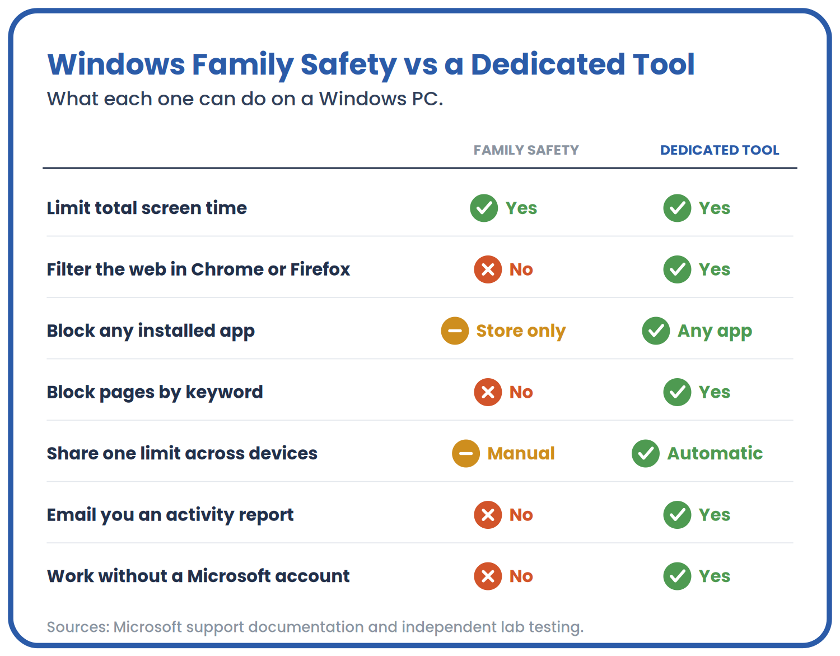
That is where Salfeld Child Control comes in, a parental control tool for Windows PCs and Android. Its screen-time management lets you set different limits by activity type (games, browsing, specific programs), and its roaming feature applies the same rules automatically across all of the child’s devices, with no need to reconfigure each profile. Parents also get usage reports by email, so there is no need to log in every day to check activity. Unlike the native tool, its web filter applies across all common browsers, not just Edge. For a point-by-point breakdown, Salfeld publishes a full comparison against Microsoft Family Safety.
Other vendors sit in the same space, such as Qustodio, Norton Family, Bark, or Google Family Link for mobile, with broadly similar philosophies. The sensible move is to compare features against your real setup (PC only, or PC plus phone plus console) before you choose.
Worth remembering. The real tipping point is not price, it is the number of devices you need to cover. Software that only handles the PC becomes limiting fast once the child also has a tablet or a phone.
Blocking Specific Apps on Windows
Blocking one game or program without cutting off the whole PC is one of the most common requests. There are two ways to do it.
With the built-in Windows tool: from family.microsoft.com, select the child’s profile, open the Apps and games tab, find the app in the list of recent programs, then select Block. This works well for Microsoft Store games, but it is less reliable for manually installed software (.exe files outside the Store), which does not always show up in the list.
With third-party software: dedicated tools like Salfeld Child Control watch every running process, not just Store apps. So you can block a specific executable (a downloaded game, a secondary browser, a chat client) and give it its own time budget, separate from the rest of the screen time. Handy for allowing a school program without limits while keeping a strict cap on a game.
Filtering the Web Without Blocking Everything
A filter that is too strict pushes the child to look for workarounds; a filter that is too loose protects against nothing. The AV-TEST review flagged the overblocking risk too: some tools, in trying to block everything, end up cutting off sites that are perfectly fine for children, which frustrates the child and pushes them to switch the protection off. Three layers usually work together.
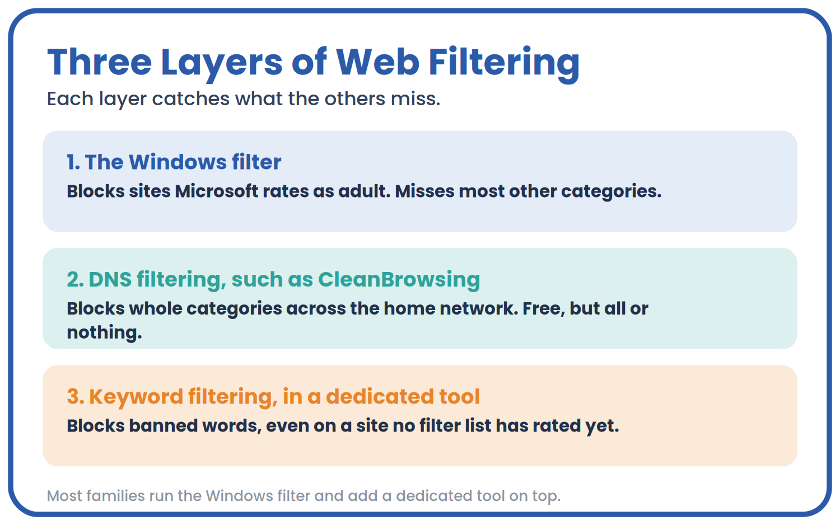
The filter built into Windows blocks sites Microsoft rates as adult, switched on under Content filters. Strong on pornography, weak on the rest. DNS filtering, such as CleanBrowsing, redirects requests to a server that blocks certain categories at the network level, before the page even loads: free and fast, but not very granular. Finally, keyword filtering in a dedicated tool like Child Control lets you define a list of banned words that trigger a block even on a site no list has rated yet, useful for Google searches and social feeds.
For most families the most effective combination is this: the Windows filter on by default, backed by third-party software for the granularity (keywords, apps, multiple devices) once the first layer is not enough.
Try before you buy. Salfeld Child Control offers a free 30-day trial with no credit card and no commitment, on Windows and Android, so you can test the setup on your own devices before you decide.
Frequently Asked Questions
Is the Windows parental control enough? It covers screen time and blocking pornographic sites well, but it filters very little of the other risky categories such as gambling. For broader protection, a third-party tool is still worth adding on top.
How do I block one app without blocking the whole PC? Through the Apps and games tab of the Microsoft family account for Store programs, or through third-party software for manually installed executables, which also lets you give each app its own separate time budget.
Can Windows parental controls be bypassed with Safe Mode? Yes, in theory: booting into Safe Mode disables some protection mechanisms, including parts of the native parental controls. Locking BIOS access with a password limits that risk.
Do I need a Microsoft account? Yes for the native solution, which is built entirely on Microsoft family accounts. Third-party software generally works without a mandatory Microsoft account.
At what age should I start limiting PC screen time? There is no universal threshold, but the data shows daily exposure well before school age, with 40% of two year olds already owning a tablet. Most professionals recommend putting a technical framework in place from the first time a child uses the computer on their own.
The Bottom Line
The parental control built into Windows is a good starting point: free, quick to set up, effective on screen time. Its limits show up on content filtering beyond pornography, and on following the child across devices. A dedicated tool such as Salfeld Child Control fills those gaps with keyword filtering, granular per-app blocking, and syncing across PC, phone, and tablet.
Whatever you choose, keep in mind what safety bodies and independent testers consistently stress: parental control software is a tool, not a substitute for talking with your child about how they use their devices. The American Academy of Pediatrics suggests pairing any technical setup with a family media plan you build together.
Sources
- Common Sense Media, The Common Sense Census: Media Use by Kids Zero to Eight (2025) and Media Use by Tweens and Teens (2021): https://www.commonsensemedia.org/research/the-2025-common-sense-census-media-use-by-kids-zero-to-eight
- Ofcom, Children and Parents: Media Use and Attitudes (2025): https://www.ofcom.org.uk/media-use-and-attitudes/media-habits-children/children-and-parents-media-use-and-attitudes-report-2025
- Pew Research Center, How Parents Manage Screen Time for Kids (2025): https://www.pewresearch.org/internet/2025/10/08/how-parents-manage-screen-time-for-kids/
- Microsoft, Filter websites and searches using Microsoft Family Safety (support documentation): https://support.microsoft.com/en-us/family-safety/filter-websites-and-searches-using-microsoft-family-safety
- AV-TEST, Parental Control Software for Desktops with Windows 10 and macOS: https://www.av-test.org/en/news/test-parental-control-software-for-desktops-with-windows-10-macos/
- AV-Comparatives, Parental Control Review 2025: https://www.av-comparatives.org/tests/parental-control-review-2025-fortinet-forticlient-for-windows/


