


When Outlook rules stop working, your inbox quickly turns into that little piece of digital chaos no one wants to manage manually. If you were relying on filters to move, sort, or delete emails automatically, here’s the key thing to know: in most cases, the issue comes down to the rule’s own settings, the order in which rules run, or a system limitation after recent changes in Outlook.
The good news is that you usually don’t need to rebuild your entire setup from scratch. Whether you’re using the new Outlook, classic Outlook, or Outlook on the web, there are a few specific checks that can restore normal behavior. And yes, sometimes the “breakdown” is as unremarkable as a rule being turned off or a folder that no longer exists—everyday computing stuff, closer to a loose cable than an AI uprising.
What to check first if Outlook rules aren’t working
The first key step is to confirm whether the rule has ever run. When you create a rule in Outlook, it doesn’t always apply automatically to messages that were already in your inbox, so you may need to run it manually. In the new Outlook and Outlook on the web, you can do this from Mail settings, under Rules, using the option to run it immediately. In classic Outlook, you can also run rules manually on messages you’ve already received.
Next, make sure the rule is still enabled. It sounds basic, but it’s one of the most common causes when an automation suddenly stops responding. In modern versions of Outlook, it’s shown as a toggle, while in the classic edition it appears as a checkbox. If it was disabled, once you turn it back on you’ll typically need to run it manually so it starts acting on the pending mail.
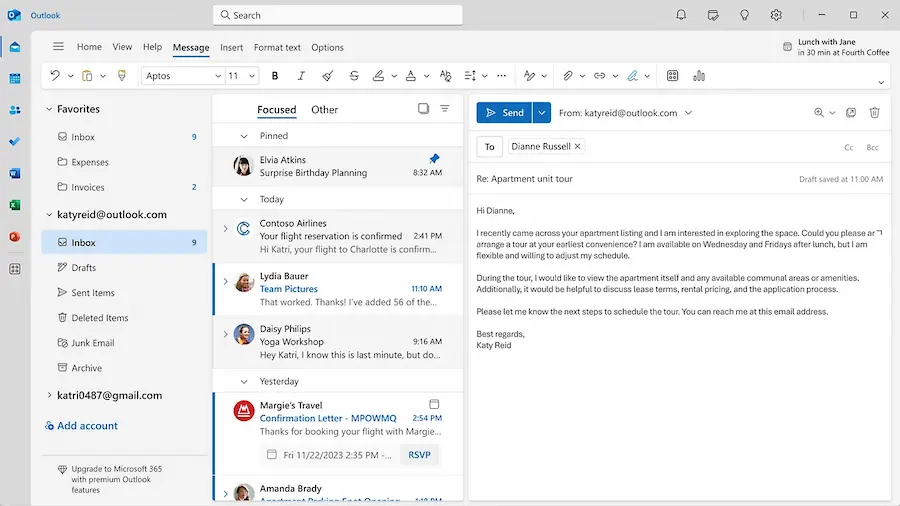
The next important check is within the rule’s own conditions and actions. If a rule tries to move messages to a deleted folder, for example, it will stop working properly. The same applies if a condition no longer makes sense after changes to your account or mailbox structure. In those cases, the most effective solution is to edit the rule, fix the destination or simplify its logic, and save the changes.
In classic Outlook, it’s also worth paying attention to where the rule is stored, because it may live on the Exchange server or be tied to the client. The difference matters: server-side rules run regardless of which device you use to access the account, while client-side rules depend on that specific computer and require Outlook to be running.
Rule conflicts, execution order, and limits
If your rules are configured correctly but the results are still inconsistent, the issue is often how they interact with one another. Outlook processes rules in a specific order, so two rules that seem compatible on paper can end up overriding each other. A typical example is having one rule that moves emails from a specific person into a folder and another that deletes messages with attachments. If the same email matches both conditions, the order determines what happens.
That’s why it helps to reorder the list so higher-priority rules run first. In the new Outlook and Outlook on the web, you can drag them using the corresponding side handle, while in classic Outlook you move them with the up and down arrows. Alongside this, there’s a very practical option: stop processing more rules after a specific one runs. That checkbox prevents a message from continuing through later filters and significantly reduces conflicts.
Another, less visible factor is Outlook’s internal limit for storing rules. It’s not a fixed number of rules, but an approximate maximum of 256 KB for the whole set. Simple rules take up little space, but complex ones—with many conditions or actions—consume much more. In real terms: you can have plenty of rules, but not an unlimited amount, no matter how much your inbox starts to feel like an advanced resource-management game.
If several rules stop working all at once, it may be a sign you’ve hit that ceiling. In that scenario, it’s best to delete old rules you no longer use and trim back the most bloated ones. Sometimes you don’t need to remove an automation entirely—just remove redundant conditions so it fits back within what Outlook allows.
The special case after switching from classic Outlook to the new one
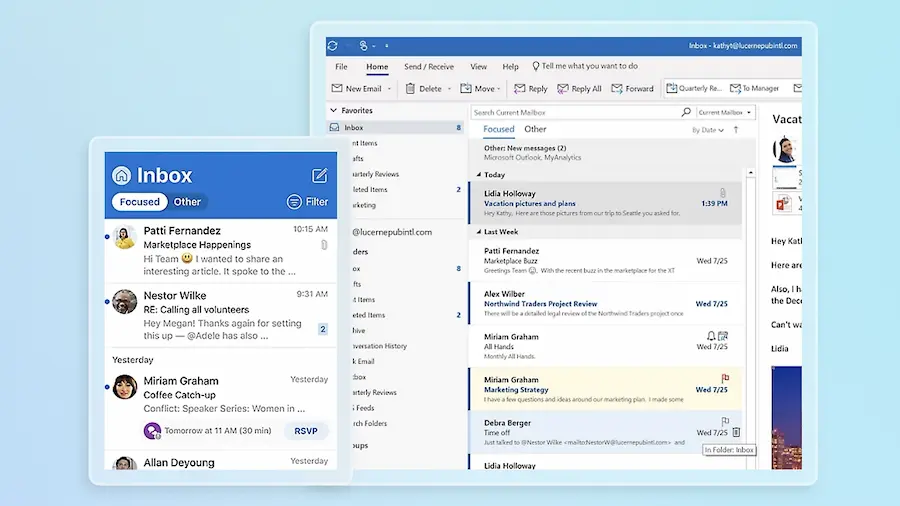
There’s one particularly tricky situation: moving from classic Outlook to the new Outlook. Some rules that used to work may fail if they relied on client-side conditions or actions—features that aren’t fully carried over into Outlook’s newer logic. This includes actions such as playing a sound, sending certain alerts, or moving messages to local folders on your computer.
When an older rule depends on that kind of behavior, you’ll usually need to review and adapt it. If the rule only made sense because of a client-side condition, it may even be more practical to delete it. If it’s still useful, the alternative is to edit it so it uses actions that are compatible with the current environment—such as moving, deleting, categorizing, or flagging messages—using only the options Outlook handles natively.
Once adjusted, it’s best to save it and run it manually to make sure it behaves as it should. The point is not to assume the interface change is purely cosmetic. In this case, behind the redesign are real differences in how Outlook processes certain rules, which explains many of the issues that show up after migrating.
In short, if your Outlook rules aren’t working, start with the basics and move toward the more specific: run them manually, confirm they’re enabled, check folders and conditions, fix conflicts caused by priority order, reduce complexity, and if you’ve switched versions, verify whether they depended on client-side features. It’s not the most glamorous repair in the geek universe, but it brings back something genuinely valuable: an inbox that behaves the way it should.


