


If you often work on reports, notes, or long documents in Microsoft Word, there’s one everyday action you probably repeat more than you realise: turning text into a hyperlink. Until now, the usual approach was to use the right-click menu, open the link dialog, or rely on shortcuts like Ctrl+K and Cmd+K. Those are quicker, but they still interrupt your flow a bit. Microsoft has just started rolling out a change that seems small on paper but makes a very real difference day to day: you can now create a link by pasting a URL directly onto selected text.
The idea is so simple it’s surprising it didn’t arrive in Word sooner—especially if you’re coming from tools where this is standard, like Slack or Discord. But that’s exactly why it fits so well: fewer steps, fewer pop-ups, less friction, and you keep writing without missing a beat. Isn’t that the kind of “invisible improvement” you always appreciate when you’re deep in focus?
How Word’s new link-paste works
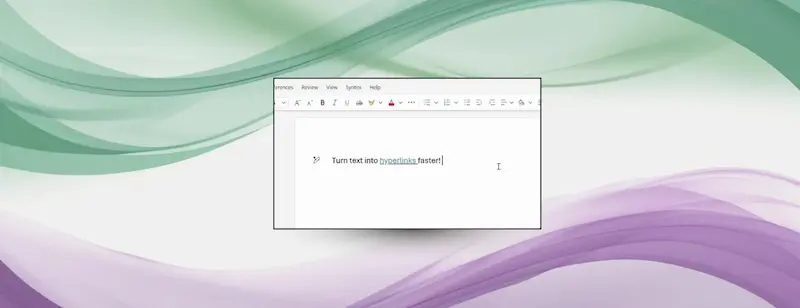
The behaviour is straightforward: copy the URL you want to use (from your browser or clipboard), then select in your document the word or phrase you want to turn into a link and, with that text highlighted, simply paste the URL. Word recognises that what you pasted is a link and automatically applies it to the selected text—without replacing it with the address or forcing you into any dialogs.
In practice, this turns linking into a single-action gesture, much like what already feels natural in messaging or collaboration apps, where pasting a URL over highlighted text is almost instinctive. The difference here is that we’re talking about Word, with everything that implies: long documents, sustained writing, and careful editing. When you’re constantly linking references, sources, or resources, every interruption adds up—and this change is designed to cut down on that “micro time” that ends up accumulating.
Microsoft frames this as an improvement aimed at keeping writing flow uninterrupted. Word product manager Jenny Ye sums it up with a clear idea: everyday tasks like adding hyperlinks should feel almost effortless. It sounds obvious, but in an editor that’s spent years leaning on shortcuts and pop-up windows, you notice when part of the process becomes genuinely smooth.
Availability: Word on the web first, then specific desktop builds
As is often the case with this kind of update, it won’t reach everyone at the same time. Word for the web is the first place it should already be available, so if you work in the browser, chances are you can use it now.
For the desktop app, Microsoft is limiting it to specific versions. For Word on Windows, you’ll need Version 2511 or Build 19530.20006 (or later). If you use Word on Mac, the requirement is Version 16.104 or Build 25120915 (or later). In other words: if you try it and don’t see it, you’re probably not doing anything wrong—you likely just don’t have the right build yet.
Also, anyone in the Microsoft 365 Insider programme should see these updates earlier as they roll out across channels. That fits Microsoft’s usual strategy: it lands on the web first, then arrives in Insider, and later becomes widely available once the rollout is complete.
If you want to check the announcement and details straight from Microsoft, here’s the official Microsoft announcement about adding links faster in Word, which explains the approach and the current rollout status.
Why this change matters more than it seems
The appeal of this update isn’t only that it’s faster than the context menu—or even the keyboard shortcut—but that it removes a decision: you no longer have to think about whether to open the dialog, use Ctrl+K, right-click, or go to the ribbon. Select text and paste—done. That kind of simplification is pure “quality of life”, like when an app lets you do what you intended on the first try without asking for unnecessary confirmations (yes, we’re looking at you, dialog box).
In long documents, breaking your rhythm to navigate menus creates a small mental disconnect that repeats—especially if you’re citing sources, linking internal resources, or preparing a reference-heavy piece. Microsoft is targeting exactly that: keeping you in “writing mode” without pushing you into a secondary interface. It’s a subtle improvement, but it’s perfectly aligned with how we work today, constantly switching between a browser, notes, and the main document.
And while Ctrl+K or Cmd+K is still there for anyone who has it ingrained, the new method feels more intuitive for users who live across tabs, copy URLs constantly, and want Word to behave like other modern tools. In a world where even a web-based editor lets you add links almost without thinking, it was only a matter of time before Word caught up.


