
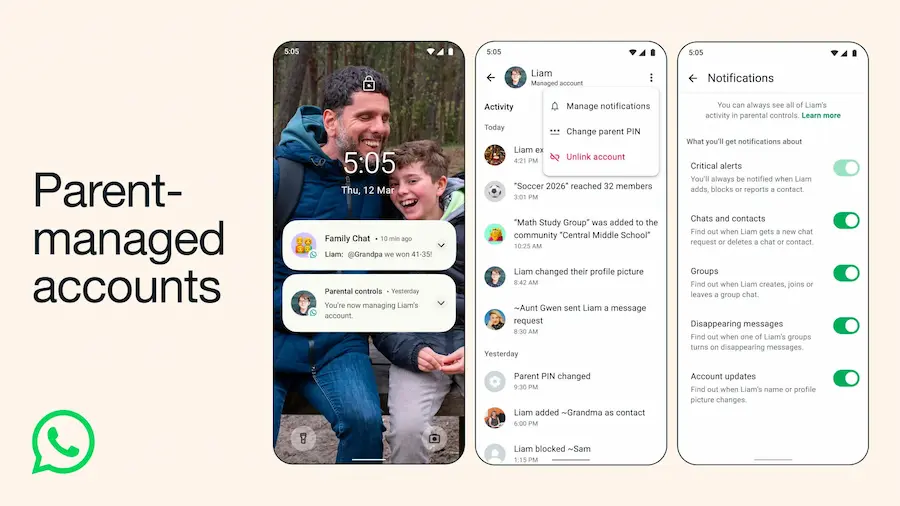

WhatsApp is gradually rolling out a family-focused feature: parent-managed accounts. The idea is simple and very much in line with what we’re seeing on other platforms: let a child have their own account, but link it to a parent or legal guardian’s account so certain privacy settings can be managed from there. If you were wondering what exactly this new feature is, who it applies to and, above all, how to set it up, here’s a breakdown based on the official information.
It’s worth starting with the practical part: the rollout is gradual, so it may not show up in your region yet. And, as is often the case with these features, it’s not enough to just “have WhatsApp”: you’ll need the latest version of the app on both iPhone and Android. Because, in the world of apps, updating is still the mandatory ritual.
What these accounts are and who they’re for
Parent-managed accounts are available for users under 13 or below the minimum required age in their country or region to use WhatsApp. In other words, WhatsApp applies local rules, and the age threshold may vary depending on where you live.
Setup must be done by a parent or legal guardian who is 18 or older. The child will have their account on their phone, with their own number and profile, but control over certain parameters (especially those related to privacy) is tied to the adult’s account. The implicit goal? Reduce friction for families who want kids to communicate within a more supervised framework, so that first account doesn’t feel like a “leap into the void” of messaging and groups.
WhatsApp also specifies that these accounts require the latest version of WhatsApp for iPhone or Android. If your household is mixed (Android on the child’s phone and iPhone on the adult’s, or the other way around), the requirement still stands: keeping the app up to date is part of the deal.
How to create a parent-managed account step by step
The process is designed to start on the child’s phone and finish linking from the adult’s phone using a QR code. In practice, it’s similar to device pairing in modern services—except here, the link defines who can access and change certain settings.
1) Install WhatsApp on the child’s phone
Download WhatsApp Messenger from the Google Play Store or the App Store on the child’s device. Open the app, choose the language and tap Agree and continue.
2) Start creating the managed account
On the start screen, go to More options and select Create a parent-managed account. Then register the child’s phone number and verify it, just like a standard sign-up.
3) Enter the date of birth and confirm age
WhatsApp asks for the child’s birthday to confirm they fall within the relevant range. The company adds an important detail: depending on legal requirements in the country, Apple or Google may share the child’s age range with WhatsApp instead of it being entered manually. If that range is incorrect or you want to understand it better, WhatsApp points you to Apple or Google’s help centres, or your device settings.
4) Link the adult’s account
After confirming the age, tap Continue to link with a parent or guardian account. A QR code will appear on the child’s phone and must be scanned using the adult’s phone camera. Scanning it opens WhatsApp on the guardian’s phone to complete the link.
5) If the adult doesn’t have WhatsApp, they’ll need to install it
WhatsApp says that if the adult doesn’t already have an account, they’ll be prompted to download WhatsApp Messenger from the Google Play Store or App Store before continuing. Once installed, tap Agree and continue.
6) Adult verification and creating a parental PIN
The adult will need to verify they are of legal age and then create a 6-digit parental PIN. This PIN isn’t just a formality: it will be required to access and make changes to the child’s privacy settings, and WhatsApp stresses that it should not be shared with the child. Confirm the PIN and complete the process with Next and Done.
7) Finish setup on the child’s phone
Back on the child’s device, enter the parental PIN and tap Continue. From there, the managed account is ready, and the child can complete typical profile details such as name and photo.
The result? A sign-up that doesn’t stop at “create an account and that’s it”, but instead establishes an explicit relationship between the child’s device and adult supervision, with a PIN as the key for sensitive changes.
Messages, groups, and control from the parent’s account
WhatsApp positions these accounts within a set of help resources about messaging and groups on parent-managed accounts, along with specific sections on how data and privacy are protected for this type of profile. In any case, the key operational detail that’s clearly stated in the official information is that the adult needs the parental PIN to access and modify the child’s privacy settings, creating an intentional separation: the child uses the app, but doesn’t have sole control over those parameters.
There’s also an important note to avoid surprises: because the rollout is gradual, you may not yet see the option to create a managed account under More options in your country. In that case, the most sensible recommendation—based on what the sources allow—is to keep WhatsApp updated and check again later, since availability depends on the regional rollout.
Overall, this update fits a clear trend: private messaging is trying to offer more realistic tools for families without turning the experience into a maze of settings. And for anyone who’s spent years watching “the first phone” quickly become “the first social network”, the arrival of a guided flow linked via QR and a PIN is, at the very least, a step towards more structured management.


