

If you want to hide your location in Find My from a specific person without sending them a notification, iOS 27 includes a control designed precisely for that: a temporary pause that keeps the location-sharing relationship in place and ends at the close of the day. You do not need to turn off location services for the entire iPhone or stop sharing permanently, although there is one important caveat: the contact can check that your location is not available.
The other new feature lets you set a custom duration when you start sharing. Both tools refine privacy control, but they are intended for different moments: one interrupts something that is already active, while the other schedules its end from the outset.
How to pause your location for one person
The process described requires iOS 27 on iPhone or iPadOS 27 on iPad. The available information comes from preview versions, so it is worth checking the version installed under Settings, General and Software Update, as well as comparing the names of the controls with those shown on your device.
Open Find My, go to the People tab and select the contact you want to temporarily stop showing your location to. In their profile, tap the three-dot menu and look, in the section for your location, for the option to hide it, called Hide Location in the English interface described by the source; then confirm the action.
The pause applies to that person and remains active until the end of the day, with no option to assign a different duration from this control. Find My shows when your location will be shared again, so that indication should be your reference point, especially if you are using a beta.
If you prefer to resume sharing earlier, return to the same place and use the option that replaces the hide control, identified as Unhide Location in English. Both pausing and resuming happen without notifying the contact.
On the Apple Watch with watchOS 27, access is found in the unified Find My app, which brings together the functions that were previously separated for people, devices and items. Select the person, scroll down and tap the control to hide your location. It is a much more precise intervention than turning off location services for the whole phone: there is no need to unplug the server just to close a tab.
What the contact sees and when to use each option
Does the lack of a notification mean nobody will be able to notice? Not exactly: when the contact checks Find My, they will see a message saying that no location was found, rather than an explicit explanation that you have enabled a pause. The feature avoids the alert, but it does not make the absence of your location invisible.
This difference helps explain its usefulness. Hiding your location makes sense when you are already sharing it with someone and need a brief interruption, without breaking that connection or having to remember to turn it back on at the end of the day. It is not a general invisibility mode, even if the name might suggest one.
For a weekend trip or an event with a known duration, the new Custom option is more appropriate. It appears when starting a new location share, alongside the alternatives of one hour, until the end of the day or indefinitely.
It lets you select days, hours and minutes using the duration controls, or choose an exact date and time in the end field. The available range runs from 15 minutes to 30 days; once configured, your location is shared normally and stops being shared when the chosen time arrives.
If what you want is to end the location-sharing relationship, use Stop Sharing. The practical distinction is simple: hiding pauses access, a custom duration sets an expiry, and stopping sharing ends access, something the other person may notice when they check the app.
The limits you should review before relying on it
The most relevant improvement is being able to act on one contact without resorting to system-wide location services. Turning those off affects every app that uses them, while this pause is aimed at a specific relationship inside Find My; they are measures with very different scope.
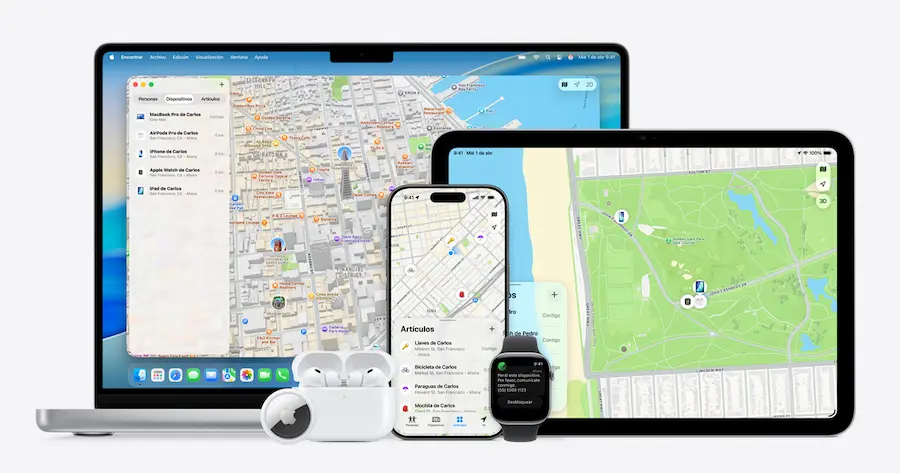
You also need to distinguish between sharing your personal location and locating a device. Apple’s personal safety documentation explains that Family Sharing members with whom you share your location may have access to the location of compatible devices in the Devices tab. Therefore, a pause in People should not be interpreted as a general guarantee covering any access to the device.
The Find My network operates on another level: on compatible iPhones, it can allow the device to be located for up to 24 hours after it has been turned off. Disabling that network prevents this location tracking while the phone is powered off, while turning off Find My completely removes the ability to locate, lock or erase the device if it is lost or stolen.
That cost explains why these are not equivalent alternatives to temporarily hiding from a contact. If your situation involves personal safety, review Apple’s documentation and your account and device settings before relying on a single option. For an everyday pause, however, the key reference is the individual control and the resume time shown by Find My.


