


If you usually rely on Google Maps for everything, but you drive often and want to stay ahead of traffic jams, accidents, or speed cameras, Waze is an alternative worth having on your phone—along with, of course, V16 beacons. Its pitch is simple: GPS navigation with real-time traffic information, powered by a community of drivers who report what’s happening on the road—from an unexpected slowdown to a police checkpoint. And yes, it works especially well when what matters to you isn’t just arriving, but arriving sooner.
People searching for “Waze” usually have two goals: understanding how it differs from other map apps, and learning how to use its key features—especially alerts, planning, and route options. Here are the essentials, straight to the point, with the practical focus you appreciate when you’re about to start the car.
What is Waze and why it stands out from other apps
Waze is a navigation app designed for drivers, with a focus on live traffic. Rather than simply calculating a route and giving turn-by-turn directions, its strength is combining GPS with user-contributed data: incident reports, congestion levels, road hazards, or the presence of police controls. That “social” layer isn’t just a nice extra—it’s the core of the service, and what makes it more reactive and dynamic on certain urban routes or during rush hour.
In practice, Waze guides you to your destination by aiming for the shortest possible time, suggests when it makes sense to leave based on traffic conditions, and, while you drive, notifies you about relevant events along the way. It also shows useful information like gas stations, points of interest, and street parking or nearby parking garages—especially handy when you’re driving in areas you don’t know well.
An interesting detail is how it’s organized around the community: in each country there’s a user group that acts as a bridge between people reporting issues and the Waze team itself, helping maintain a steady flow of information and updates. You feel this in day-to-day use because alerts get updated and other drivers can confirm whether an incident is still active, which improves reliability as minutes pass. Does it sound like a road “hive mind”? In a way, yes—but with immediate practical value.
In terms of compatibility, Waze works with Android Auto and Apple CarPlay, so you can use it on your car’s display with real-time updates. For Android Auto, the typical setup is connecting your phone to the vehicle via USB cable, while Apple CarPlay can be via USB or wirelessly. As for requirements, it’s listed as iOS 13 or later, or Android 6 or higher, plus GPS and mobile data connectivity (GSM/3G/4G/5G) for the whole system to make sense.
One important note: Waze is free, but it relies on mobile data. If you’re going to use it for hours or you’re traveling abroad on a Spanish mobile plan, it’s worth keeping an eye on data consumption, because continuous use can burn through a significant amount of megabytes.
Key features: routes, alerts, and driving options
The main mission is navigation, but Waze adds several layers of customization and context. For example, you can change the voice that guides you—at this point almost a geek ritual: a neutral voice isn’t the same as a character voice, and Waze has even offered options featuring well-known public figures and popular characters. It’s more entertaining than it sounds, especially if you do a lot of driving and don’t want every trip to sound the same.
Where it really makes a difference is real-time traffic and the ability to reroute if it detects conditions worse than expected. You may be given an alternative route that’s slightly longer in distance but faster in time—which is exactly the kind of decision that makes sense when the map is “alive.” You can also check practical info like where the cheapest fuel is among stations along your route.
Another feature that earns points is its integration to listen to music or podcasts without leaving the app. It seems minor until you realize how easy it is to get distracted by tapping the screen too much. And yes, the goal is for your phone to be a co-pilot, not a final boss.
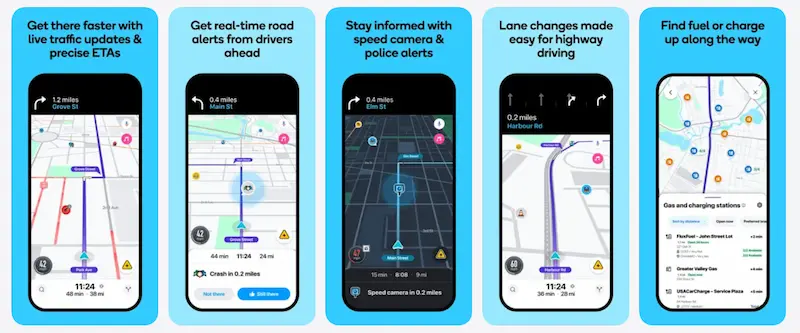
The reporting system is Waze’s community heart. From the yellow icon, you can report incidents and add details that improve accuracy: traffic severity (moderate, heavy, or standstill), whether police are visible or hidden, or the type of accident. You can also add photos or comments, as long as it’s safe to do so. The available alerts cover a lot: traffic, police, accident, hazards (like potholes, objects on the road, a car on the shoulder, or a broken traffic light), road closures, blocked lanes, map errors for support to review, and bad weather conditions such as fog or flooding. It even lets you submit fuel prices if there’s a station nearby, and includes options like roadside assistance, map chat, or reporting a place with a photo—along with the note that your username may be shown and that it’s used in Google services.
When it comes to route preferences, Waze lets you avoid tolls, as well as highways, ferries, unpaved roads, or difficult intersections through the route options. You can also specify toll passes so the system knows which lanes or checkpoints are best for you. This is especially useful if you drive in areas where tolls can significantly increase the cost of a trip—or, on the flip side, if you’re happy to pay to save as much time as possible.
Getting started: downloading, planning trips, and offline limitations
Waze is available for free on Android and iOS. You can also use it in a desktop browser to check road conditions, see traffic before you leave, or review a route, though it’s still most convenient on your phone—especially if you want live navigation and real-time alerts. You can use it without registering, but if you want access to all features, like reporting incidents or receiving directions, you’ll typically use an account.
To plan a route, Waze includes the “Plan a drive” option, designed to help you anticipate when roads will be more congested. The flow is simple: tap the + icon at the bottom right, enter the address, and you can sync with your calendar so it tells you when it’s best to leave. Waze shows a duration estimate based on your departure time, and you can save the plan to keep it handy. Once saved, the three-dot menu next to the route lets you edit it or view extra info, like parking.
During the trip, you can open the bottom panel to adjust the route, and add “pit stops” with the Add a stop option, as well as using the food and gas icons for quick suggestions. If you need to cancel the plan, the option is Stop, and if you want to compare alternatives, you can go to Routes to see options with estimated times. On the map, Waze uses colors for congestion: roads in red when they’re very busy and orange when traffic is moderate, along with current speeds to understand the real pace.
Waze’s biggest limitation shows up when we talk about offline use: it isn’t designed to work offline, precisely because its social features and real-time data require stable internet. If you expect to lose signal, a practical tip is to start the route before you go to minimize issues, though the app can still drop out and fail to locate your position until coverage returns. In those stretches, it’s sensible to have an alternative ready, because Waze shines with connectivity and fades when it doesn’t have it.


