

Google Maps is one of those apps many of us open almost on autopilot: search for a destination, tap directions, and that’s it. But precisely because we use it so often, it is easy to overlook features that solve very everyday problems, from remembering where you parked the car to preparing a route on your computer and sending it to your phone without doing the work twice. If you came here looking for useful Google Maps tricks, here are seven options worth keeping in mind.
Most of them work in a very similar way on Android and iPhone, although some menu names may vary slightly. We are not talking about hidden experiments for advanced users, but tools already built into the app that, used wisely, make Maps feel less like a simple navigator and more like the digital co-pilot we would all like to have when the day gets complicated.
Park, add stops and plan better
The first trick is one you will appreciate in large car parks: saving your car’s location. After parking, tap the blue dot that marks your position and choose the option to save your parking spot. Later, when you return, you can search for the saved location or see it as a suggestion. On iPhone, if your phone is connected to the car, Google Maps lets you enable automatic parking saving from the navigation settings and parking options, which is very useful if you have been using CarPlay and expected that behaviour.
You can also add a stop without rebuilding the entire route. During navigation, tap the magnifying glass, search for a petrol station, a café or whatever place you need, and Maps will show how much extra time the detour adds before including it. That said, if you are driving, it is better to do it while stopped, with help from a passenger or using voice commands; no gadget is worth a distraction at the wheel.
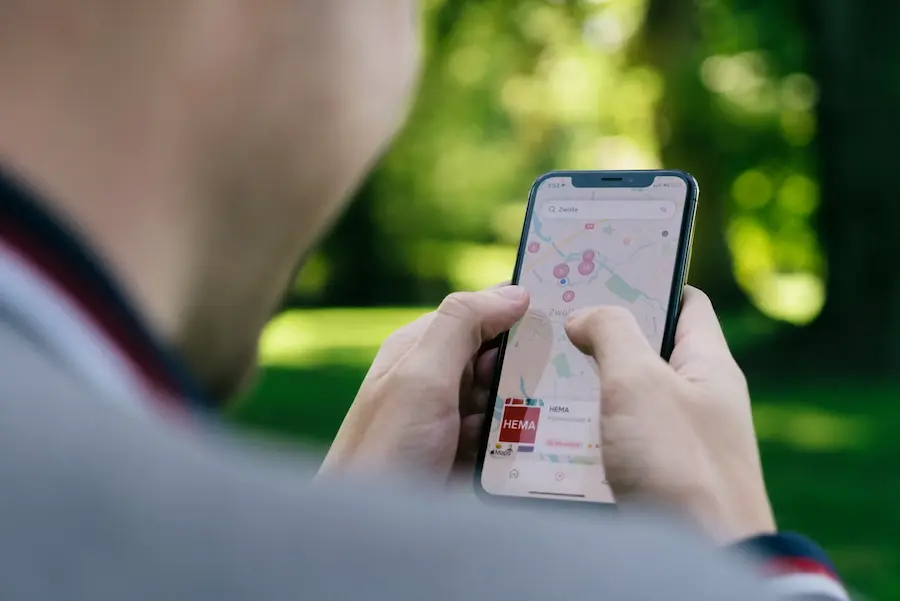
For more complex routes, the computer still has the advantage: a larger screen, more context and less compulsive zooming. If you are signed in with the same Google account on your PC and your phone, you can click to send directions to your phone and open the route there. Maps also lets you specify what time you want to arrive, so it works backwards to calculate when you should leave based on the usual expected traffic.
Offline maps and more pleasant walking routes
Another especially practical feature is downloading maps before you lose coverage. Search for the area you are interested in, open the options and choose to download an offline map. You can adjust the area before saving it to your phone, which is recommended if you are driving through rural areas, travelling abroad or passing through places where the mobile signal tends to do a little rage quit.
There are important nuances: with the map downloaded, Google Maps can provide driving directions as long as the entire route stays within the saved area, but you will not have real-time traffic information or updated alternative routes. Walking, cycling and public transport directions are also unavailable when working offline, so it is best to see this as a safety net for driving, not as a full copy of the online experience.
When you do have a connection and are walking, Maps can also make the journey smoother. In a walking route, go into the trip options and enable the wheelchair-accessible alternative. The app will try to prioritise routes without stairs and with lifts where possible, an advantage if you are carrying luggage, pushing a pram or simply do not feel like turning an urban walk into an improvised gym session.
Share your trip and get more out of Google Maps
If someone is waiting for you, sharing your trip progress avoids the classic “I’m nearly there” message, which we all know can mean anything from two minutes to half an hour. Start navigation, swipe up on the information card and tap share trip progress. You can choose a contact or send the link through another app so the other person can see your current location, destination and estimated arrival time while you stay on route.
The interesting thing is that this feature does not stay open indefinitely: when you arrive or stop navigation, tracking ends automatically. It is a convenient way to provide context without typing messages every few kilometres, almost like turning yourself into a ride-sharing vehicle for a while, but without a star rating system or a driver review at the end.
Taken together, these tricks show that Google Maps is far more flexible than it may seem in everyday use. Saving your parking spot avoids pointless laps, adding stops reduces detours, planning from your PC saves patience, setting an arrival time improves forecasting, accessible routes help more than you might expect and offline maps can get you out of a real bind. How many times have we opened Maps just to get from A to B without looking at everything around it? That is the key: you do not need to master secret menus, just know what to tap at the right moment.


